
Samsung Galaxy phones are the undisputed kings of customization. From the layout of your home screen to the exact color of your notification shade, Samsung's One UI software lets you tweak almost everything — and screen capture is no exception.
While every Android phone shares one universal screenshot combo (the full cross-brand rundown lives in our how to take a screenshot on Android guide), Samsung stacks four more methods on top of it. There's a gesture, two voice assistants, and — if you own an S Pen model — the single most powerful capture tool on any phone.
Whether you're saving a boarding pass, grabbing a long chat thread, or pulling one specific image off a website, there's a Samsung method tailored to it. Here's all five, and exactly when to reach for each.
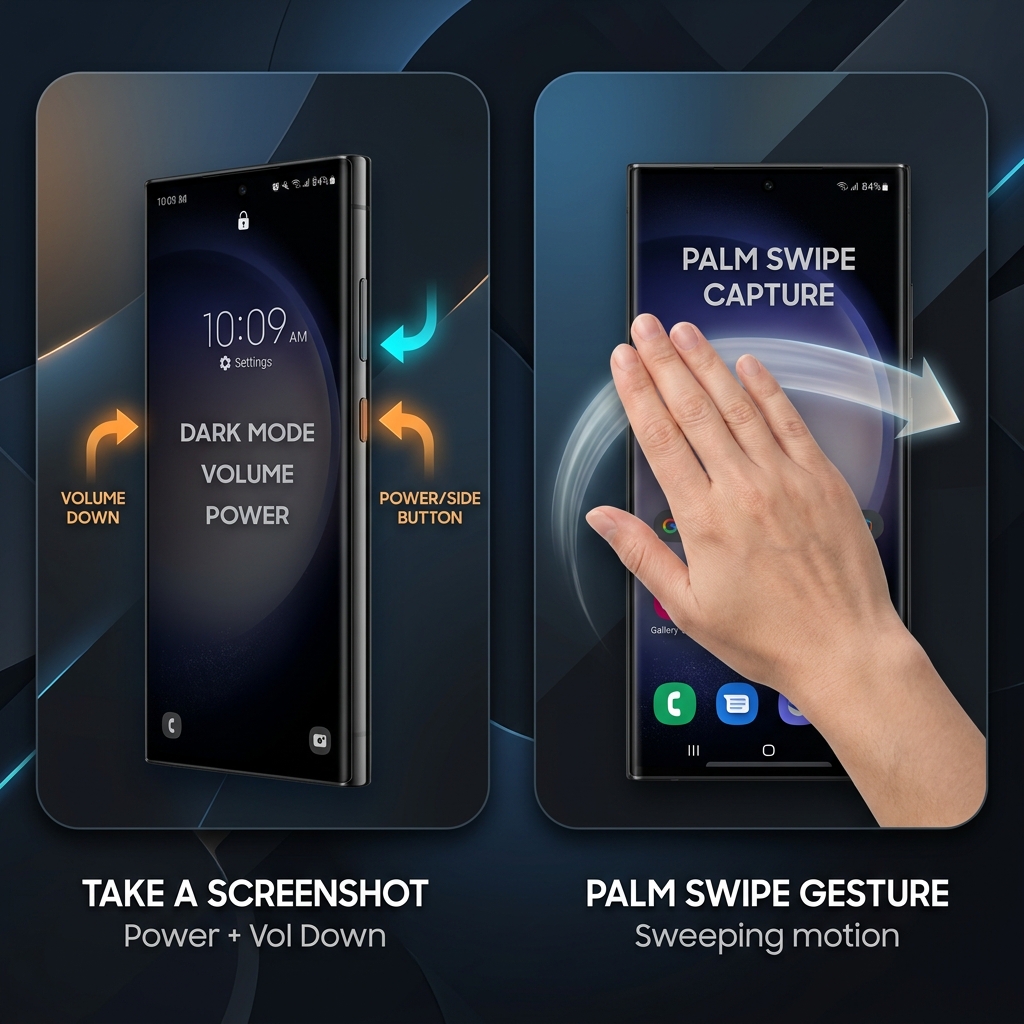
Method 1: The Standard Button Combo (The Most Reliable)
It does not matter if you are holding a flagship Galaxy S-series, a folding Z-series, or a budget-friendly A-series phone. This is the universal Android standard that works every single time.
How to do it:
- Locate the Power button and the Volume Down button. (On modern Samsung phones, both of these are conveniently located on the right side of the device).
- Press both buttons at the exact same time and immediately let go.
- Give them a quick, crisp click. Do not hold the buttons down, or your phone will think you are trying to turn it off and will launch the Power menu.
- The screen will flash, and a screenshot toolbar will temporarily appear at the bottom of your display.
Method 2: The Palm Swipe (The Samsung Way)
Pressing tiny buttons on a massive 6.8-inch smartphone can sometimes feel clumsy. Years ago, Samsung introduced a gesture-based method that has become a fan favorite. It feels a bit like performing a magic trick.
How to do it:
- Place the edge of your hand (the pinky side) vertically against the left or right edge of your screen.
- Keep your hand in contact with the glass and swipe horizontally across the screen in one smooth motion, like a scanner passing over a document.
- The screen will flash, capturing the image.
(If this does not work, it might be disabled. Go to Settings > Advanced features > Motions and gestures, and toggle on Palm swipe to capture).
Method 3: The Voice Command (Hands-Free)
If your hands are full, dirty from cooking, or you are wearing thick winter gloves, you can completely bypass the touchscreen and the physical buttons. Samsung phones have two different voice assistants built in that can handle this for you.
How to do it:
- Wake up your preferred assistant by saying either "Hi Bixby" or "Hey Google."
- Follow it immediately with the command: "Take a screenshot."
- The phone will quietly capture exactly what is on the screen and automatically save it to your gallery.
Method 4: Smart Select (For S Pen Users)
If you own a Galaxy S24 Ultra, an older Note device, or a Galaxy Z Fold with an S Pen, you have access to the most powerful screenshot tool on the market. Smart Select lets you bypass the cropping phase entirely.
How to do it:
- Pull out your S Pen to automatically launch the Air Command menu.
- Tap Smart Select.
- Choose your shape at the bottom of the screen (Rectangle, Lasso, or Circle).
- Use the S Pen to draw exactly around the item you want to capture.
- Once selected, you can extract text from the image, pin it to your screen, or hit the download arrow to save it.
Enjoying this read?
Get weekly insights on video editing, AI workflows, and creator growth straight to your inbox.
The Secret Weapon: Scroll Capture
You are looking at a long recipe, a lengthy article, or an endless group chat, and you want to save the whole thing. You do not need to take six different screenshots and clutter up your photo gallery. Samsung has a brilliant built-in scrolling capture feature.
How to do it:
- Take a standard screenshot using the Button Combo or the Palm Swipe.
- Look at the small toolbar that immediately pops up at the bottom of your screen.
- Tap the icon on the far left that looks like two downward-pointing arrows bouncing inside a box.
- The screen will automatically scroll down, capturing a long, continuous image. Keep tapping the arrow button until you have captured the entire page, then simply tap anywhere else on the screen to save it.
Bonus: Extract Text and Tweak the Toolbar
A couple of One UI extras make Samsung's capture genuinely smarter than the competition:
- Pull text straight out of a screenshot: open any screenshot in the Gallery and tap the "T" text-extract icon — One UI's built-in OCR copies the words out of the image, no retyping required. (Smart Select does the same on the fly.)
- Control what appears after you capture: in Settings → Advanced features → Screenshots and screen recorder, you can toggle the after-capture toolbar, hide the status and navigation bars from your shots, and switch the saved format between JPG and PNG.
Where Do Samsung Screenshots Save?
Every capture lands in a dedicated Screenshots album in your Gallery (stored in the DCIM/Screenshots folder) and syncs automatically if you use Samsung Cloud or Google Photos. To stop the loud shutter click in quiet rooms, mute your phone or disable the sound in the same Screenshots settings menu above.
Upgrade Your Desktop Presentations
Snapping a screenshot on your Galaxy is perfect for saving a meme or a quick note on the go. But when you sit down at your desktop to build a software tutorial, record a bug report, or deliver a client presentation, static screenshots and messy red arrows aren't enough. (Switching from an iPhone, or use both? Here's the iPhone screenshot guide and the any-device cheat sheet.)
When you're ready to stop manually editing screen recordings and start instantly generating breathtaking, auto-zoomed, cinematic video walkthroughs — with no video timeline at all — explore Cubix Capture.
Don’t miss the next one.
Join our newsletter for exclusive tips, product updates, and the latest from the Cubix team.