
We live in a multi-device world. You might write code on a Mac, game on a Windows PC, text on an iPhone, and test apps on an Android tablet — all before lunch. And because every operating system handles it differently, the simple act of taking a screenshot changes completely depending on which slab of glass is in your hand.
There's nothing more annoying than needing to grab a receipt or a visual bug, only to blank on the shortcut for the exact device you're holding. Consider this your master cheat sheet — a single page covering every major platform in 2026, with a link to the full deep-dive guide for each.
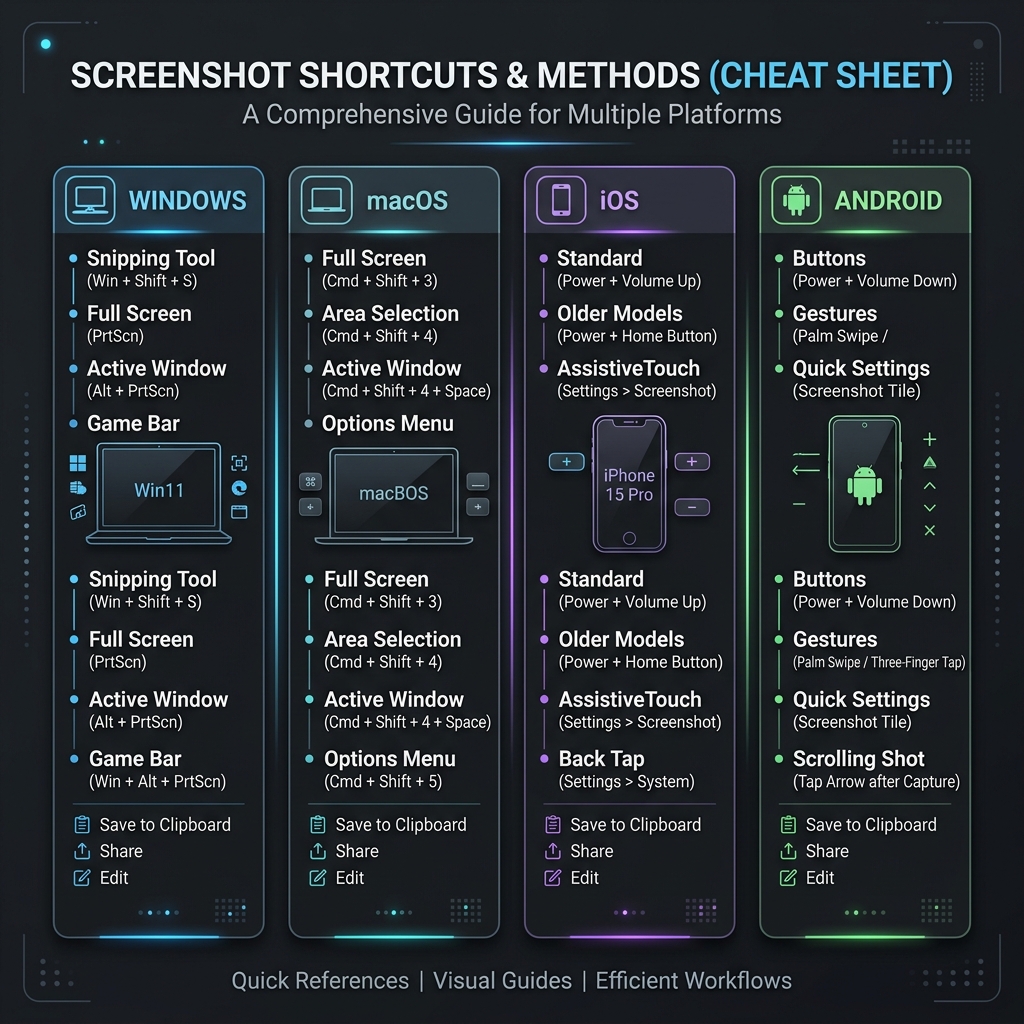
1. Windows PC
Microsoft modernized screen capture across Windows 10 and 11, moving away from clunky third-party apps toward built-in shortcuts.
- Snip an area (best, works on 10 & 11):
Windows + Shift + S— drag a box; the image copies to your clipboard. - Classic full screen:
PrtScn— copies the whole screen (or opens the snip tool on newer Windows 11 builds). - Auto-save a file:
Windows + PrtScn— saves a PNG to Pictures → Screenshots. - One window only:
Alt + PrtScn.
📖 Full guides: How to capture a screenshot on Windows (covers every version) and How to screen capture on Windows 11 (OCR, redaction, and native video).
2. Mac
Apple leans on keyboard shortcuts, giving you precise control over exactly what's saved.
- Entire screen:
Command + Shift + 3. - Selected area:
Command + Shift + 4, then drag a box. - A clean window:
Command + Shift + 4, tap the Spacebar, then click the window (it captures with a drop shadow). - The toolbar for everything:
Command + Shift + 5.
By default, Mac screenshots save to the Desktop as PNG files.
📖 Full guides: How to take a screenshot on Mac — every method (the complete reference) and the beginner-friendly How can I screenshot on Mac.
3. iPhone & iPad (iOS / iPadOS)
The button combo depends on whether your device has Face ID or a physical Home button.
- Face ID (no Home button): press the Side/Top button + Volume Up together, then release.
- Touch ID (Home button): press the Side/Top button + Home button together.
A thumbnail appears in the lower-left corner — tap it to mark it up, or swipe it away to save to Photos.
- Full-page / scrolling screenshot: after capturing in Safari, tap the thumbnail and choose Full Page to save an entire webpage as a single PDF.
- No buttons free? Use Back Tap: in Settings → Accessibility → Touch → Back Tap, assign a double- or triple-tap on the back of the phone to fire a screenshot.
📖 Full guide: How to take a screenshot on iPhone.
4. Android (Samsung, Pixel, OnePlus & more)
Google standardized the core shortcut across nearly every Android phone, with handy extras per brand.
- Universal: press and hold Power + Volume Down for about a second.
- Three-finger swipe: on many phones, swipe down with three fingers (Samsung calls it Palm Swipe — drag the edge of your hand across the screen).
- Scrolling screenshot: after capturing, tap Capture more or the scroll-down arrow to grab a long page in one image.
- Hands-free: ask Google Assistant to "take a screenshot."
📖 Full guides: How to take a screenshot on Android (every brand) and How to take a screenshot on a Samsung phone (Palm Swipe, S Pen & more).
Enjoying this read?
Get weekly insights on video editing, AI workflows, and creator growth straight to your inbox.
5. Chromebook (ChromeOS)
- Whole screen:
Shift + Ctrl + Show Windows(the key with overlapping rectangles, where F5 sits on a PC keyboard). - Part of the screen: add Shift and drag —
Shift + Ctrl + Show Windows, then select your area. - External keyboard with no Show Windows key:
Ctrl + F5, orCtrl + Shift + F5for a partial capture.
📖 Full guide: How to take a screenshot on a Chromebook.
6. Laptop Brands (Windows)
The shortcuts are the same across every Windows laptop — but each brand hides the Print Screen key in a different spot and behind a different Fn quirk. Brand-specific walkthroughs: Dell, HP, and Lenovo.
7. Linux
- GNOME (Ubuntu, Fedora): press
PrtScnfor the modern screenshot UI, orShift + PrtScnto select an area. - KDE Plasma:
PrtScnopens Spectacle, a full-featured capture app with delay and region options.
When a Static Image Isn't Enough
Taking a flawless screenshot is a basic digital survival skill — but on every one of these devices, a single still image hits the same wall. If you're stitching together five screenshots, drawing red circles, and typing paragraphs just to explain a software bug or a workflow, you're doing too much manual work. (Here's the difference between screen recording and screen capture, and when each one wins.)
When you're ready to graduate from static images and start generating breathtaking, auto-zoomed cinematic walkthroughs of your screen — without ever opening a video editor — explore Cubix Capture.
Don’t miss the next one.
Join our newsletter for exclusive tips, product updates, and the latest from the Cubix team.