
There are few worse feelings than finishing a 20-minute tutorial, opening the file, and hearing nothing. Silence. All that work, no audio.
Take a breath. A silent Mac recording is almost always one of a small number of specific causes, and every one of them is fixable. Work through this list in order, the most common cause is first, and you will find your culprit.
First, Diagnose: Which Sound Is Missing?
Before fixing anything, get clear on what "no sound" means in your case, because the fixes are completely different:
- Missing your voice / narration? That is a microphone problem. Causes 1 to 4 below.
- Missing the sound coming from your Mac (a video you were playing, app audio, a call)? That is the system audio problem, and it is not a bug. Jump to Cause 5.
Knowing which one you have saves you from chasing the wrong fix.
Cause 1: The Microphone Was Set to "None"
This is the number one reason, by a wide margin. The Mac recorder defaults to recording no microphone unless you explicitly turn it on. Every new session can reset to "None."
Fix:
- Press
Command+Shift+5. - Click Options.
- Under the Microphone heading, make sure an actual microphone is selected (e.g. "MacBook Pro Microphone"), not None.
The checkmark needs to be next to a real device. This single setting accounts for the vast majority of silent recordings.
Cause 2: macOS Microphone Permission Is Off
macOS blocks apps from using the microphone until you grant permission. If the recorder (or QuickTime) never got that permission, it records silence even with a mic selected.
Fix:
- Open System Settings, Privacy & Security, Microphone.
- Make sure the toggle is on for Screenshot / the screen recording tool and for QuickTime Player if you use it.
- If you just enabled it, quit and reopen the app, then record again.
Cause 3: The Input Volume Is Turned Down
Even with the right mic selected and permission granted, if your input level is at zero, you record silence.
Fix:
- Open System Settings, Sound, Input.
- Select your microphone and speak, you should see the input level meter move.
- If the Input volume slider is far left, drag it up.
Cause 4: The Wrong Input Device Is Selected
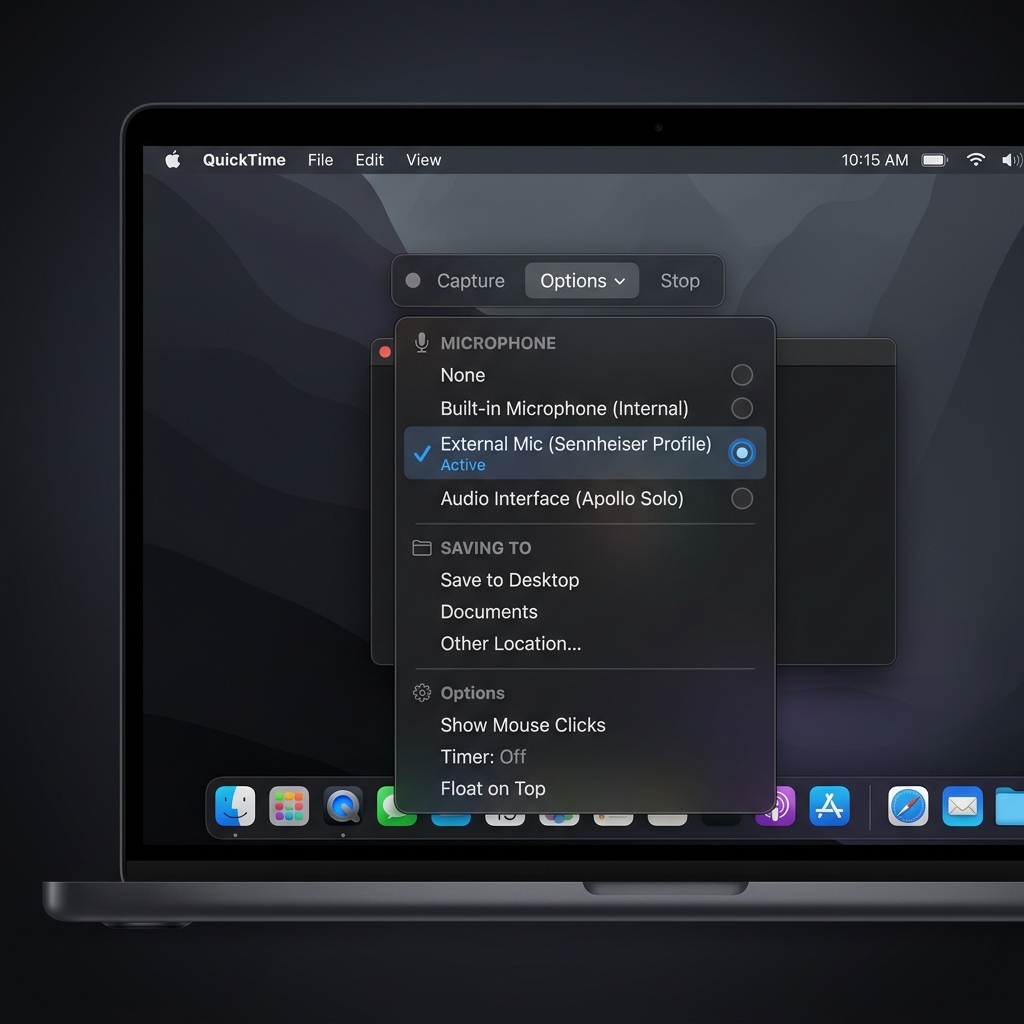
If you have AirPods, an external mic, or a virtual audio device (like BlackHole) connected, your Mac may be listening to a device that is not picking up your voice, for example, an idle Bluetooth mic in another room, or BlackHole, which has no real microphone behind it.
Fix: In Options (in the capture toolbar) and in System Settings, Sound, Input, deliberately pick the device you are actually speaking into. If you previously set BlackHole as your input for system audio, that is why your voice is missing, switch it back to your real microphone.
Enjoying this read?
Get weekly insights on video editing, AI workflows, and creator growth straight to your inbox.
Cause 5: You Wanted System Audio (This Is Not a Bug)
If your voice records fine but the sound from your Mac (a YouTube video, a call, music) is missing, this is expected behavior. Apple's built-in recorder does not capture internal system audio at all. It is a deliberate restriction, not a fault with your setup.
Fix: You need to route system audio into the recorder using a virtual audio device, or use a recorder that captures it directly. We cover every method in How to Record Screen on Mac With Internal Audio. For a no-setup route, see capturing system audio without installing drivers.
Cause 6: Headphones, AirPods, or Output Confusion
Sometimes the audio was recorded, but you cannot hear it on playback because your Mac's output is routed somewhere silent, AirPods that are off, or an external monitor's speakers.
Fix: Before deciding the recording is silent, check System Settings, Sound, Output and play the file again through your laptop speakers. The sound may have been there all along.
Cause 7: An App Was Holding the Microphone
Occasionally a video-call app (Zoom, Teams, FaceTime) keeps an exclusive grip on the microphone, leaving none for your recorder.
Fix: Fully quit any call or audio app, then start your recording fresh.
Still Silent? The Quick Reset
If you have been through the list and still get nothing:
- Quit the recorder / QuickTime completely.
- Restart your Mac (this clears stuck audio device states).
- Reopen, press
Command+Shift+5, set the microphone in Options, and do a quick 10-second test recording before the real one.
That 10-second test habit is the single best way to never lose a long recording to silence again.
The Permanent Fix
Most no-sound problems come from the built-in recorder treating audio as an afterthought, off by default, easy to forget, unable to grab system sound. If you record regularly, that fragility gets old fast.
Cubix Capture records your microphone and your Mac's internal audio together by default, so "no sound" stops being a thing that can happen to you. Once you have audio sorted, the natural next step is recording and editing your clip into something polished.
Don’t miss the next one.
Join our newsletter for exclusive tips, product updates, and the latest from the Cubix team.