
Intermittent is not the same bug as absent.
If your OBS audio never works, that's a routing or permissions problem — go read the complete no-audio fix guide, because nothing on this page will help you.
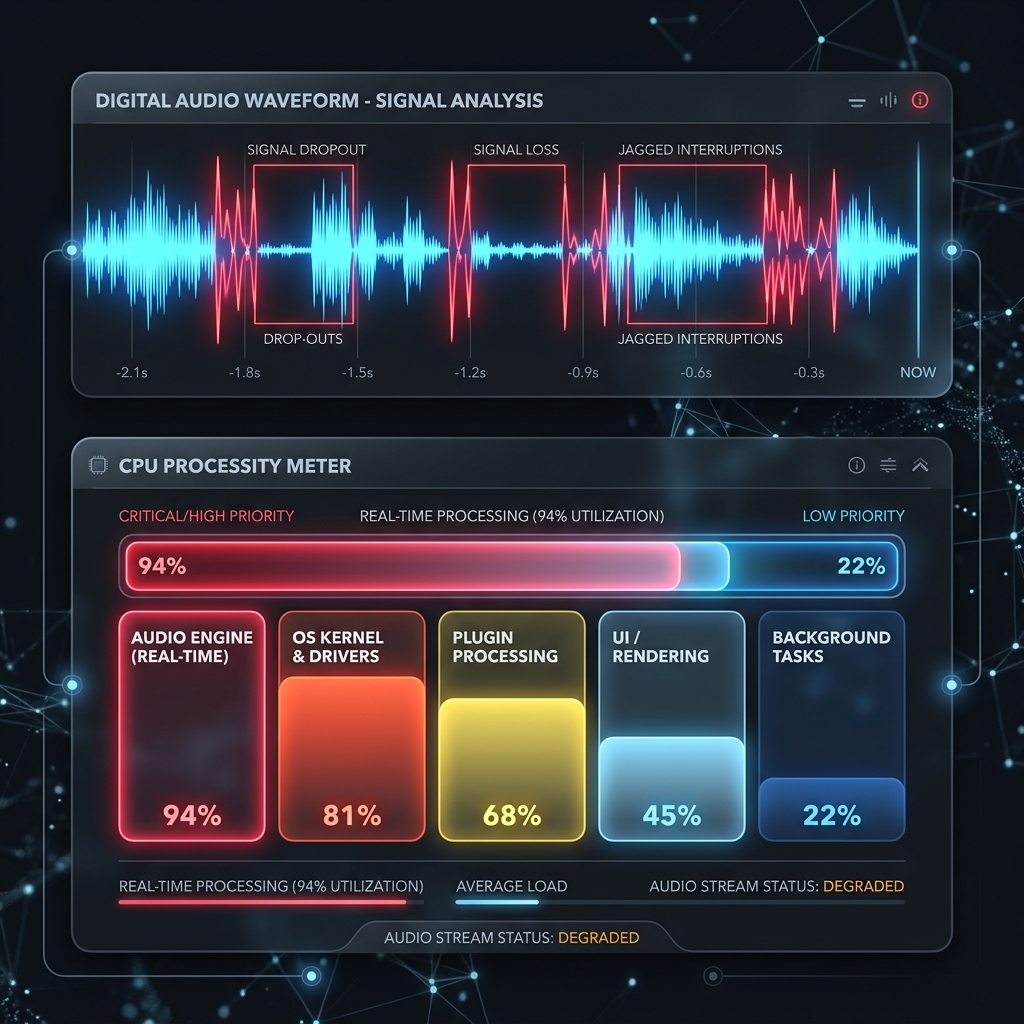
This article is for the other thing: audio that works fine, then vanishes for two to five seconds, then comes back. Maybe every few minutes. Maybe only during games. Maybe only when you talk.
That symptom has its own short list of causes, and they're all about continuity — something briefly interrupting a stream that is otherwise correctly configured. Configuration bugs don't come back on their own. This one does, and that tells you a lot.
Start here: when does it drop?
The timing is the diagnosis. Match your pattern:
| When it cuts out | Almost certainly |
|---|---|
| The moment you start talking | Bluetooth profile switching → Cause 1 |
| During heavy games or rendering | CPU / encoder overload → Cause 2 |
| When you open Discord, Teams, or Zoom | Exclusive mode → Cause 3 |
| After a period of inactivity | USB power saving → Cause 4 |
| When a monitor sleeps or wakes | Device re-enumeration → Cause 5 |
| Randomly, with a rhythmic regularity | Clock drift → Cause 6 |
| Randomly, alongside video stutter | DPC latency → Cause 7 |
Cause 1: Bluetooth profile switching (the big one)
If you use a Bluetooth headset, this is your answer, and it is not fixable by configuring OBS.
The mechanism is worth understanding, because once you know it you'll recognise it everywhere.
A Bluetooth headset can operate in two profiles:
- A2DP — high-quality stereo audio, output only. The mic is unavailable.
- HFP / HSP (Hands-Free) — enables the microphone, but the link is bidirectional and low-bandwidth. Audio quality collapses to something like a phone call, and the device re-registers as a different audio endpoint.
Bluetooth cannot do both at once. It's a bandwidth limit in the protocol, not a Windows bug.
So: the instant any application opens your headset's microphone, Windows switches the headset from A2DP to HFP. The device tears down and re-enumerates. And OBS — which was capturing desktop audio from the A2DP endpoint — loses its source. Your desktop audio drops. Then something releases the mic, Windows switches back to A2DP, and it returns.
This is why it so often correlates with you starting to speak, or with Discord opening, or with a browser tab requesting mic access.
The fixes, in order of how well they work:
- Use a wired or USB microphone, and let the Bluetooth headset be output-only. Then nothing ever requests the Bluetooth mic, the profile never switches, and A2DP stays up. This solves it completely.
- Disable the Hands-Free endpoint entirely.
mmsys.cpl→ Recording tab → right-click Headset (Hands-Free) → Disable. Windows can no longer switch to it. - Stop capturing desktop audio from the Bluetooth device. Point OBS's Desktop Audio at your speakers or another endpoint.
- Go wired. Honestly, for recording, this is the real answer.
Notice what just happened: the fix for a software bug was change your headphones. That's the tell that you're using a live-broadcast tool for a recording job — OBS has to keep an uninterrupted real-time stream alive, so a Bluetooth profile renegotiation punches a hole straight through your file. Cubix Capture records to a resilient local pipeline instead, where a momentary device hiccup doesn't cost you the take.
Cause 2: Encoder or CPU overload
If it drops during games, rendering, or compiling, your machine is running out of headroom and OBS's audio thread is losing the fight.
Diagnose it properly — don't guess. In OBS: View → Docks → Stats. Record for a minute and watch:
- Skipped frames due to encoding lag — your encoder can't keep up.
- Frames missed due to rendering lag — your GPU can't keep up.
- CPU Usage — if OBS alone is over ~15-20%, something's wrong with your settings.
If any of those are climbing, fix the load, not the audio:
- Switch to a hardware encoder. Settings → Output → Recording → Encoder: choose NVENC (NVIDIA), AMF/AV1 (AMD), or QuickSync (Intel) instead of x264. x264 runs on your CPU and competes directly with everything else. This is the single biggest win available.
- Drop the resolution or frame rate. 1440p60 is four times the work of 1080p30.
- Raise process priority. Settings → Advanced → General → Process Priority → Above Normal. This helps but it is a mitigation, not a fix — if you're genuinely out of CPU, priority just moves the pain somewhere else.
Related: OBS screen recording lag fix.
Cause 3: Exclusive mode
Some applications request exclusive control of an audio endpoint to get the lowest possible latency. When they take it, everything else — including OBS — gets locked out until they release it.
Common culprits: Discord, Teams, Zoom, some games, and most pro-audio (ASIO) software.
The fix:
- Windows key + R →
mmsys.cpl. - Playback tab → right-click your device → Properties → Advanced.
- Under Exclusive Mode, untick both boxes:
- Allow applications to take exclusive control of this device
- Give exclusive mode applications priority
- Repeat on the Recording tab for your microphone.
- Apply, then restart OBS.
Cause 4: USB power saving
If your audio interface or USB mic drops out after a quiet period, Windows is powering it down to save energy and then waking it back up.
Two settings, and you need both:
Device Manager: expand Universal Serial Bus controllers. For every USB Root Hub and Generic USB Hub: right-click → Properties → Power Management → untick Allow the computer to turn off this device to save power.
Power plan: Control Panel → Power Options → Change plan settings → Change advanced power settings → USB settings → USB selective suspend setting → Disabled.
Also: plug the mic directly into the machine, not into an unpowered hub, and preferably not into the same hub as a webcam or external drive.
Enjoying this read?
Get weekly insights on video editing, AI workflows, and creator growth straight to your inbox.
Cause 5: Device re-enumeration ("Default" strikes again)
Monitors with speakers over HDMI/DisplayPort are audio endpoints. When the monitor sleeps, that endpoint disappears from Windows. When it wakes, it comes back — often as a new device.
If OBS's Desktop Audio is set to Default, and Windows briefly re-points the default endpoint during that shuffle, OBS follows it into the void.
The fix: in Settings → Audio → Global Audio Devices, never leave anything on Default. Pin Desktop Audio explicitly to a device that isn't going to disappear — your actual speakers or headphones, not a monitor.
Cause 6: Sample rate drift
This is the one case where sample rate genuinely is the cause — and it's worth being precise about why, because the advice gets misapplied constantly.
A mismatch between your hardware's clock and OBS's clock doesn't cause silence. It causes drift: the two clocks tick at fractionally different rates, the audio buffer slowly fills or empties, and when it finally overruns you get a dropout. Then it resets and starts drifting again — which is exactly why the drops feel periodic rather than random.
The fix — and both devices matter:
- Windows key + R →
mmsys.cpl. - Playback tab → your device → Properties → Advanced. Note the format, e.g. 24 bit, 48000 Hz.
- Recording tab → your mic → Properties → Advanced. Set it to the same rate. A mismatch between your own two devices is just as damaging.
- In OBS: Settings → Audio → Sample Rate → match it (48 kHz or 44.1 kHz).
- Restart OBS.
If the drops are periodic and everything else on this page has failed, this is it.
Cause 7: DPC latency
If audio drops and video stutters together, the problem is below the application layer entirely — a driver is monopolising the CPU at interrupt level, starving every real-time process on the machine.
Diagnose: download LatencyMon (free), run it for 5-10 minutes while you use the machine normally, and look at the driver list.
The usual suspects: Wi-Fi drivers (by far the most common), network drivers, GPU drivers, and — a classic — Killer Networking software.
The fix: update or roll back whichever driver LatencyMon names. If it's Wi-Fi, try a wired ethernet connection and disable the Wi-Fi adapter while recording. That fixes a surprising number of "unexplainable" dropouts.
The diagnostic order
Don't shotgun these. Run them in this order:
- Using Bluetooth? Fix that first. It's the answer far more often than anything else, and every other check is wasted effort until you rule it out.
- Open the Stats dock. If frames are being skipped, it's load — switch to a hardware encoder.
- Untick exclusive mode. It's free and takes a minute.
- Pin your devices by name. Get off Default.
- Disable USB power saving.
- Match the sample rates — all three of them.
- Run LatencyMon only if you've exhausted the above.
Why this class of bug exists at all
Every cause on this page is the same underlying story: OBS is treating your audio as a continuous real-time stream that must never be interrupted, and it's asking a general-purpose consumer OS — one that's simultaneously power-managing your USB ports, renegotiating your Bluetooth profiles, and letting Discord seize your sound card — to deliver that stream without a single gap.
That's a genuinely hard ask, and OBS gives you the knobs to make it work because a live broadcast has no second take.
A recording does. Cubix Capture captures to a resilient local pipeline rather than a live broadcast chain, which means a momentary device hiccup doesn't punch a hole in your file. It also captures mic and system audio without asking you to reason about WASAPI endpoints, exclusive mode, or Bluetooth profiles at all.
Related: OBS audio out of sync: the real fix · OBS best settings for screen recording
Don’t miss the next one.
Join our newsletter for exclusive tips, product updates, and the latest from the Cubix team.