
You upgraded to Windows 11, opened OBS exactly the way you always have, and the recording that used to be smooth now stutters and drops frames. The audio is perfectly intact, but the picture skips and freezes enough to make a software tutorial or gameplay clip unwatchable. Nothing about your setup changed except the operating system underneath it, and that is the clue.
When OBS Studio lags on Windows 11, it is rarely an arbitrary software bug. It is a sign that your hardware has hit a critical performance bottleneck. Windows 11 introduces advanced graphics scheduling, window management configurations, and background process architectures that can actively conflict with OBS if not optimized correctly.
To fix the issue permanently, you need to understand whether your system is suffering from Rendering Lag (GPU overload) or Encoding Lag (CPU/encoder chip overload). Here is the definitive guide to optimizing your Windows 11 system parameters and clearing OBS lag for good.
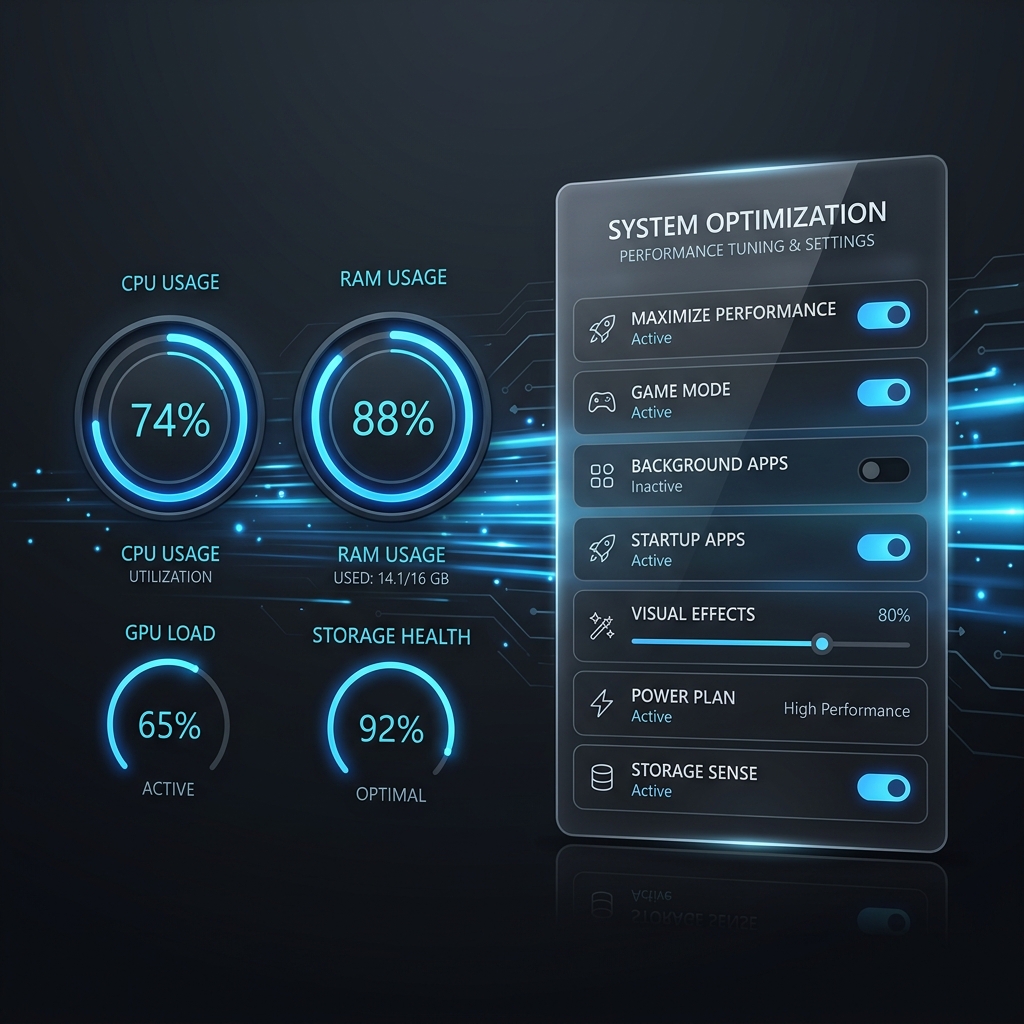
Step 1: Run OBS as Administrator (The GPU Allocation Fix)
If your recording stutters specifically when you run a visually demanding desktop application or 3D game in the foreground, you are dealing with Rendering Lag.
By default, the Windows 11 kernel prioritizes nearly 100% of your Graphics Processing Unit (GPU) performance toward whatever application is actively focused on your screen. Because OBS needs a small fraction of GPU processing power just to compile and render your visual scene layout onto its canvas, it gets pushed to the back of the line, resulting in dropped frames.
- The Fix: Close OBS Studio completely. Right-click your OBS Studio shortcut or executable file and select Run as administrator.
- Make it Permanent: To avoid doing this manually every time, right-click the OBS shortcut, go to Properties, click the Compatibility tab, check the box for "Run this program as an administrator", and hit Apply.
Why this works: Launching with administrative privileges flags a hardware acceleration hook inside the Windows 11 graphics subsystem. It commands the OS to prioritize OBS's background rendering pipeline alongside your focused foreground application, ensuring your video canvas never starves for GPU memory cycles.
Step 2: Configure Windows 11 Graphics Settings
Windows 11 includes a feature called Hardware-Accelerated GPU Scheduling (HAGS). While it is designed to improve game performance, it can occasionally cause severe frame-drops in recording software by locking down GPU resources. Manually forcing Windows 11 to recognize OBS as a high-performance app resolves this conflict.
- Press Windows Key + I to open the Windows 11 Settings app.
- Navigate to System > Display and scroll down to click on Graphics.
- Under the "Custom settings for applications" list, locate OBS Studio. (If it isn't listed, click Browse and find
obs64.exeinside your Program Files folder). - Click on OBS Studio, select Options, change the preference to High performance (targeting your dedicated graphics card), and click Save.
Step 3: Move Encoding Off Your CPU
The two tweaks above target rendering lag, where Windows 11 starves the GPU. If your status bar instead flashes an "Encoding Overloaded" warning, the bottleneck is compression rather than scheduling: OBS is still set to the CPU-bound x264 profile. Open Settings > Output, switch Output Mode to Advanced, and change the Video Encoder to your dedicated hardware chip (NVIDIA NVENC, AMD HW, or Intel QuickSync), then drop the Preset from Max Quality to Quality. On Windows 11 laptops this single change usually clears the warning on its own because the encode no longer competes with your foreground app for CPU cores.
Encoder choice has enough nuance (bitrate targets, rate control, why the hardware chip wins on a single PC) to deserve its own guide. For the full setup, read OBS Encoder Lag: NVENC vs x264 Fix.
Enjoying this read?
Get weekly insights on video editing, AI workflows, and creator growth straight to your inbox.
Step 4: Toggle Windows 11 Game Mode
Windows 11 features a built-in Game Mode configuration designed to optimize hardware allocations while playing games.
- The Strategy: If you are recording hardware-heavy 3D gameplay and experience lag, turn Game Mode On (as Windows 11 has been updated to protect OBS allocations when run as an administrator).
- However, if you are recording standard desktop applications, software walkthroughs, or web browsers, open your Windows 11 Settings, search for Game Mode, and toggle it Off. When recording non-gaming tasks, Game Mode can mistakenly throttle background screen scraping applications, creating micro-stutters.
Performance Parameters At a Glance
| Windows 11 Adjustment | Targets Rendering Lag (GPU) | Targets Encoding Lag (CPU) | Primary Target Use-Case |
|---|---|---|---|
| Run as Administrator | Drastically Reduces (Highest Priority) | Neutral | 3D Apps & Heavy Workspaces |
| High Performance Graphics Option | Eliminates Device Conflicts | Neutral | Dual-GPU Laptops & Multi-Monitors |
| Hardware Encoder (NVENC/AMD) | Neutral | Drastically Reduces (Offloads CPU) | High Bitrate / High Frame Rate |
| Process Priority (Above Normal) | Reduces Processing Latency | Reduces Computation Choke | Multi-Tasking Environments |
Or Skip the Windows 11 Tuning Entirely
Every fix above is really you doing your Windows 11 graphics scheduler's job by hand. That effort pays off if you run live, multi-scene broadcasts. For plain tutorials and product walkthroughs, it is a lot of driver wrangling for a recording nobody watches you make.
Cubix Capture removes the layer completely. It captures your mic, system audio, and screen through one pipeline that stays smooth on ordinary Windows 11 laptops, auto-zooms into whatever you click so text stays legible on phones, and hands you a finished file the moment you stop. No administrator flags, no HAGS toggle, no encoder presets to get wrong.
Related reading:
- OBS FPS Drop Fix: Stop Frame Rate Issues
- OBS Recording Stuttering: Fix Choppy Video
- OBS Lagging: How to Fix Recording and Streaming Lag
Don’t miss the next one.
Join our newsletter for exclusive tips, product updates, and the latest from the Cubix team.