
Here is the thing that makes this bug so maddening: you watched the audio work.
The green bars in the mixer bounced. Your voice registered. Everything looked correct for forty straight minutes. And the file is silent.
That contradiction is not a glitch. It's the single most reliable clue you have, and it narrows the cause down to a very short list. This article is about why it happens — the mental model — because once you understand how OBS routes audio, the fix becomes obvious and you'll never hit it again.
If you just want a checklist to work through top to bottom, use the complete OBS no-audio fix guide instead. This one explains the machine.
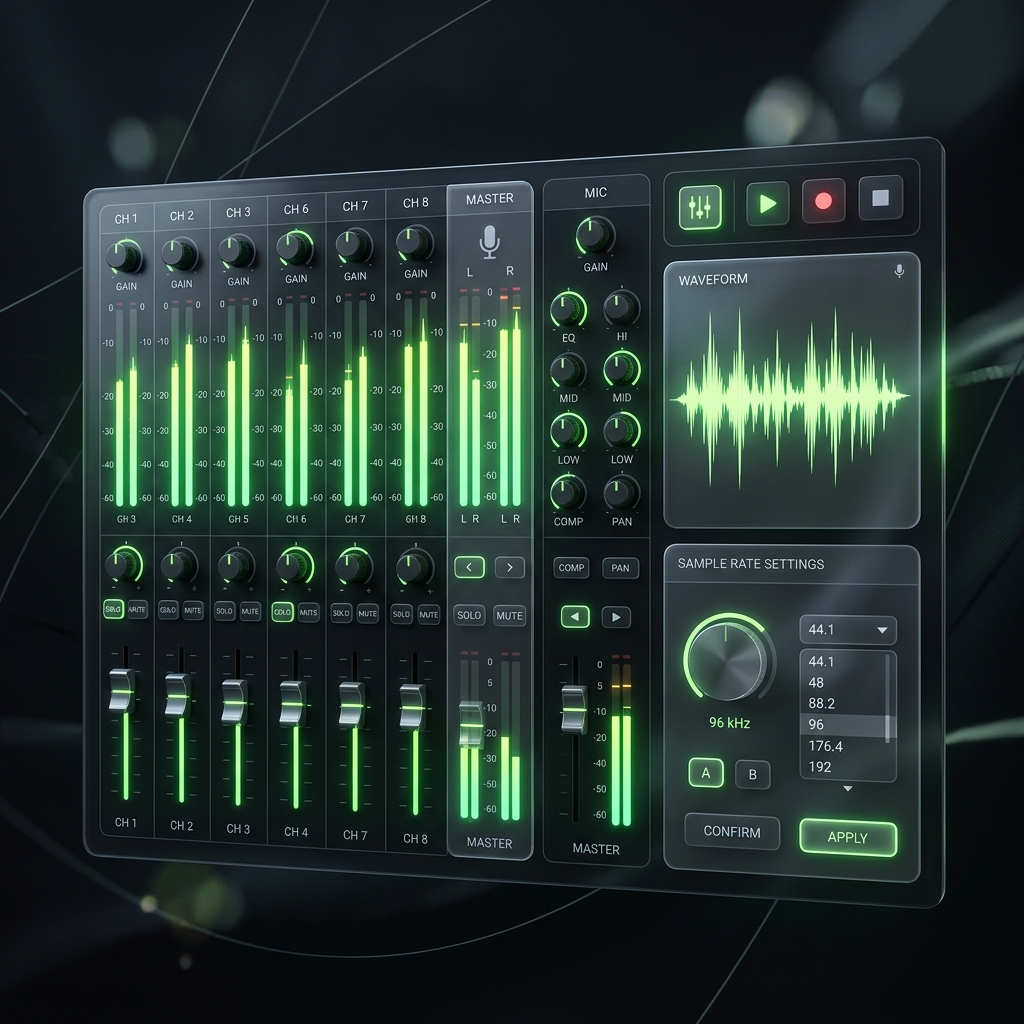
The mental model: OBS is a mixer, not a recorder
This is the root of nearly every OBS audio problem, and it's why advice written for QuickTime or Game Bar doesn't transfer.
A simple screen recorder has one audio path: mic goes in, mic goes in the file. OBS is a broadcast mixing console. Sound travels through three independent stages, and each stage can silently kill it without the previous stage knowing:
Stage 1 — Capture. A source produces audio (your mic, desktop loopback, a browser source).
Stage 2 — The mixer. The level meters you watch. This shows you that stage 1 worked. It tells you nothing about stage 3.
Stage 3 — The muxer. OBS writes the file. It only writes the audio tracks you enabled in the Output settings.
The bouncing green bar is stage 2. Your silent file is stage 3. The mixer is not a preview of your recording — it's a preview of your input. Those bars can bounce beautifully into a file that was never told to include them.
Almost everyone assumes the meters confirm the recording. They don't. They confirm the microphone.
The 30-second triage
Two questions get you to the right section immediately.
Did the mixer bars move while you were recording?
- Yes → the audio reached OBS. Your problem is downstream, in routing or output. Go to Cause 1, 2, or 3.
- No → the audio never got in. It's a device or permissions problem. Go to Cause 4 or 5.
That single question eliminates half the internet's advice for you.
Cause 1: The track mismatch (this is the big one)
Frequency: this is the answer most of the time. It is also the one almost no tutorial explains properly.
OBS can write up to six separate audio tracks into a file — that's how streamers ship a recording with the voice and game audio on separate tracks for later editing. To make that work, there are two independent track settings, in two different places, and they must agree:
- Per source: Mixer → the ⋮ (three dots) next to a source → Advanced Audio Properties → the Tracks checkboxes on the right. This says which track this source is written to.
- Per output: Settings → Output → Recording tab → Audio Track. This says which tracks get written into the file at all.
If your mic is assigned to Track 2, but your Output settings only enable Track 1, then OBS captures your voice, meters it, mixes it — and then discards it at write time. The meters bounce. The file is silent. Perfect, maddening consistency.
The fix:
- Go to Settings → Output. If Output Mode is set to Simple, switch it to Advanced — you cannot see the track checkboxes in Simple mode.
- Open the Recording tab. Find Audio Track and tick Track 1.
- Now open Advanced Audio Properties and make sure every source you want to hear also has Track 1 ticked.
Both places. Track 1. That's the whole fix, and it resolves this bug more often than everything else on this page combined.
If your reaction to that is "why on earth are there two of them" — that's the correct reaction. It exists so broadcasters can ship separate voice and game stems. If you're recording a tutorial, you're maintaining a six-track routing matrix to capture one microphone. Cubix Capture has no track matrix at all, which is why it has no way to produce a silent file.
One quick check before you re-record: open the silent file in VLC and go to Audio → Audio Track. If there's a track listed there other than "Track 1", your audio is in the file — it's just on a track your player didn't pick by default. Recoverable.
Cause 2: "Monitor Only" is silently stealing your audio
The second-most common cause, and a genuinely nasty one because it's a setting people turn on for a good reason and then forget.
In Advanced Audio Properties, each source has an Audio Monitoring dropdown with three options:
- Monitor Off — the source is recorded, but you don't hear it in your headphones. (This is the correct default.)
- Monitor and Output — recorded and played back to you.
- Monitor Only (mute output) — you hear it, and it is not recorded.
That third option does exactly what it says, and its name is doing a lot of work in a place nobody reads carefully. People switch to it to hear themselves while testing, then leave it there. You hear your voice perfectly in your headphones the entire session — which makes you more confident the audio is fine — and OBS writes nothing.
The fix: set every source you want in the file to Monitor Off (or Monitor and Output if you need to hear it). Never leave a source you're recording on Monitor Only.
Cause 3: The source has its own audio, and you're looking at the wrong meter
OBS has two completely different kinds of audio input, and mixing them up produces a very specific confusion:
- Global audio devices (Settings → Audio): your Desktop Audio and Mic/Aux. These are always present, in every scene.
- Source-level audio: a Browser Source, Media Source, Window Capture with audio, or Application Audio Capture carries its own audio, tied to that source in that scene.
Two consequences bite people:
A Display Capture on Windows produces no audio. It's a video source. Full stop. If your only audio is coming from a game or a browser and you never added Desktop Audio or an Application Audio Capture source, there is nothing to record — the video source doesn't bring sound along with it.
Hiding a source mutes it. If you click the 👁 eye icon to hide a source in a scene, its audio goes with it. A source that's hidden in the currently active scene contributes nothing. If you built your audio into Scene A and recorded while Scene B was live, you recorded Scene B's audio — which may be none.
Enjoying this read?
Get weekly insights on video editing, AI workflows, and creator growth straight to your inbox.
Cause 4: The "Default" device trap
If the bars never moved, start here.
In Settings → Audio, the global devices default to Default. That sounds safe. It isn't.
"Default" means whatever Windows currently considers the default endpoint — and Windows changes its mind constantly. Plug in a USB headset, connect Bluetooth earbuds, wake a monitor that has speakers over HDMI, join a Teams call — any of these can re-point the default endpoint. OBS follows it to a device that isn't producing anything, and the meter flatlines.
The fix: never use Default. In Settings → Audio → Global Audio Devices, explicitly select the hardware by name — Microphone (Blue Yeti), Headphones (Realtek Audio). Pin it to the physical device so a Bluetooth handshake can't move it.
Cause 5: The OS revoked permission
Also a "bars never moved" case, and increasingly common because OS updates re-arm these prompts.
- Windows: Settings → Privacy & security → Microphone. Both Microphone access and Let desktop apps access your microphone must be on. The second one is a separate toggle further down and it's the one that catches people.
- macOS: System Settings → Privacy & Security → Microphone, and enable OBS. macOS also requires Screen Recording permission separately. Quit and relaunch OBS fully — the permission doesn't take effect in a running process.
The sample rate myth
You will find a hundred pages telling you to match your sample rate to fix silent audio. Here's the honest correction, because it sends people down a long and useless path:
A sample-rate mismatch does not usually produce silence. OBS resamples. What a mismatch actually produces is crackling, popping, robotic artifacts, or progressive audio/video desync — the audio is present but degraded or drifting.
If your file is completely silent, sample rate is almost certainly not your problem, and matching it will not fix anything. Go back to Cause 1.
Sample rate is a real cause of other bugs, and if that's your actual symptom you want OBS mic crackling and distorted audio or OBS audio out of sync instead.
The summary
| What you saw | What it means |
|---|---|
| Bars bounced, file silent | Track mismatch (Cause 1) or Monitor Only (Cause 2) |
| Bars bounced, some audio in file | A source is on a different track, or hidden in the active scene |
| Bars never moved | Wrong device (Cause 4) or OS permission (Cause 5) |
| Audio present but crackly/drifting | Not this article — that's sample rate |
The unifying insight: OBS gives you a mixing console and assumes you know it's a mixing console. It will happily let the meters, the monitoring path, and the file-writing path disagree with each other, because for a broadcast engineer running six tracks that flexibility is the entire point.
For a person recording a tutorial, it's three ways to lose an afternoon.
When the console is the wrong tool
If you're a streamer with a capture card and separate game/voice/music stems, OBS's routing matrix is genuinely the right instrument and worth learning.
If you're recording a product walkthrough or a course lesson, you are paying the complexity cost of a broadcast desk for a job that needs one microphone and one screen. Cubix Capture takes the other approach — it binds your mic and system audio at capture time with no track matrix, no monitoring modes, and no output-tab checkboxes to disagree with each other. There is no configuration in which it records a silent file, because there is no configuration.
Related: OBS is overkill for screen recording.
Don’t miss the next one.
Join our newsletter for exclusive tips, product updates, and the latest from the Cubix team.