
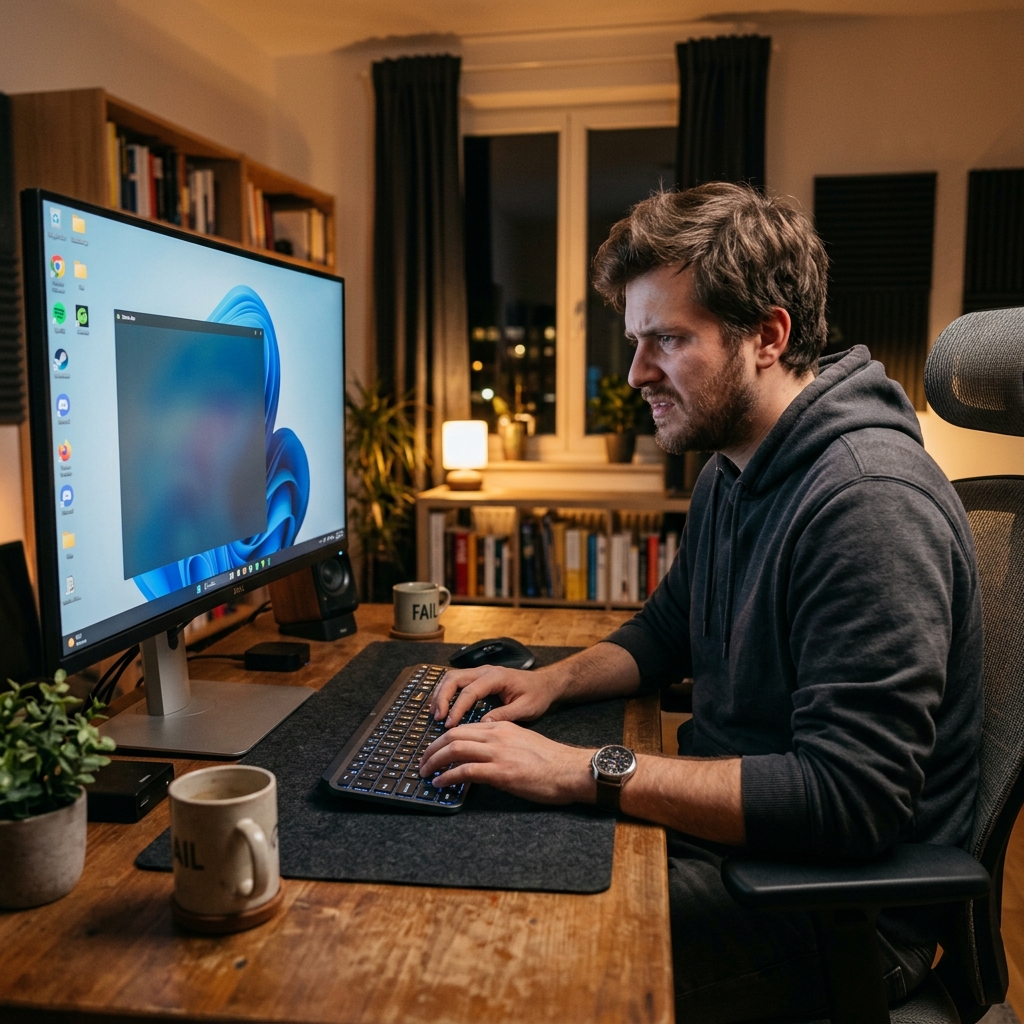
You press Windows + G on your keyboard, expecting the familiar dark menu to pop up so you can record your screen. Instead, nothing happens. Or worse, you get a frustrating error message saying gaming features are not available for the Windows desktop.
When you just need to capture a quick tutorial or save a video clip, a broken Xbox Game Bar is incredibly annoying. It is a common issue in both Windows 10 and Windows 11, often caused by background update glitches or corrupted app data.
Before you pull your hair out, here is the straightforward recipe to fix the Xbox Game Bar so it actually works, followed by a much better alternative if you are tired of dealing with its limitations.
The Quick Recipe: Repair and Reset
Most of the time, the Game Bar just needs a quick reboot inside the Windows system settings. This takes less than a minute and solves the problem for the majority of users.
- Open Settings: Click your Windows Start Menu and click the gear icon to open Settings.
- Find the App: Go to Apps, then click on Installed apps (or Apps & Features). Search for "Xbox Game Bar" in the list.
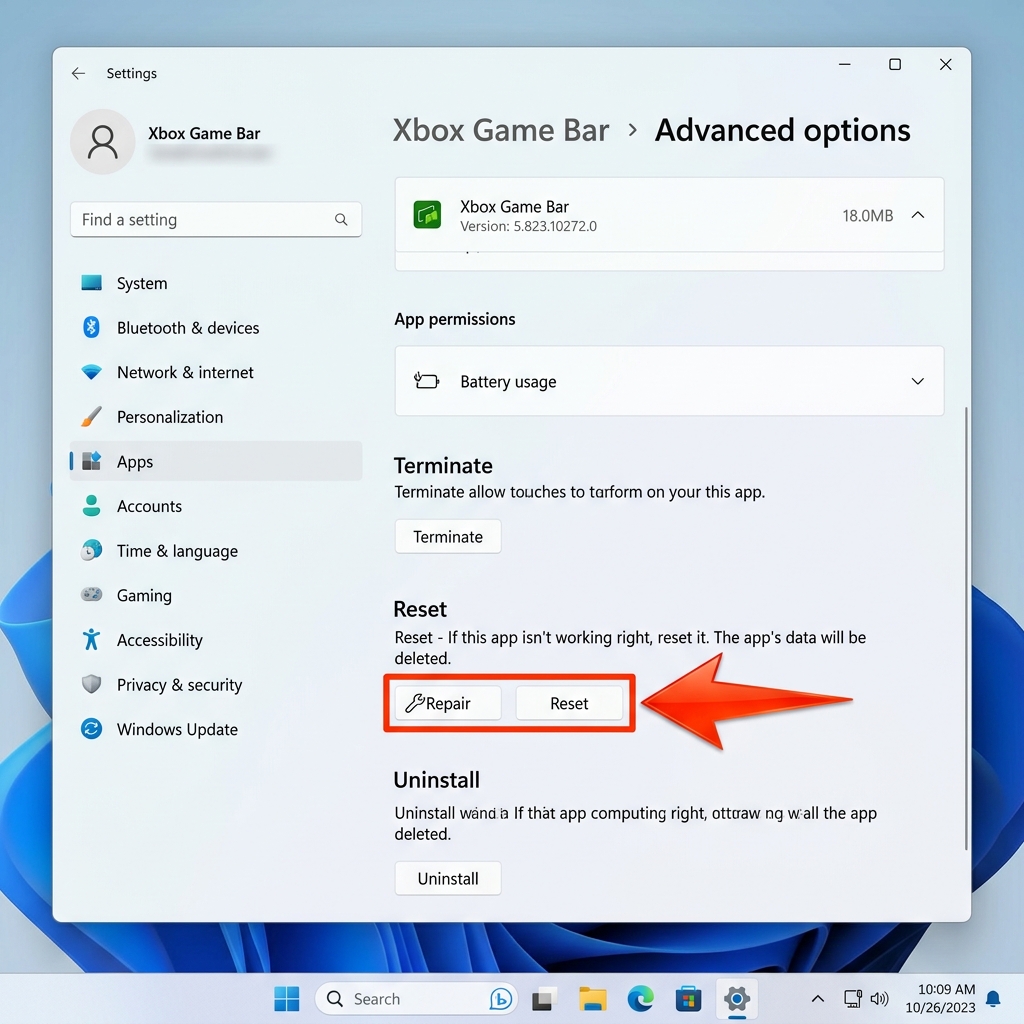
- Advanced Options: Click the three dots next to the app name and select Advanced options.
- Repair: Scroll down until you see the Reset section. Click the Repair button first. Windows will try to fix it without deleting any data. Test the Game Bar by pressing Windows + G.
- Reset: If it is still completely broken, go back to that same menu and click Reset. This clears out old data and gives the app a fresh start.
Check the "On" Switch
Sometimes, a Windows update quietly turns the Game Bar off to save background resources.
- Open Settings, and click on Gaming.
- Select Xbox Game Bar.
- Make sure the main toggle switch at the top is turned On. If it is already on, flip it off and back on again just to reset the connection.
Still stuck after a repair, reset, and toggle? Stubborn cases (a grayed-out Record button, a corrupted app install, or Win+G doing nothing on the desktop) need the deeper steps in our full troubleshooting guide: Xbox Game Bar Screen Recording Not Working, the complete fix.
Enjoying this read?
Get weekly insights on video editing, AI workflows, and creator growth straight to your inbox.
The Hidden Problem with Xbox Game Bar
Getting the Game Bar working again is a relief, but you will quickly realize it has a massive flaw: it was built specifically for video games, not for everyday work.
If you try to record your entire desktop monitor, the file explorer, or switch between a web browser and a Word document, the Xbox Game Bar will simply stop recording. It is strictly limited to capturing one single application at a time.
Furthermore, if you are creating a video tutorial for a colleague or client, standard Windows recordings do not look professional. A massive PC monitor means the text and menus will look tiny to anyone watching on a laptop or mobile phone. Your physical mouse movements will also look jittery and chaotic on video, making your presentation hard to follow.
If your goal is to record clear, helpful, and professional screen videos, you need to stop relying on a gaming tool.
Use This Instead: The Professional Solution
Instead of constantly fixing broken software and settling for videos where the audience has to squint to read your screen, you can use a tool specifically engineered for high-quality communication.
This is where Cubix Capture completely redefines the way you record your Windows PC. It is built to create flawless, human-friendly content without any of the frustrating limitations of basic built-in tools.
Forget about recording raw, messy footage. Cubix Capture refines your presentation perfectly while you speak:
- Intelligent Auto-Zoom: It dynamically tracks the areas you are working on and seamlessly zooms in. This ensures that every tiny button or block of text is perfectly readable for your audience, no matter what device they use.
- Cinematic Cursor Smoothing: It completely eliminates the shaky, erratic movements of your physical mouse. Your cursor path is rendered as a calm, elegant sweep that naturally directs the viewer’s attention.
- Instant Studio Backgrounds: If you activate your webcam, it effortlessly extracts your physical surroundings and replaces them with a distraction-free backdrop.
Fixing the Xbox Game Bar is useful for capturing quick gaming clips. But when you are ready to share valuable information, teach a workflow, or present an idea, choose a screen recorder that guarantees your final video is polished, engaging, and genuinely useful.
If you would rather sidestep the Game Bar entirely, you can record on Windows without Xbox Game Bar using the Snipping Tool, or see every native option in the Windows 11 screen recording guide.
Don’t miss the next one.
Join our newsletter for exclusive tips, product updates, and the latest from the Cubix team.