
When it comes to creating video content from your computer screen, the choice of tools has expanded dramatically. Gone are the days when a screen recorder was just a basic box that output a massive, unedited file onto your hard drive.
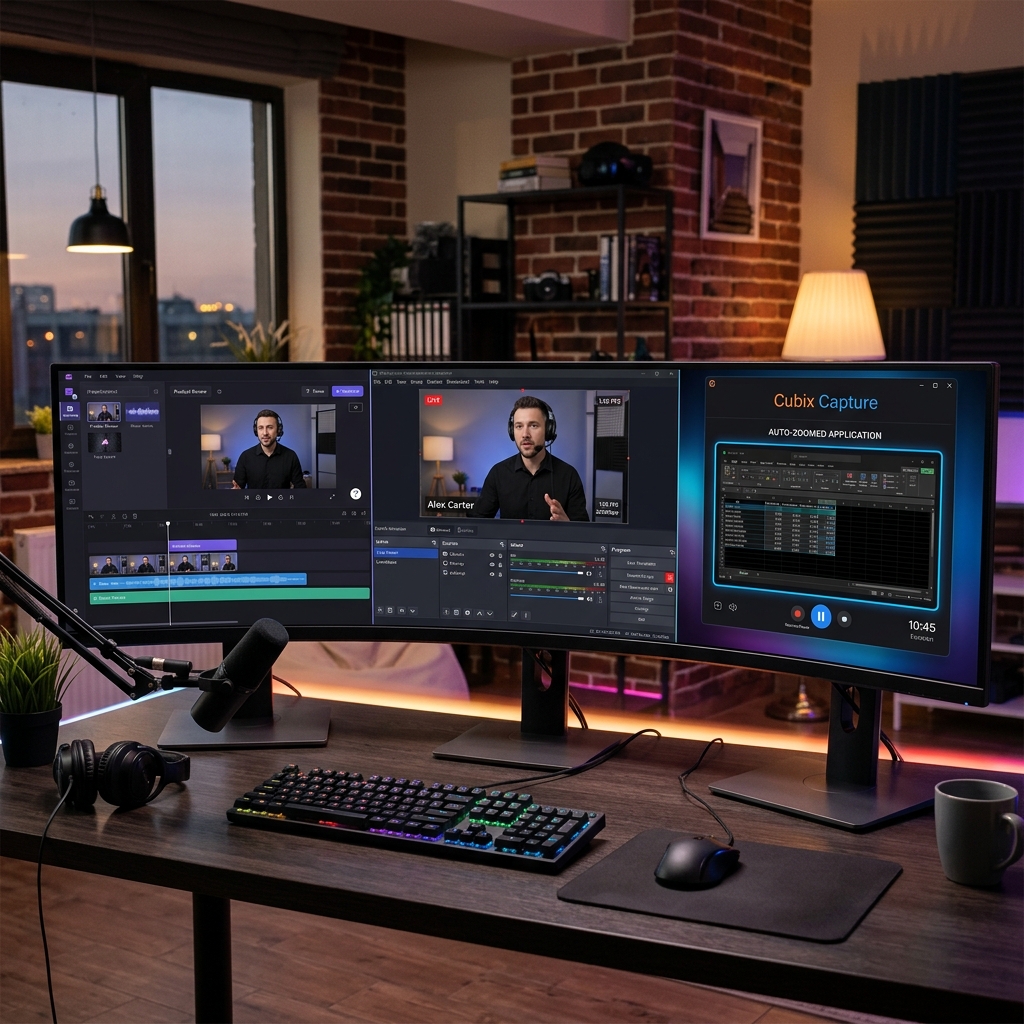
In 2026, the category has split completely based on workflow philosophy. Today, three heavyweights dominate the conversation: Microsoft Clipchamp, OBS Studio, and Cubix Capture.
While all three tools record your display, they are built for entirely different users, skill levels, and distribution channels. Choosing the wrong one can turn a quick 5-minute video task into an exhausting, multi-hour editing chore. Here is the definitive, head-to-head comparison to help you find the perfect software for your workflow.
The Contenders: Understanding the DNA
To choose the right tool, you have to understand what each application was fundamentally designed to do.
- Microsoft Clipchamp (The Traditional Timeline Editor): Baked directly into Windows 11, Clipchamp is a browser-based, linear video editor. It captures your raw screen and webcam, then dumps those media tracks onto a classic timeline interface where you can manually cut clips, overlay music, and add titles.
- OBS Studio (The Open-Source Broadcast Console): OBS is a powerful, 100% free streaming and recording engine. It optimizes for advanced multi-scene layouts, professional audio mixing, and granular encoder settings. It treats your desktop like a raw film plate.
- Cubix Capture (The Automated Presentation Director): Cubix Capture is an intelligent, cross-platform presentation recorder. Instead of giving you raw footage that requires editing later, it tracks your mouse behavior and application active states natively, applying smooth cursor styling, professional frames, and cinematic camera movements while you talk.
Head-to-Head Feature Analysis
1. The Mobile Readability Crisis (Zooming)
- Clipchamp: Records a flat, static pixel map of your monitor. If you record an app on a large desktop monitor, the text will look incredibly microscopic when shrunk down onto a 6-inch smartphone screen. To fix this, you have to split your clips on the timeline manually, scale up the dimensions, and reposition the framing frame-by-frame.
- OBS Studio: Acts like a rigid security camera. It has no built-in mechanism to dynamically follow your mouse. To add zoom effects to an OBS recording, you are forced to export the raw file and spend hours keyframing transitions inside a heavy external editor like Premiere Pro or DaVinci Resolve.
- Cubix Capture: Built specifically to solve the mobile viewing crisis. It features Algorithmic Click-Based Auto-Zooming. As you naturally navigate your workspace, the software automatically tracks your cursor paths and smoothly magnifies your active application windows, dropdowns, or code fields. Your text stays flawlessly legible on smartphones with zero post-capture timeline editing.
2. Mouse Cursor Mechanics
- Clipchamp & OBS: Capture your exact physical mouse input. If your hand tremors, or if you frantically shake your cursor across the trackpad while reading your script notes, that erratic, jittery movement is baked into the video permanently, which can look highly unprofessional under scrutiny.
- Cubix Capture: Applies real-time AI Cursor Path Smoothing. It intercepts your raw trackpad or mouse tracking data and instantly translates it into an elegant, fluid visual glide that calmly leads your viewer's focus.
3. Visual Staging & Aesthetic Appeal
- Clipchamp: Allows you to place your facecam in a standard picture-in-picture square overlay. If you want a stylish background design, you must manually import graphic assets and layer them beneath your screen source on the timeline.
- OBS Studio: Gives you total, manual freedom over scene building, but requires significant setup. You must manually group input sources, drag bounding boxes, and handle advanced chroma-key filters if you want to mask a messy bedroom behind your webcam.
- Cubix Capture: Instantly isolates your targeted application window and beautifully frames it against stunning, built-in Gradient and Live Canvas Backdrops. It separates your webcam into a pristine, floating geometric bubble and applies an optimized studio background blur natively and automatically.
Feature Matrix Comparison
| Creator Metric | Microsoft Clipchamp | OBS Studio | Cubix Capture |
|---|---|---|---|
| Pricing Model | Free (Paid tier for stock media) | 100% Free & Open Source | Free Starter Tier / Affordable Pro |
| Primary Workflow | Raw capture + Manual editing | Raw stream capture only | Automated real-time layout polish |
| Learning Curve | Low to Moderate | High (Technical setup required) | Zero (Plug and play) |
| Camera Zooms | Manual timeline scaling | None (Requires external app) | Algorithmic Click-Based |
| Cursor Handling | Raw physical tracking | Raw physical tracking | AI Path Smoothing |
| Webcam Layout | Square overlay block | Manual box cropping | Floating Bubble + Native Blur |
| Distribution Model | Export to local drive | Export to local drive | Instant zero-render cloud link |
Enjoying this read?
Get weekly insights on video editing, AI workflows, and creator growth straight to your inbox.
Workflow Roadmap: Matching the Tool to the Objective
To maximize your content throughput, you should deploy these tools based on your final delivery destination:
-
Assess for Live Broadcasts or Unrestricted Archival: When to open OBS Studio. If your objective is to live-stream a multi-camera production to YouTube or Twitch, or if you need to capture uncompressed raw game footage across multiple isolated hardware audio tracks for an independent video editor, choose OBS Studio.
-
Evaluate for Traditional Multi-Media Assembly: When to open Clipchamp. If you are building a video that requires traditional linear assembly—such as slicing together separate camera takes, overlaying stock music tracks, throwing text title cards onto a timeline, or stitching external media files together—choose Microsoft Clipchamp.
-
Deploy for Premium Tutorials and Product Walkthroughs: When to open Cubix Capture. If you are creating software tutorials, online course lectures, SaaS product demonstrations, or client updates—and you want your presentation to look elite, highly stylized, and perfectly mobile-optimized without losing your afternoon to a video editing timeline—choose Cubix Capture.
Summary Verdict
- Go with OBS Studio if you are a technical power user who wants absolute, mathematical control over video bitrates and multi-channel audio tracks, and you don't mind the complete lack of editing or automation tools.
- Go with Microsoft Clipchamp if you are a Windows user looking for a traditional, free desktop editing bay to manually stitch, cut, and piece together media layers on a classic multi-track timeline.
- Upgrade to Cubix Capture if you are an educator, founder, or professional whose highest priorities are production speed, visual polish, and mobile legibility. By moving the cinematography, cursor smoothing, and graphic framing into the recording session itself, it gives you studio-grade tutorial assets the exact millisecond you hit stop.
Keep Reading
- Clipchamp vs Cubix Capture: Which Screen Recorder Wins?
- OBS vs Cubix Capture: 2026 Comparison
- Why OBS Studio Is Overkill for Simple Screen Recording
- How to Use OBS to Record Your Screen: A Beginner's Guide
- How to Record Your Screen on Windows Without Clipchamp
- Clipchamp Alternatives: Better Screen Recorders for Windows
Don’t miss the next one.
Join our newsletter for exclusive tips, product updates, and the latest from the Cubix team.