
Imagine walking into a store to buy a new gadget. Instead of letting you hold it and see how it works, the salesperson just hands you a manual filled with text and expects you to understand it.
You would probably walk right out.
The exact same logic applies to software, apps, and digital tools. People do not want to read long paragraphs about what a product can do; they want to see it in action. They want to know exactly how it will solve their specific daily problems. This is why a great product demo video is the single most powerful tool you can have.
However, there is a massive difference between a product demo that puts people to sleep and one that makes them say, "Wow, I need this right now."
Creating a high-quality video might seem like a huge task that requires expensive equipment and complex editing skills. But the truth is, making an engaging, professional product demo comes down to a very simple formula.
Here is the complete guide to recording product demos that people actually want to watch, step-by-step.
For a conversion-focused script angle aimed at SaaS specifically, pair this guide with How to Record a SaaS Product Demo That Converts. If you are choosing tooling first, see Best Screen Recorder for SaaS Founders (2026).
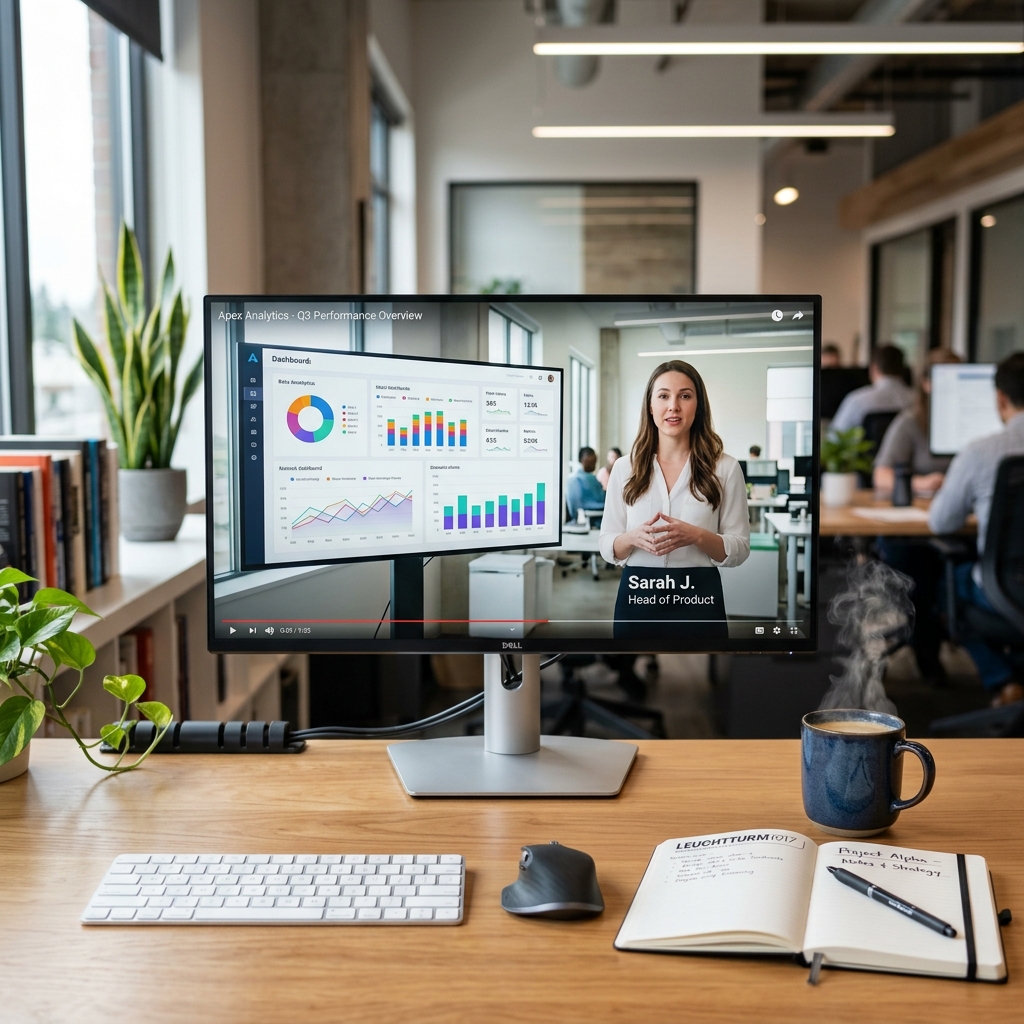
Phase 1: The Setup (Before You Hit Record)
The biggest mistake anyone can make is pressing the record button without a plan. Winging it usually leads to long, rambling videos filled with "ums," "ahs," and awkward pauses.
1. Define the "Aha!" Moment
Every product has a core feature that makes users realize its true value. What is the biggest problem your tool solves? Your demo should focus entirely on guiding the viewer to that specific "Aha!" moment as quickly as possible. Do not try to show every single button and setting. Focus on the main benefit.
2. Write a Simple Outline
You do not need a word-for-word script, as reading from a script can sound robotic. Instead, write down a bulleted list of the three or four main points you want to cover. Keep your language conversational, just like you are explaining it to a friend.
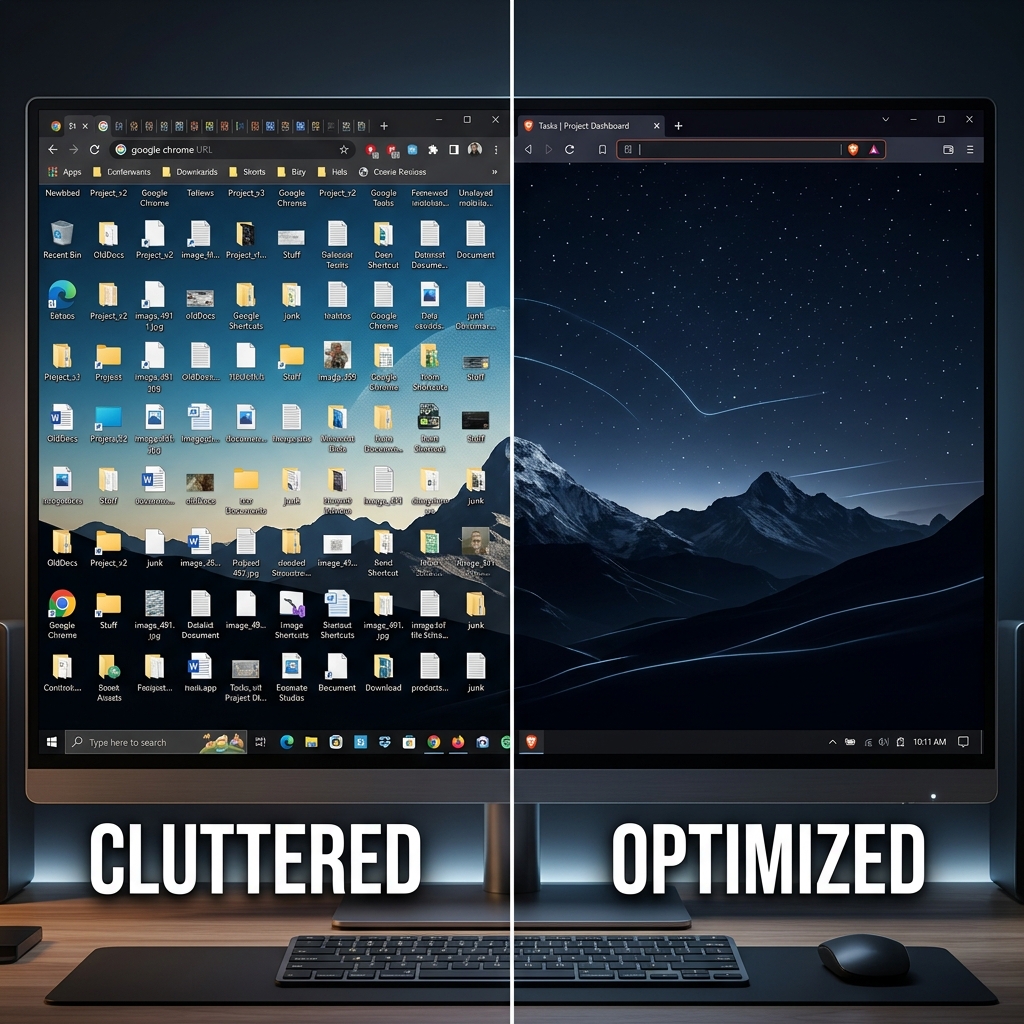
3. Clean Your Digital Canvas
Nothing ruins a professional video faster than a messy computer screen. Viewers will be distracted by your personal folders, random files, or an unexpected email notification popping up in the corner.
- Hide your desktop icons.
- Close all unnecessary browser tabs.
- Turn on "Do Not Disturb" or "Focus Mode" on your computer to block notifications.
Demo Recording Checklist (Copy This)
Before you record, confirm:
- One primary outcome — the viewer knows what they can do after watching (sign up, enable a feature, fix a workflow).
- A single "hero" journey — not a feature encyclopedia. Deep beats broad for first-touch demos.
- Notifications off — Focus Mode / Do Not Disturb so Slack and email never steal attention.
- A clean account — seed data that looks real but contains zero sensitive customer information.
- Audio clarity — quiet room, consistent mic level; bad audio kills demo engagement faster than mediocre video.
Enjoying this read?
Get weekly insights on video editing, AI workflows, and creator growth straight to your inbox.
Phase 2: The Execution (Recording Like a Pro)
Now that you are prepared, it is time to record. This is where most standard screen recordings fall flat because they ignore how the human eye naturally works.
4. Control Your Mouse Movements
Think about how you use a computer normally. Your mouse cursor probably darts around the screen very quickly. In a video recording, fast and erratic mouse movements are incredibly frustrating for a viewer to follow. It looks chaotic and can even cause a bit of motion sickness.
When recording a demo, you must move your cursor slowly and with purpose. Guide the viewer's eye smoothly from one button to the next.
5. Zoom In on What Matters
If you are recording a full computer screen, the actual software buttons, text, and menus are going to look tiny—especially if your viewer is watching the demo on their smartphone on a train commute.
If they cannot read the text on the screen, they will stop watching. The most engaging product demos use strategic zooming. When you are typing in a search bar or clicking a specific menu option, the camera needs to zoom in close to that action, and then smoothly zoom back out. That is the same problem auto-zoom screen recording solves at capture time—see What Is Auto-Zoom Screen Recording? (Complete Guide).
If you have ever tried generic broadcast tools for walkthroughs, read The Problem With OBS for Product Demos before you standardize your stack.
Phase 3: The Secret Weapon (Skipping the Hard Part)
Here is the reality check: doing everything mentioned in Phase 2 usually requires hours of tedious work.
Historically, to get smooth cursor movements and perfect zooming, you had to record a basic video, import it into complex, expensive video editing software, and spend your entire afternoon manually adding zoom frames and trying to edit out jerky mouse movements. It is exhausting, and it is the main reason why most people just settle for boring, static screen recordings.
But technology has evolved, and you no longer have to do this manually.
The secret to creating high-converting, visually stunning product demos without any video editing experience is using a smart screen recording tool that does the heavy lifting for you as you record.
Cubix Capture is built for that workflow: instead of spending hours in post-production, it acts like a camera operator inside your computer while you narrate.
- Auto-Zoom: It detects your clicks and actions and zooms intelligently so viewers never miss a detail—no keyframing after the fact.
- Smooth Cursor: Mouse paths are smoothed in real time so even a nervous hand looks deliberate on playback.
- Live Backgrounds: Swap a messy desktop for staged backgrounds so the demo feels premium in one take.
Start Recording Better Demos Today
A product demo is not just a video; it is your best salesperson working around the clock. By keeping your message focused, keeping your screen clean, and guiding your viewer's attention with smooth movements and zooming, you will turn passive viewers into active users.
You do not need to be a professional video editor to create something amazing. You just need the right tools to present your solution clearly.
If you want beautiful demos without a second editing project, Cubix Capture is built for that workflow.
Related reading:
- How to Record a SaaS Product Demo That Converts
- What Is Auto-Zoom Screen Recording? (Complete Guide)
- How to Choose a Screen Recorder in 2026: Buyer's Guide
- Screen Recording vs Screen Capture: What's the Difference?
- How to Record a Software Tutorial in Under 10 Minutes
Don’t miss the next one.
Join our newsletter for exclusive tips, product updates, and the latest from the Cubix team.