
Welcome to the future of communication. In 2026, sending a long, text-heavy email or a complicated instruction manual is officially a thing of the past. Whether you are teaching a class, showing a client a new software platform, or collaborating with remote teams, video is the default way we share information.
Because video communication is so common, the standard for what makes a "good" video has gone up. Viewers expect high-quality, easy-to-follow content. If your screen recording is confusing, blurry, or chaotic, people will simply click away.
With hundreds of screen recording software options on the market today, picking the right one can feel overwhelming. Do you need a complex editing suite? Do you just need a basic browser extension?
To help you cut through the noise, here is a complete buyer's guide on exactly what to look for when choosing a screen recorder in 2026.
Start with the medium: if you are unsure whether you need video at all, read Screen Recording vs Screen Capture: What's the Difference?. If you are weighing installable apps against browser extensions, compare Chrome Extensions vs Desktop Apps for Screen Recording.
1. Look for Built-In Automation (Zero Editing Required)
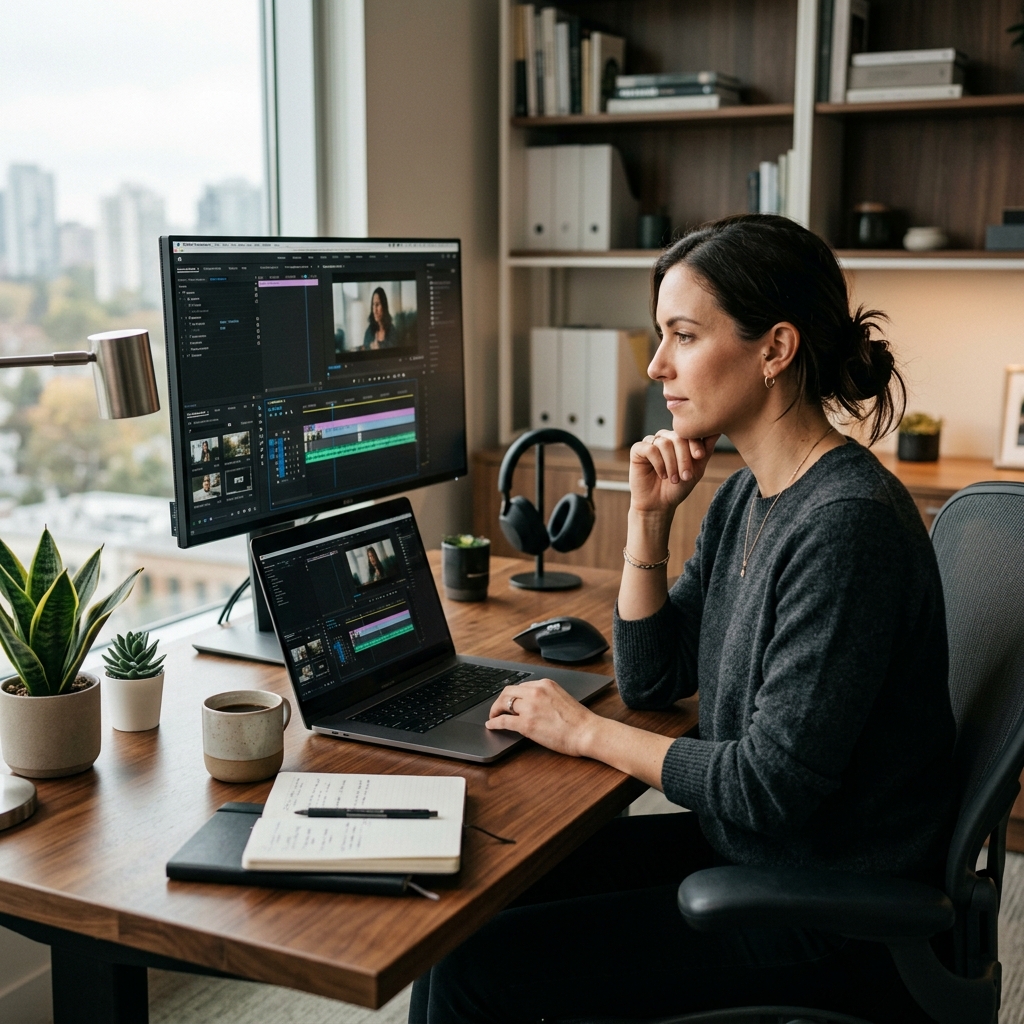
The oldest trap in the video creation world is believing that you need to be a professional video editor to make a great video.
In the past, recording a video was only 10% of the work. The other 90% was spent in heavy, expensive video editing software, cutting out mistakes and trying to make the presentation look presentable.
When searching for the best screen recorder in 2026, your top priority should be your time. You should look for a tool that handles the "editing" automatically while you are recording. If a software requires you to spend an hour tweaking settings after you hit the stop button, it is wasting your time.
Teams that publish daily clips should prioritize the same pillars outlined in Best Screen Recorders That Don't Require Editing.
2. Prioritize the Viewer's Eyes (The Power of Auto-Zoom)
Consider how your audience is consuming your content. A huge percentage of people watch video tutorials and product demos on their smartphones.
If you record your entire desktop monitor and try to explain a tiny button in the top left corner, your mobile viewers will not be able to see it. They will squint, get frustrated, and stop watching.
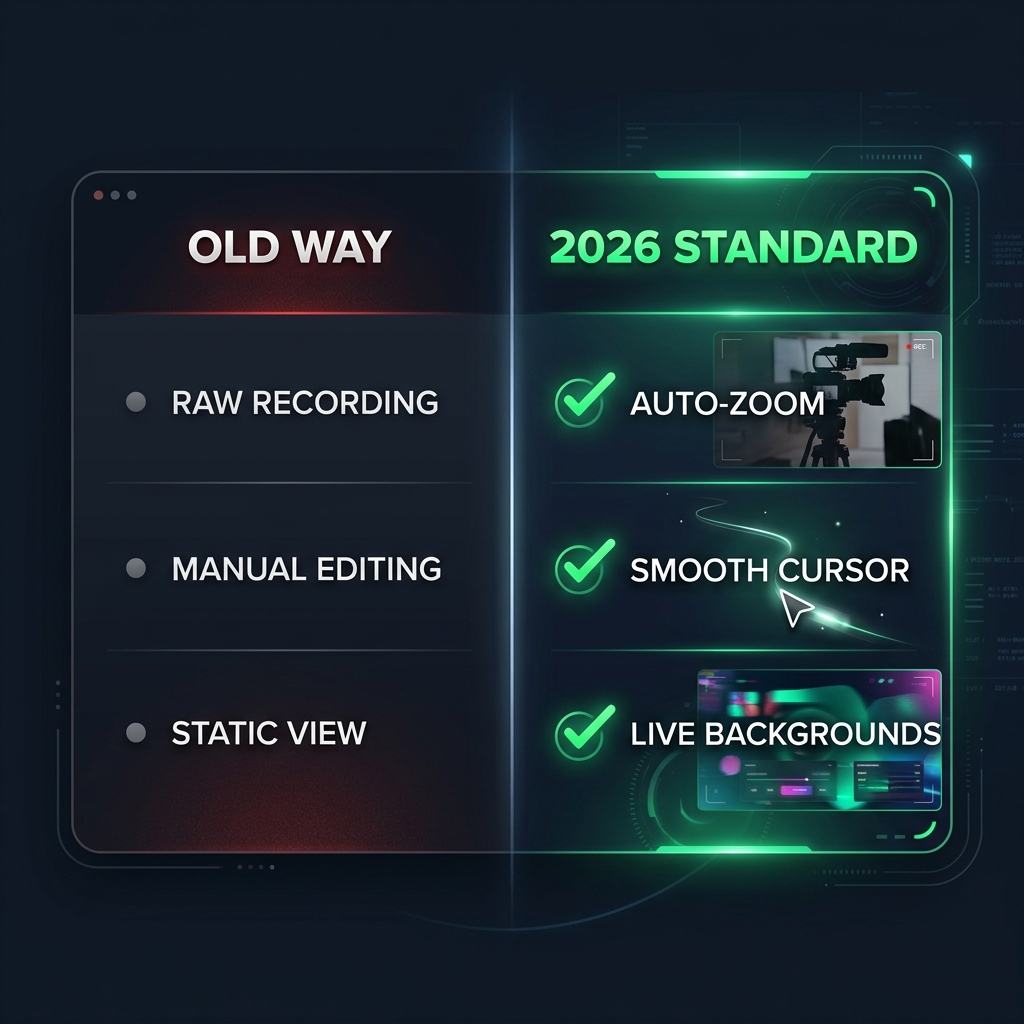
A modern screen recorder must have a feature that solves this. You want to look for technology like auto-zoom. This means the software is smart enough to detect where you click or type and smoothly zoom in on that action. It directs the viewer's attention exactly where it needs to go, keeping the video engaging and crystal clear on any device.
For a deeper explanation of how automatic zoom behaves in real workflows, read What Is Auto-Zoom Screen Recording? (Complete Guide).
3. Insist on a Professional Presentation (Cursor and Background Control)
Human hands are naturally a bit shaky, and when we are thinking and talking, our mouse cursors tend to dart rapidly around the screen. In a video, an erratic, jumpy mouse cursor looks unprofessional and is very distracting to follow.
Furthermore, showing a cluttered computer desktop filled with personal folders or a boring, plain wallpaper instantly lowers the perceived value of your presentation.
Therefore, a top-tier screen recording tool should offer solutions for visual polish:
- Smooth Cursor: The software should automatically smooth out your mouse path, turning rapid, jerky movements into a calm, professional glide.
- Live Backgrounds: Instead of showing your messy desktop, the recorder should allow you to place your software window over clean, dynamic, and high-quality live backgrounds, giving your video a studio-quality finish.
Enjoying this read?
Get weekly insights on video editing, AI workflows, and creator growth straight to your inbox.
4. Match Capture Scope to Your Job (System, Window, or Browser)
Not every recorder can reliably capture offline apps, multiple monitors, full screen, or isolated windows. If you are in engineering, design, or IT, you likely need true desktop capture. If you only ever show a single Chrome tab, a lightweight extension might be enough—until you leave the browser.
Ask vendors (or test free trials) for: multi-monitor behavior, retina / high-DPI clarity, GPU-heavy app performance, and whether recordings survive a browser crash mid-capture.
5. Audio, Export, and Frame Rate (Do Not Treat Them as Afterthoughts)
- Microphone + system audio: Tutorials and reaction-style walkthroughs often need both. Confirm macOS and Windows behavior separately—especially for system audio routing.
- Frame rate: Higher fps helps fast cursor motion and scrolling feel fluid. Read 60fps vs 30fps Screen Recording: Does It Actually Matter? before you assume defaults are "good enough."
- Export formats: MP4 is standard, but verify whether you need lossless intermediate files for a post team.
6. Keep it Simple and Fast
Finally, the best screen recording software is the one that you actually enjoy using. It should not have a steep learning curve. The interface should be intuitive, allowing you to hit record, share your knowledge, and instantly export a beautiful final product.
You should not have to read a manual just to figure out how to record your computer screen.
Making the Right Choice
If you add up all these requirements—automatic editing, intelligent auto-zoom, smooth cursor movements, and professional live backgrounds—you might think you are looking for a highly expensive, enterprise-level tool.
However, technology has adapted to give everyday users exactly what they need. If you want one tool that lines up with this checklist—automation, auto-zoom, smooth cursor paths, and live backgrounds while you record—Cubix Capture is built for that outcome: you stop when the take is done, not when the timeline is done.
If you want OS-specific shortlists next, use Best Screen Recorders for Windows (2026), 7 Best Screen Recorders for Mac (2026), and Best Free Screen Recorder for Mac (2026) alongside this checklist.
Related reading:
- Screen Recording vs Screen Capture: What's the Difference?
- Chrome Extensions vs Desktop Apps for Screen Recording
- Top 5 Auto-Zoom Screen Recorders Compared
- Best Screen Recorder for Remote Teams
- Free Screen Recorders Without Watermarks (2026)
Don’t miss the next one.
Join our newsletter for exclusive tips, product updates, and the latest from the Cubix team.