
The generic instructions for recording with OBS are the same on every platform: add a source, set your audio, pick a format, press record. If that is all you need, the simplest OBS guide covers it in four settings.
This page is about the other half — the parts that are specific to Windows, and that account for nearly every "I followed the guide and it still does not work" case on a PC. Windows gives you three different ways to capture the same thing, two or three graphics processors that may not agree on which one OBS is using, a display scaling system that quietly changes your output resolution, and a permission model that will let OBS show you a window it is not allowed to record.
None of that appears in a cross-platform tutorial, and all of it is why the same steps behave differently on two Windows laptops.
Choose the Right Capture Source
Windows is the only platform where OBS offers three genuinely different capture sources, and picking the wrong one is the most common reason a preview is black.
| Source | Captures | Use it when |
|---|---|---|
| Display Capture | An entire monitor, including overlapping windows, the taskbar and notifications | You are recording a workflow that crosses applications |
| Window Capture | One application, even when covered by another window | You want one app and nothing else on screen |
| Game Capture | A single fullscreen or borderless Direct3D/Vulkan application | You are recording a game |
Two rules that resolve most problems:
- Do not use Game Capture for normal applications. It hooks a graphics API. Browsers and desktop apps that are not rendering through that path will produce nothing. If you are recording Chrome, Figma or a PowerPoint deck, that is Window Capture or Display Capture.
- Do not use Display Capture to record a game. It works, and it costs you frames, because you are asking Windows to composite the whole desktop instead of reading the game's own buffer.
Capture Method Matters More Than the Source
Inside both Display Capture and Window Capture there is a Capture Method dropdown, and it is the setting that fixes black previews:
- Windows 10 (1903 and up) — the Windows Graphics Capture API. Modern, GPU-accelerated, works with hardware-accelerated browsers, and works across GPUs. This is the correct answer most of the time.
- BitBlt — the legacy path. It cannot see hardware-accelerated content, which is why a Chrome window captured with BitBlt is often a black rectangle. It has one advantage: it can capture a window that is minimised or off-screen in some cases, and it does not draw a border.
- Automatic — OBS guesses. It usually guesses well, and when it does not you will not be told.
If a capture is black, changing the method is the first thing to try, and it takes two seconds. OBS black screen: every cause and solution works through the rest.
Windows Graphics Capture draws a yellow border around what it is capturing. Recent Windows builds let OBS suppress it — the properties panel has a "Capture Border" or "Show window border" toggle depending on your OBS version. If yours does not, the border does not appear in the recording itself, only on your live screen.
The Hybrid Graphics Problem
This one deserves its own section because it affects most Windows laptops and almost no desktops, and the symptom looks nothing like the cause.
A laptop with both integrated graphics (Intel Iris, AMD Radeon Graphics) and a discrete GPU (NVIDIA, AMD) decides per application which one to use. If OBS is running on the integrated GPU and the application you are capturing is running on the discrete one, OBS cannot read the surface. You get a black window, an intermittently black window, or one that goes black only when the application is doing something demanding.
The fix is to make them agree:
- Open Settings → System → Display → Graphics on Windows 11 (Graphics settings on Windows 10).
- Add
obs64.exe— usuallyC:\Program Files\obs-studio\bin\64bit\obs64.exe. - Set it to High performance to force the discrete GPU, or Power saving to force integrated.
- Fully quit and reopen OBS.
Which way round? If you are recording games or GPU-heavy applications, put OBS on High performance so it matches them. If you are recording ordinary desktop applications and want to keep the discrete GPU free, Power saving is usually the more stable pairing. Either can be right; what breaks things is leaving it on "Let Windows decide" while capture is failing.
When OBS Can See a Window But Cannot Record It
Windows integrity levels mean a normal-privilege process cannot capture the window of an elevated one. In practice: Task Manager, Registry Editor, installers, UAC prompts, Group Policy Editor and some anti-cheat games will appear as a black rectangle no matter which capture method you choose.
The fix is to right-click OBS and Run as administrator. Do that only when you actually need it — running OBS elevated all the time is unnecessary, and it can cause drag-and-drop from Explorer into OBS to stop working, because Explorer is not elevated.
If you want the elevation to stick for a specific workflow, right-click the OBS shortcut → Properties → Compatibility → Run this program as an administrator.
Encoder Choice on Windows
Windows is also the platform with the most encoder options, and the choice has more effect on your recording than any bitrate number.
| Encoder | Needs | Notes |
|---|---|---|
| NVIDIA NVENC | GeForce GTX 10-series or newer | The strongest option. Newer cards add HEVC and AV1 |
| AMD AMF/VCE | Modern Radeon | Good; AV1 on RDNA 3 and later |
| Intel QuickSync | Intel CPU with integrated graphics enabled | Genuinely good on recent generations, and usable even alongside a discrete GPU |
| x264 | Any CPU | Best quality per bit, and it costs you CPU you may need for the thing you are recording |
Use a hardware encoder. The recording is happening while you are also doing whatever you are recording, and x264 competes with that work — which is how most people end up at encoding overloaded or dropped frames. If NVENC refuses to initialise, OBS failed to open NVENC codec covers the specific causes.
One quiet trap: if your integrated graphics are disabled in BIOS or by a driver, QuickSync will not appear at all. It has not failed — it is not there.
Enjoying this read?
Get weekly insights on video editing, AI workflows, and creator growth straight to your inbox.
Display Scaling and Resolution
Windows ships most laptops at 125% or 150% scaling, and mixed-DPI multi-monitor setups are common. This affects OBS in a way that is easy to misread as poor quality.
Under Settings → Video:
- Base (Canvas) Resolution should match the physical resolution of the display you are capturing — 2560×1440, not the scaled 1707×960 that Windows reports as your "effective" resolution.
- Output (Scaled) Resolution is what actually gets written to the file.
If those two differ, OBS is rescaling every frame, and text is the first thing to soften. Setting both to the same value is the fix for a great many "my recording looks worse than my screen" reports — why your OBS recording looks worse than the preview covers the rest of them.
HDR
If you have HDR enabled in Settings → System → Display, an SDR recording of that display will come out washed out and grey. OBS can handle HDR, but it needs matching colour space and colour format settings in Settings → Advanced, and every downstream player needs to cooperate too.
The pragmatic answer for tutorials and demos: turn HDR off while recording. If your recordings already look flat or overexposed, OBS recording washed out or overexposed walks through it properly.
Windows Housekeeping Before You Hit Record
Small things, all of them visible in the final file:
- Turn on Focus Assist / Do Not Disturb. Notifications land in Display Capture recordings, and they are usually the reason a finished video has to be redone.
- Hide desktop icons. Right-click the desktop → View → uncheck Show desktop icons.
- Do not record into a OneDrive-synced folder. Sync clients lock files mid-write. Point Settings → Output → Recording Path at a plain local folder —
C:\Users\<you>\Videosis the default and is fine. - Check free space first. Screen recording is written continuously, and a full disk mid-session produces no space left on device and a truncated file.
- Watch Controlled Folder Access. If Windows Security has it enabled, OBS may be blocked from writing to Videos or Documents, which usually surfaces as starting the output failed.
- Use Hybrid MP4. Windows Update reboots without asking on plenty of configurations. Hybrid MP4 survives that; standard MP4 does not.
If Xbox Game Bar is also running, you do not need both. Xbox Game Bar not working covers that tool on its own terms.
The Part OBS Will Not Do on Windows
Everything above gets you a technically correct recording — right resolution, right encoder, right colours, audio present, file intact. That is the job OBS signed up for.
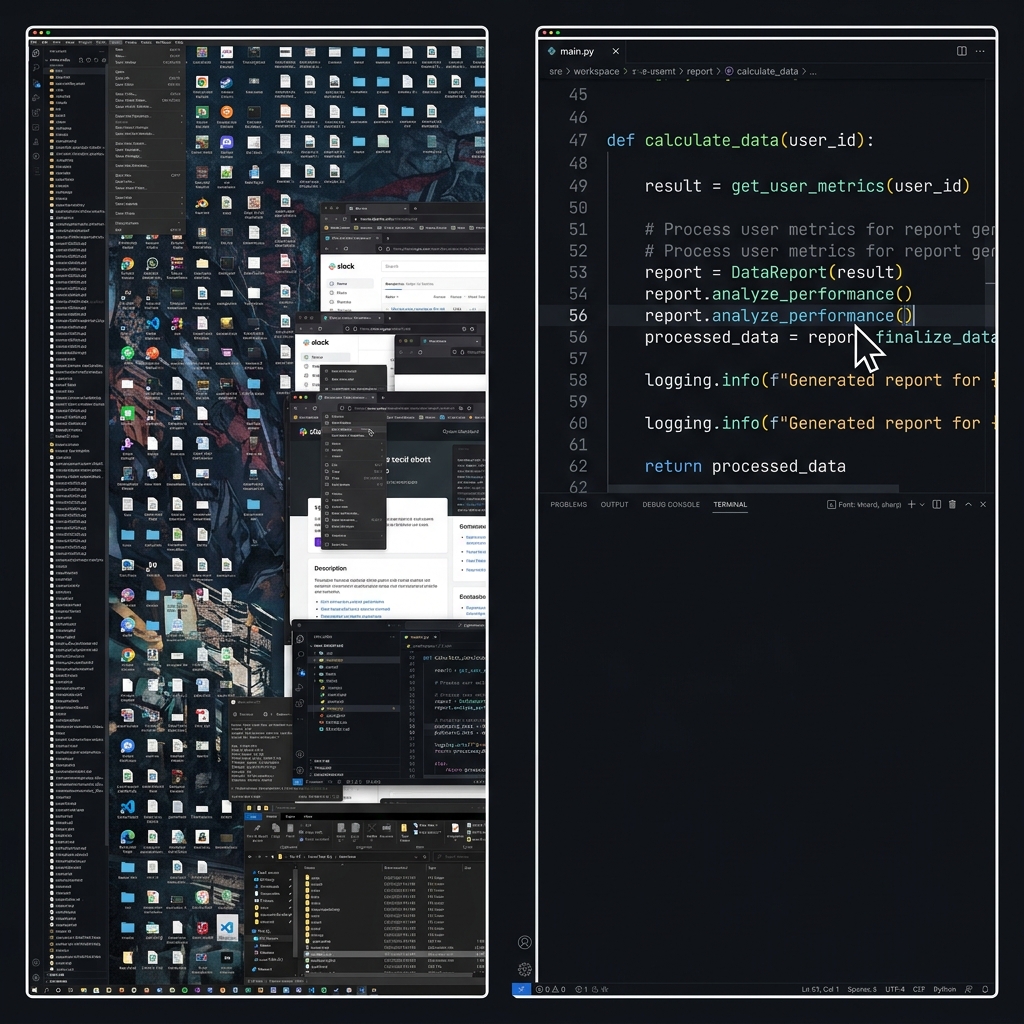
What it will not do is make the result easy to follow. A 1440p or 4K capture shrunk into a video player leaves interface text a few pixels tall, and the frame never moves toward whatever you just clicked. The standard fix is to take the file into DaVinci Resolve or Premiere and keyframe a zoom for each significant action, which is where most Windows tutorials quietly die.
Cubix Capture approaches it from the other end. It records on Windows 10 and 11 (and macOS), and does the framing during capture: zoom that follows your clicks, cursor smoothing, window padding over a background, and a webcam overlay without building a scene for it. There is no encoder dropdown and no capture-method choice, because it does not expose one. The free Starter plan is enough to record the same screen both ways and compare.
For stream production, scene switching and game capture, OBS is still the tool — this is about the demo-and-tutorial half of the job, not the broadcast half.
Keep Reading
- How to Record Your Screen with OBS on Mac — the macOS equivalent, with an entirely different set of traps.
- How to Screen Record with OBS: The Simplest Guide — the four-setting version, if this was more than you wanted.
- OBS Best Settings for Screen Recording — the tuning layer above the defaults.
- OBS Black Screen: Every Cause and Solution — if the preview never appeared.
- OBS Lag Fix for Windows 11 — if it records but stutters.
Don’t miss the next one.
Join our newsletter for exclusive tips, product updates, and the latest from the Cubix team.