
A black screen in OBS feels like a glitch, but it is almost always a symptom with a specific, identifiable cause. OBS is a compositor: it copies pixels from another graphics surface into your scene. When the operating system refuses to hand those pixels over, OBS records exactly what it is given: black.
This is the master guide. Below you will find a 60-second diagnostic that narrows your problem to one of about seven root causes, followed by the fix for each. Where a cause needs a full walkthrough, you will find a link to a dedicated deep-dive guide.
If you record demos, tutorials, or product walkthroughs, the fastest fix is to stop fighting the compositor entirely. Cubix Capture captures a chosen app or window directly, with no Display-vs-Window-vs-Game roulette and no dual-GPU homework. Try it free · Download Windows · Download Mac
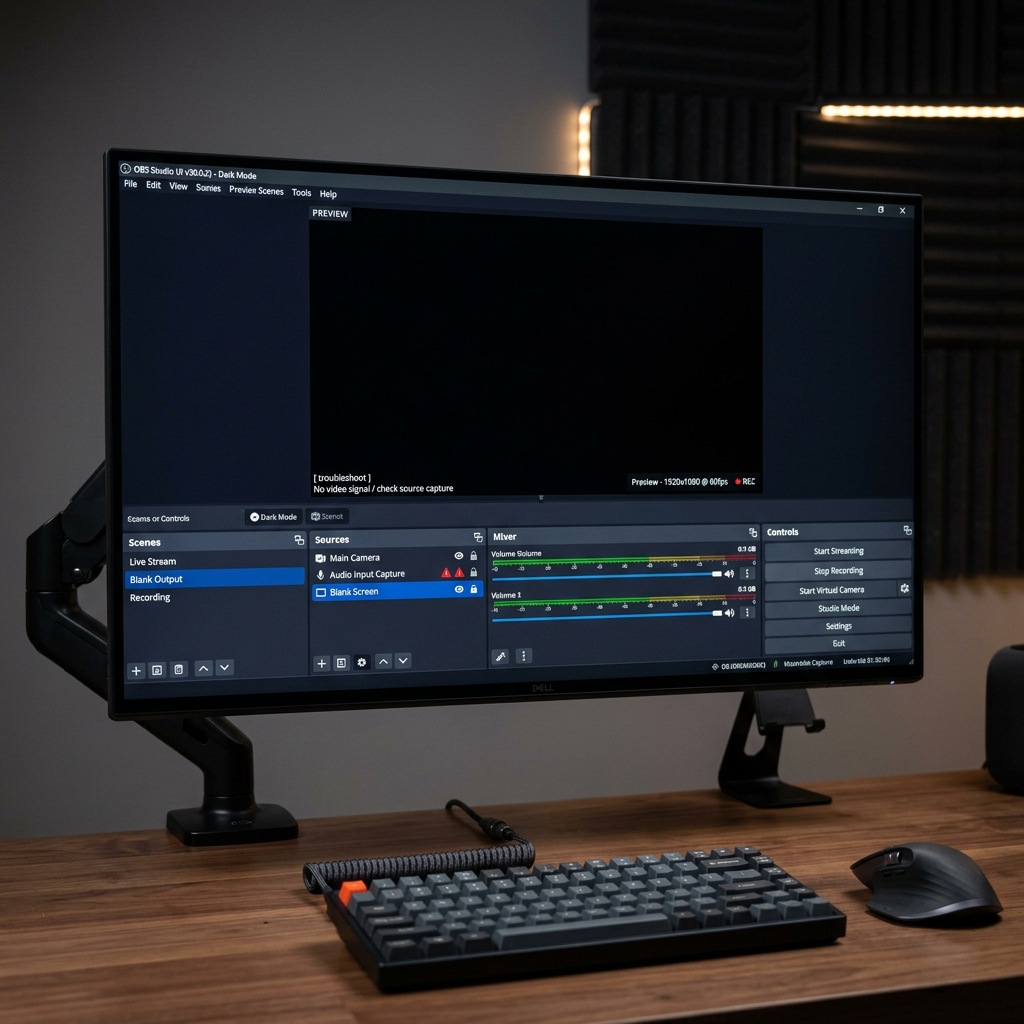
The 60-second diagnostic
Answer these in order and stop at your first "yes."
- Are you on a laptop with two GPUs (Intel/AMD integrated + NVIDIA/AMD discrete)? If your Display Capture is black, this is the most likely cause. Jump to GPU mismatch.
- Are you on a Mac? A black Display or Window Capture on macOS is almost always a missing Screen Recording permission, not a hardware issue. Jump to macOS permission.
- Is only one specific app black (Chrome, Edge, Discord, Slack) while your desktop captures fine? That app's hardware acceleration is the culprit. Jump to Browser and app acceleration.
- Is the black area a video, a streaming site, or DRM-protected content? Protected surfaces are intentionally blacked out. Jump to Protected content.
- Did it start working, then break after you updated something? Jump to It broke after an update.
- Are you capturing a full-screen game? Game Capture has its own failure modes. Jump to Wrong capture mode.
The table below maps the symptom to the cause so you never change ten settings blindly.
| What you see | Most likely cause | Where to fix it |
|---|---|---|
| Black Display Capture on a laptop | Dual-GPU mismatch | GPU mismatch, below |
| Black on Mac, any source | Missing Screen Recording permission | MacBook guide |
| One app black, desktop fine | App hardware acceleration | Browser and app acceleration |
| A video or streaming site is black | DRM / protected content | Audio-works guide |
| Game is black, audio plays | Wrong capture mode or GPU | Game Capture guide |
| Was fine, broke after update | Regression | After-update guide |
Cause 1: GPU mismatch (dual-GPU laptops)
On most gaming and creator laptops, Windows runs your desktop and browser on the integrated GPU to save power, while OBS may launch on the discrete GPU. The two graphics stacks cannot read each other's framebuffer the way OBS's Display Capture expects, so you get black.
Quick fix: Quit OBS. Open Settings → System → Display → Graphics, add obs64.exe (from C:\Program Files\obs-studio\bin\64bit\), click Options, and for desktop and browser capture choose Power saving (integrated). Relaunch and retest Display Capture before touching anything else. Full walkthrough in the Windows 11 step-by-step guide and the Display Capture guide.
Cause 2: macOS Screen Recording permission
macOS blocks screen capture behind a privacy layer (TCC). If OBS was never granted permission, or the permission was granted while OBS was already running, Display and Window Capture come back black and silent.
Quick fix: System Settings → Privacy & Security → Screen Recording, enable OBS, then fully quit OBS (Cmd+Q) and reopen it. macOS does not apply capture permission to an already-running process. The complete Mac procedure, including Apple Silicon and macOS Sonoma/Sequoia specifics, is in the MacBook guide.
Cause 3: Wrong capture mode
OBS offers Display Capture (a whole monitor), Window Capture (one app), and Game Capture (a hooked full-screen game). Using the wrong one is a leading cause of black screens.
- Desktop and browser tutorials: Display Capture or Window Capture.
- Exclusive full-screen games: Game Capture, on the same GPU as the game.
- Web dashboards with a URL: a Browser Source bypasses window compositing entirely.
If your game is black, see Game Capture: why it happens.
Cause 4: Browser and app hardware acceleration
If Display Capture shows your desktop but Window Capture on Chrome, Edge, Discord, or Slack is black, the target app is rendering through the GPU in a surface OBS cannot read.
Quick fix: In Chrome/Edge, Settings → System → Use graphics acceleration when available → Off, then restart the browser. Discord has the same toggle under Settings → Advanced → Hardware Acceleration. Electron apps (Notion, Slack) follow the same pattern.
Enjoying this read?
Get weekly insights on video editing, AI workflows, and creator growth straight to your inbox.
Cause 5: Protected (DRM) content
Netflix, Disney+, Prime Video, Spotify, and some banking and Teams surfaces deliberately render black to any recorder. This is copy protection at the OS/GPU level, and no OBS setting overrides it. This is also the classic cause of "video is black but audio records fine," covered in depth in the audio-works guide.
Cause 6: It broke after an update
If OBS, your GPU driver, or your OS updated and capture went black, the fix depends on which thing updated. A GPU driver update can reset your per-app GPU preference; an OBS update can change the default capture method on macOS. See OBS black screen after an update.
Cause 7: Encoder or renderer
Rarely, a black recording (with a fine preview) comes from a hardware encoder that lost its device, or a mismatched canvas. Try Settings → Output → Encoder set to Software (x264) as a test; if the black screen clears, your GPU encoder path is the issue.
When OBS is the wrong tool for the job
OBS is superb for live streaming: scenes, overlays, plugins, and multi-source layouts. But if your real goal is a clean tutorial, support clip, or product demo, maintaining a GPU-and-permission matrix just to avoid black rectangles is a poor trade.
| Job | Better default |
|---|---|
| Live stream with complex scenes | OBS |
| Readable demo, fast to publish | Cubix Capture |
Cubix Capture hooks a single app or window directly, adds automatic cursor-tracking zoom, and exports a share-ready MP4 the moment you stop, with no black-screen class of bugs to debug.
The full OBS black screen series
This hub links to a dedicated guide for every scenario:
- OBS Black Screen on Windows 11: Step by Step — the ordered Windows 11 fix, from Graphics settings to admin.
- OBS Black Screen Game Capture: Why It Happens — hooks, anti-cheat, full-screen vs borderless.
- OBS Black Screen Display Capture Fix — whole-monitor capture, dual GPU, multi-monitor.
- OBS Black Screen After Update: How to Restore It — regressions after an OBS, driver, or OS update.
- OBS Black Screen on MacBook: Complete Fix Guide — permissions, Apple Silicon, ScreenCaptureKit.
- OBS Shows Black Screen But Audio Works — the symptom that points straight to a video-source problem.
Troubleshooting cluster: No Audio · File Too Large · Lag · Blurry
Related reading: OBS Is Overkill for Screen Recording · OBS vs Cubix Capture (2026)
Find your cause in the diagnostic above, apply the matching fix, and you will have a bright, recording preview in minutes, not another evening of trial and error.
Don’t miss the next one.
Join our newsletter for exclusive tips, product updates, and the latest from the Cubix team.