
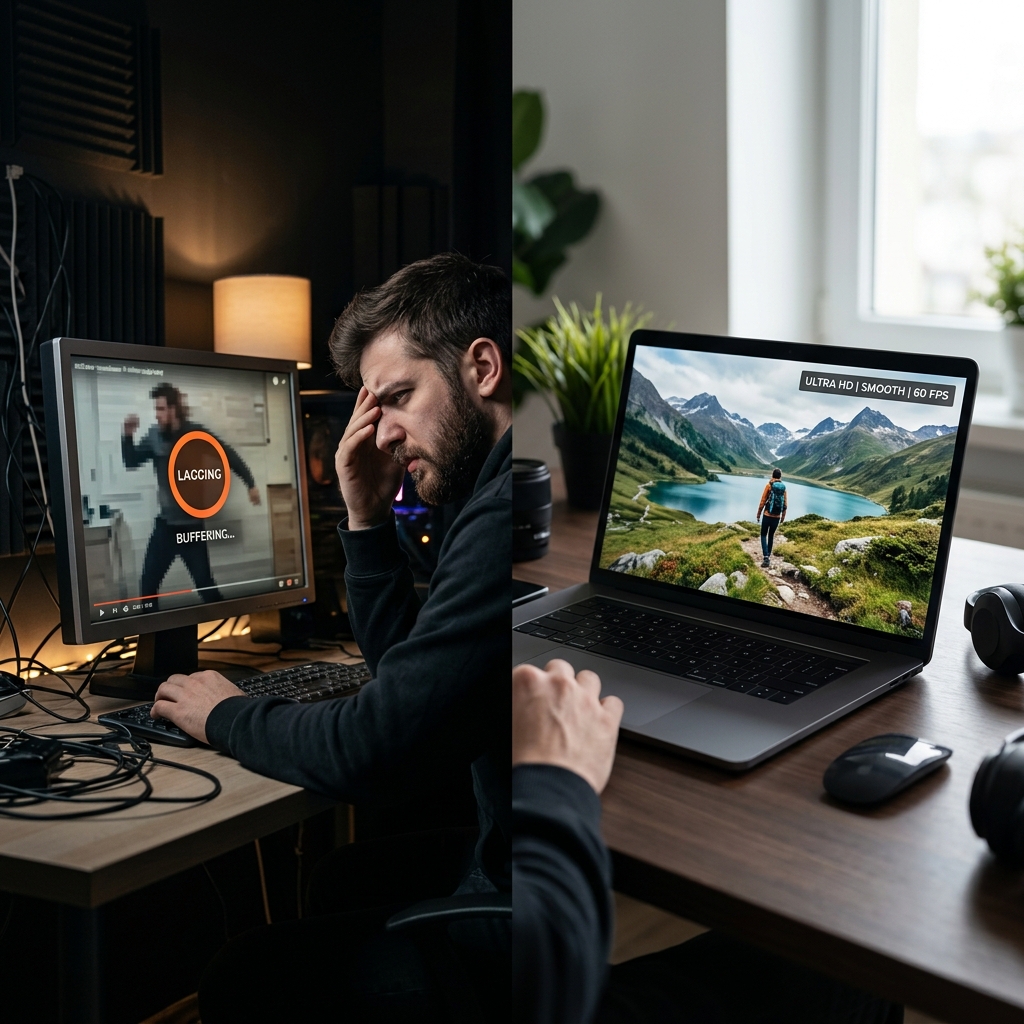
Choppy screen recordings look like stop-motion: cursor jumps, UI freezes, then teleports. Audio often stays fine—the audio thread is cheap next to capture + scale + encode + disk write every frame.
That pattern means dropped frames. Fixing lag is engineering: shrink the pipeline, move compression to hardware, remove I/O bottlenecks.
Cut lag at the source: Cubix Capture applies capture-time framing—you are not compositing, scaling, and encoding an entire 4K desktop when the story is a 400px panel. Fewer pixels per frame = more headroom. Try free
Below: OBS and OS fixes when you must stay on a raw capture stack.
Read OBS Stats first (if you use OBS)
Open View → Stats while recording:
- Dropped frames (network) matters for streaming - ignore for local recording unless you are also broadcasting.
- Missed frames / skipped frames due to encoding lag is the number that indicts CPU encoder overload or GPU encoder starvation.
If encoding lag climbs when nothing on screen moves, your bottleneck is rarely the game - it is x264 on a saturated CPU or writing to a slow disk.
Fix 1: hardware encoding (move compression off the CPU)
Software x264 is flexible and high quality, but it is CPU-heavy. On a laptop already running Electron apps, browsers, and TypeScript builds, x264 loses headroom first.
OBS → Settings → Output → Recording
- Set Encoder to NVENC H.264 (NVIDIA), AMD HW H.264 (AMD), Apple VT H.264 / HEVC (Mac), or QuickSync (Intel iGPU).
- Keep Rate Control on CQP or VBR per your guide - the win is where the work runs, not magic presets.
This single change clears most "audio fine, video stutters" reports on mid-range hardware.
Fix 2: lower canvas and FPS before you touch bitrate
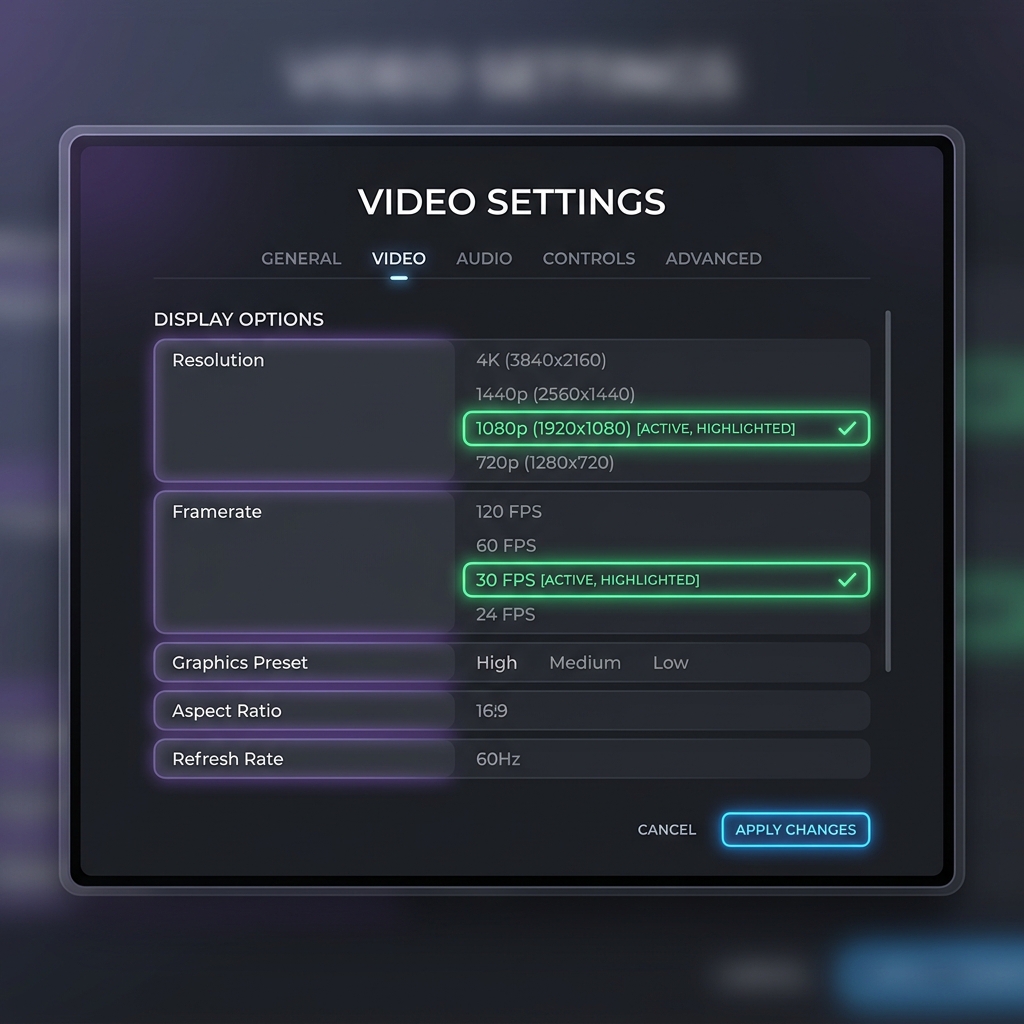
4K60 screen capture is four times the pixels per second of 1080p30. Demos rarely need both.
- Set Output (Scaled) Resolution to 1920×1080 (or your panel's half-res on HiDPI if text stays sharp enough).
- Use 30 fps unless you are capturing fast motion (games, scrubbing timelines).
If you still need punch-in for readability, do it while recording (next section) instead of brute-forcing 4K canvas "for zoom headroom."
Enjoying this read?
Get weekly insights on video editing, AI workflows, and creator growth straight to your inbox.
Fix 3: disk, network drives, and thermal throttling
Recording to a USB 2.0 stick, a syncing OneDrive folder, or a full system volume causes micro-stalls that look like encoder lag.
- Write to an internal NVMe SSD path like
C:\Videos\or~/Movies/. - Pause cloud sync / antivirus heavy scans for the duration of the take.
- On laptops, confirm you are on AC power - thermal limits hit faster on battery even when CPU % looks "fine."
Fix 4: preview and scaling load (OBS-specific)
A huge preview at full retina resolution costs GPU compositing time.
- Dock preview smaller, or temporarily disable Preview if you are headless-narrating.
- Avoid downscaling filters you do not need (Lanczos on a 4K canvas to 1080p every frame is not free).
Windows 11: Game Mode and graphics preference
For mixed workloads, enable Settings → Gaming → Game Mode while recording games, but close background hogs for desktop capture. Also revisit Graphics settings so the app you are recording and OBS are not pinned to opposite GPUs (see OBS black screen fix for the same dual-GPU class of issues).
The "4K for zoom" trap (lag + file size)
Recording 4K only to zoom in post melts laptops and creates giant files.
| Need | Better approach |
|---|---|
| Readable UI on phones | Auto-zoom at capture — What Is Auto-Zoom? |
| Smaller exports | File Too Large — 2-Minute Fix |
| Less pipeline work | Cubix Capture |
Troubleshooting cluster: No Audio · OBS Black Screen · File Too Large · Blurry · Xbox Game Bar
Related reading:
- 60fps vs 30fps Screen Recording
- OBS Is Overkill for Screen Recording
- Death of Manual Screen Editing: What Auto-Zoom Changes
Lag is a measurement problem first. Read the stats—or record fewer pixels with Capture—then smooth files stop being a dice roll.
Don’t miss the next one.
Join our newsletter for exclusive tips, product updates, and the latest from the Cubix team.