
You finish a walkthrough, hit stop, and the waveform is a flat line. The screen looks fine; the file has no audio—or only half of what you expected (voice but no app sound, or the reverse).
Before you reinstall drivers or buy a new mic, know this: silent screen recordings are almost always a routing problem. The recorder captured the wrong path from microphone and/or system audio into the encoder.
Fastest fix for recurring demos: Cubix Capture keeps mic + system sound on one obvious path for Mac and Windows—no BlackHole wiring, no OBS track matrix. Get started free · Windows · Mac
This guide still walks every OS-level fix below (QuickTime, Snipping Tool, Game Bar, OBS) so you can salvage today's file and understand why silence happened.
60-second checklist (do this first)
| Check | Mac | Windows |
|---|---|---|
| Mic not set to None | Screenshot toolbar → Options → Microphone | Snipping Tool → mic icon on before Record |
| System audio needed? | QuickTime often records mic only—see below | Game Bar → Audio to record: All |
| App allowed in Privacy | Settings → Privacy → Microphone | Settings → Privacy → Microphone for desktop apps |
| Bluetooth weirdness | Use wired USB for client-facing takes | Pick the headset device that passes Input test |
If you need voice + computer audio every week, fixing menus once per tool is fragile. That is why teams standardize on Cubix Capture for demos and tutorials—then use the sections below only when stuck on legacy exports.
Microphone vs system audio (why "record" is ambiguous)
- Microphone audio is air pressure at a capsule - your voice, room tone, keyboard clatter. The OS labels this as an input device.
- System audio is digital sound already inside the OS - a YouTube tab, a Slack ping, game music, a Zoom participant you are not unmuted for. Many built-in recorders treat this as a separate permission and sometimes a separate virtual device.
If you need both, you must enable both explicitly in the recorder. Assuming "it just records what I hear" is how silent files happen.
Mac: fix missing microphone in Screenshot / QuickTime
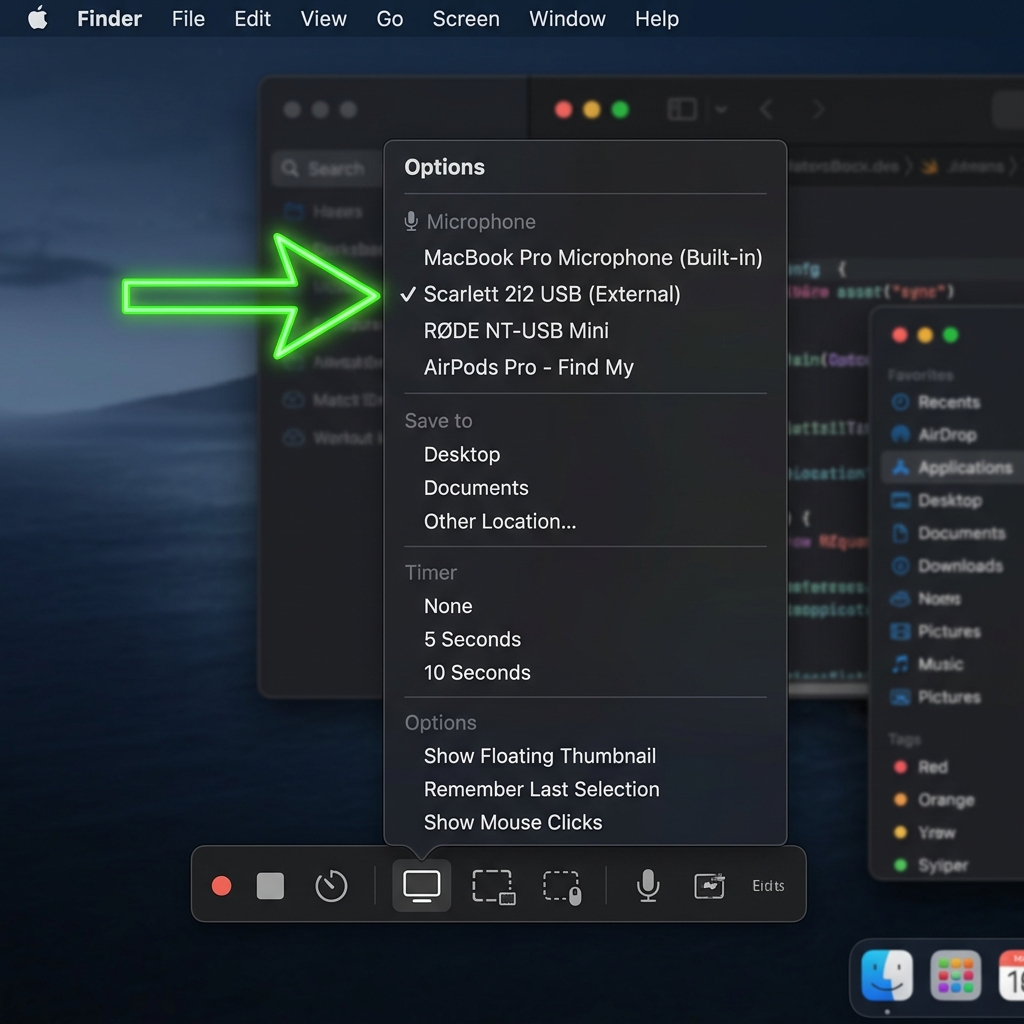
Screenshot toolbar (Command + Shift + 5)
- Open the toolbar, click Options.
- Under Microphone, if it says None, pick MacBook Microphone (or your USB interface).
- Record again. If you use AirPods, confirm they are the active output in Control Center - Bluetooth headsets sometimes disconnect the input route mid-session.
QuickTime Player (File → New Screen Recording)
QuickTime uses the same underlying picker as the toolbar in recent macOS versions. If audio is still missing after selecting a mic, open System Settings → Privacy & Security → Microphone and toggle QuickTime Player (or Screen Recording) on, then quit and relaunch QuickTime.
Enjoying this read?
Get weekly insights on video editing, AI workflows, and creator growth straight to your inbox.
Mac: why system sound is "missing" (and what actually fixes it)
Apple does not expose "record what the Mac is playing" as a one-click option in QuickTime the way some Windows tools do. If your tutorial needs internal audio (a demo with sound effects, a clip playing in a browser, system beeps), QuickTime alone often leaves that channel empty.
Common fixes:
- Virtual audio device (BlackHole 2ch, Loopback, etc.): route Output to the virtual device, add a Multi-Output Device in Audio MIDI Setup if you still want to hear speakers while recording, then select that virtual input in the recorder. It works, but it is fragile - one OS update or Bluetooth handoff can break the route.
- Recorder built for demos: Cubix Capture avoids re-wiring Audio MIDI Setup every week. Mac deep-dive: How to Capture System Audio on Mac Without Installing Drivers.
Windows 11: Snipping Tool (video) - two icons, two channels
- Open Snipping Tool → Record.
- Before Start, check the top bar: Microphone and System audio must both show as on (no slash). Click each to pick the correct mic if you have several (USB, headset, webcam).
- If the clip is still silent, open Settings → Privacy & security → Microphone and enable Microphone access and Let desktop apps access your microphone.
Corporate laptops sometimes ship with Dell / Lenovo audio managers that add a second "communications" device - if Snipping Tool points at Headset (Hands-Free) while your voice is on Headset (Stereo), you get silence. Pick the same device you see working in Sound settings → Input test.
Windows 11: Xbox Game Bar - the "Game" vs "All" trap
Press Windows + G, then:
- Audio widget → Voice tab → select the mic that actually moves the meter when you talk.
- Settings (gear) → Capturing → Audio to record → set All if you need browser + notifications + voice. Game often records only the focused game's mix and mutes desktop audio - a frequent cause of "OBS / Game Bar captured my mic but not the tutorial audio."
Also confirm Settings → Gaming → Captures has Record audio when I record a clip enabled.
OBS: "I see meters but the file is silent"
If you use OBS for screen capture:
- Advanced Audio Properties: each source has Audio Monitoring and Tracks. Your Output → Recording → Audio Track checkboxes must match the tracks your Desktop Audio / Mic Aux are assigned to. Track 1 unchecked = silent file even when meters bounce.
- Exclusive mode: some USB mics grab exclusive WASAPI access; other apps see silence. Try Properties → Listen off, or switch OBS input to MME temporarily to test.
Bluetooth, docks, and "wrong default" edge cases
- Bluetooth profile switching: many headsets drop mic quality or route mic to a different device name when switching between music and call mode. Wired USB for anything client-facing.
- Thunderbolt dock: the "Microphone (Realtek)" on the dock might be selected while you are speaking into the laptop mic.
- Web vs desktop app: recording a browser tab in a meeting product may block system loopback by design - verify the meeting's own recording policy.
When silence keeps coming back
| Situation | Best move |
|---|---|
| One-off salvage of today's clip | Run the Mac/Windows/OBS steps above |
| Weekly demos, support clips, tutorials | Standardize on Cubix Capture |
| Huge files after you fix audio | Screen Recording File Too Large — Fix in 2 Minutes |
| Choppy video after audio works | Screen Recording Lag — How to Stop It |
| Video looks soft after export | Screen Recording Looks Blurry |
Troubleshooting cluster: File Too Large · OBS Black Screen · Lag · Blurry · Xbox Game Bar
Related reading:
- How to Capture System Audio on Mac Without Installing Drivers
- How to Record Your Screen Without Background Noise
- OBS Black Screen — The Actual Fix
- OBS Is Overkill for Screen Recording
Screenshot your working settings once. Silent exports stop being roulette.
Don’t miss the next one.
Join our newsletter for exclusive tips, product updates, and the latest from the Cubix team.