
You hit Start Recording in OBS, deliver a perfect take, open the file and the video is a solid black rectangle while audio sounds fine. Or the preview was black before you even started.
That is not random corruption. OBS is a compositor copying pixels from another graphics context. When the OS will not hand those pixels across—GPU isolation, privacy blocks, protected surfaces—OBS encodes black faithfully.
Skip the black-screen class of bugs for demos: Cubix Capture is built for presentation-ready app capture without Display/Window Capture roulette—no scene graph, no dual-GPU homework. Try free · Download Windows · Download Mac
Keep reading if you stream on OBS, must salvage today's take, or need Game Capture for fullscreen titles.
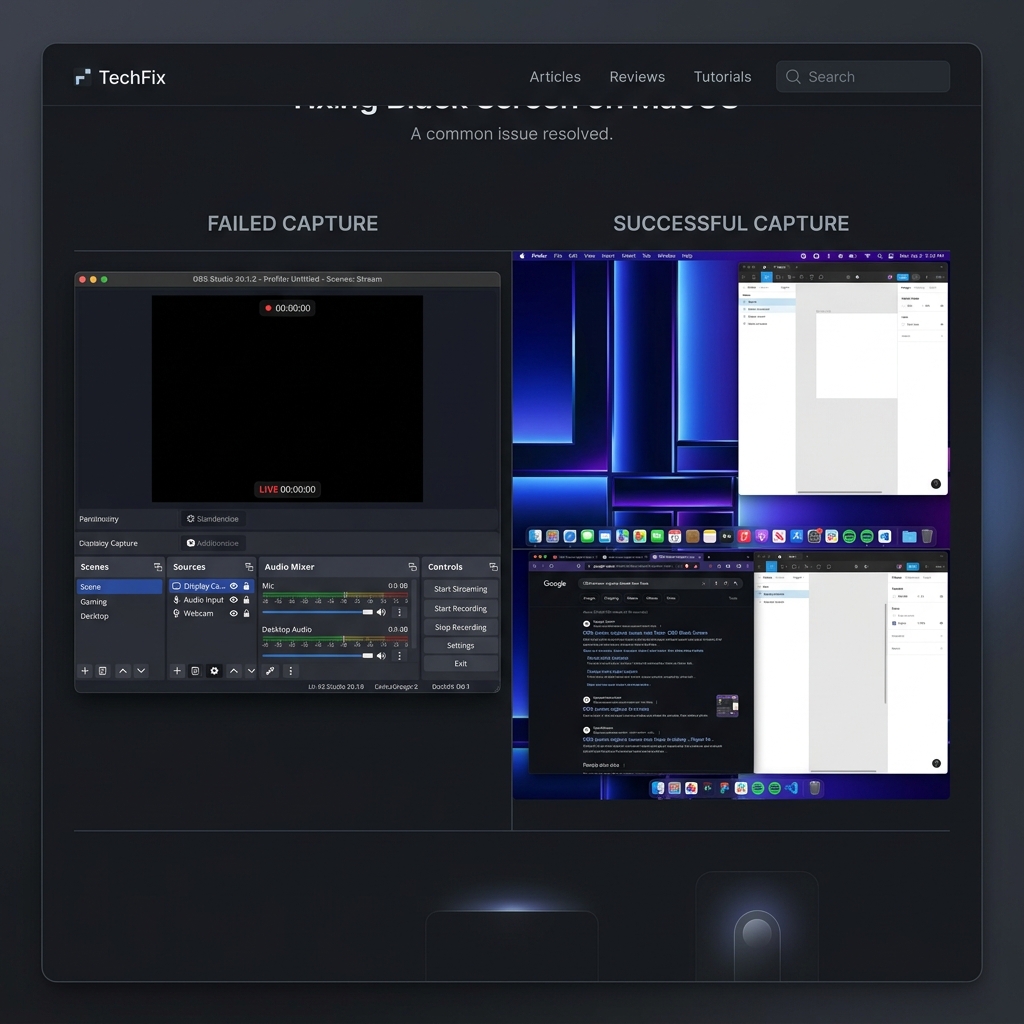
Step 0: Which black screen do you have?
- Black preview + black file, Display Capture: almost always GPU mismatch (Windows) or missing Screen Recording permission (Mac).
- Display Capture works, Window Capture is black for Chrome/Edge/Discord: almost always hardware-accelerated compositing in the target app.
- Game Capture black but you hear game audio: often exclusive fullscreen on a different GPU - switch capture mode or match GPU preference.
Write down which case you are in before changing ten settings at once.
Windows: dual-GPU mismatch (the classic laptop fix)
Many laptops run the desktop (including the browser) on the integrated GPU while OBS launches on the discrete GPU (or the reverse). The two stacks cannot see each other's framebuffer the way OBS expects → black Display Capture.
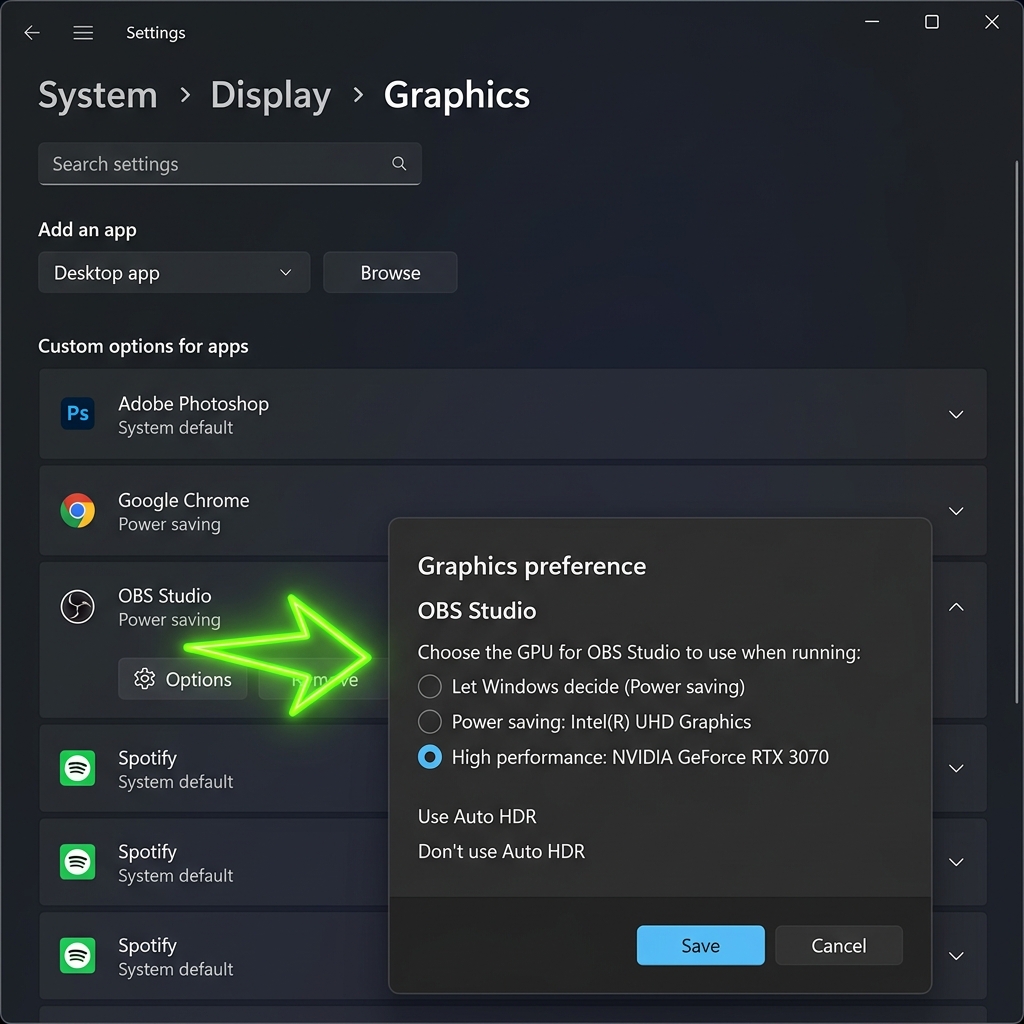
Fix via Settings → System → Display → Graphics:
- Quit OBS fully.
- Open Graphics settings (or Graphics performance preference depending on build).
- Add
obs64.exefromC:\Program Files\obs-studio\bin\64bit\if it is not listed. - Click Options on OBS:
- For desktop + browser tutorials with Display Capture, try Power saving (integrated) first.
- For many full-screen games with Game Capture, try High performance (discrete) so OBS sits on the same device as the game.
Click Save, relaunch OBS, and retest Display Capture before touching anything else.
NVIDIA Control Panel (when Settings alone is not enough)
On some hybrid laptops, Windows' per-app GPU picker fights the vendor driver. Open NVIDIA Control Panel → Manage 3D settings → Program Settings, choose obs64.exe, and set Preferred graphics processor to match the stack you are capturing (often Integrated graphics for desktop capture - yes, even if you have an RTX).
Windows: Run OBS as Administrator (Window / Game hooking)
If Window Capture or Game Capture stays black for specific apps, OBS may lack elevation to attach hooks.
- Close OBS.
- Right-click the shortcut → Run as administrator → confirm UAC.
- If that fixes it: Properties → Compatibility → Run this program as an administrator (only if you trust OBS from the official installer).
Caveat: running elevated while capturing a non-elevated browser is usually fine; the opposite (non-elevated OBS capturing an elevated app) is a common black-window case.
Enjoying this read?
Get weekly insights on video editing, AI workflows, and creator growth straight to your inbox.
Chrome, Edge, Discord: disable GPU rasterization for Window Capture
If Display Capture shows your desktop but Window Capture on Chrome is black:
- Chrome / Edge → Settings → System (search "hardware acceleration").
- Turn Use graphics acceleration when available OFF, restart the browser, retry Window Capture.
Discord has a similar toggle under Settings → Advanced → Hardware Acceleration. Electron apps (Notion, Slack desktop) follow the same pattern.
macOS: Screen Recording permission (silent black)
On macOS, a black Display Capture or Window Capture in OBS is often TCC privacy, not GPU.
- System Settings → Privacy & Security → Screen Recording
- Enable OBS Studio (toggle on).
- Quit OBS completely (Cmd+Q) and reopen - macOS often does not apply capture permissions to already-running processes.
Also check System Settings → Privacy & Security → Accessibility if OBS cannot see certain UI automation overlays - less common than Screen Recording, but worth one toggle if you use plugins.
macOS: try OBS's renderer and capture type
- Settings → Video: keep Base and Output aligned with your panel (avoid absurd 4K canvas if you only publish 1080p - unrelated to black screen but reduces glitches).
- Swap Display Capture vs Window Capture - some Stage Manager / multi-space setups behave better with one than the other.
Game Capture vs Display Capture (stop using the wrong tool)
- Game Capture: best for exclusive fullscreen DirectX / Vulkan titles on the same GPU as the game.
- Display Capture: best for desktop + browser workflows; more fragile on hybrid GPUs but simpler mentally.
- Browser Source: best for web dashboards that can be expressed as a URL - bypasses window compositor blackouts entirely.
If you are capturing HDR fullscreen games + tone-mapped SDR OBS canvas, mismatched color spaces can look "wrong" even when not pure black - treat that as a separate color pipeline issue from this article's GPU/permission fixes.
When OBS is the wrong hammer
OBS wins live streaming: scenes, stingers, plugins, multi-source layouts.
For weekly product demos, support clips, and customer education, maintaining GPU + browser matrices is expensive—and black rectangles waste hours.
| Job | Better default |
|---|---|
| Stream + complex scenes | OBS |
| Readable demo, fast publish | Cubix Capture |
Troubleshooting cluster: No Audio · File Too Large · Lag · Blurry · Xbox Game Bar
Related reading:
- OBS Is Overkill for Screen Recording
- How to Record a Screen on Windows 11 Without Xbox Game Bar
- AI vs Traditional Screen Recorder (2026)
Match GPU stack, permissions, and capture mode to what you are recording—or stop fighting the compositor for demos.
Don’t miss the next one.
Join our newsletter for exclusive tips, product updates, and the latest from the Cubix team.