
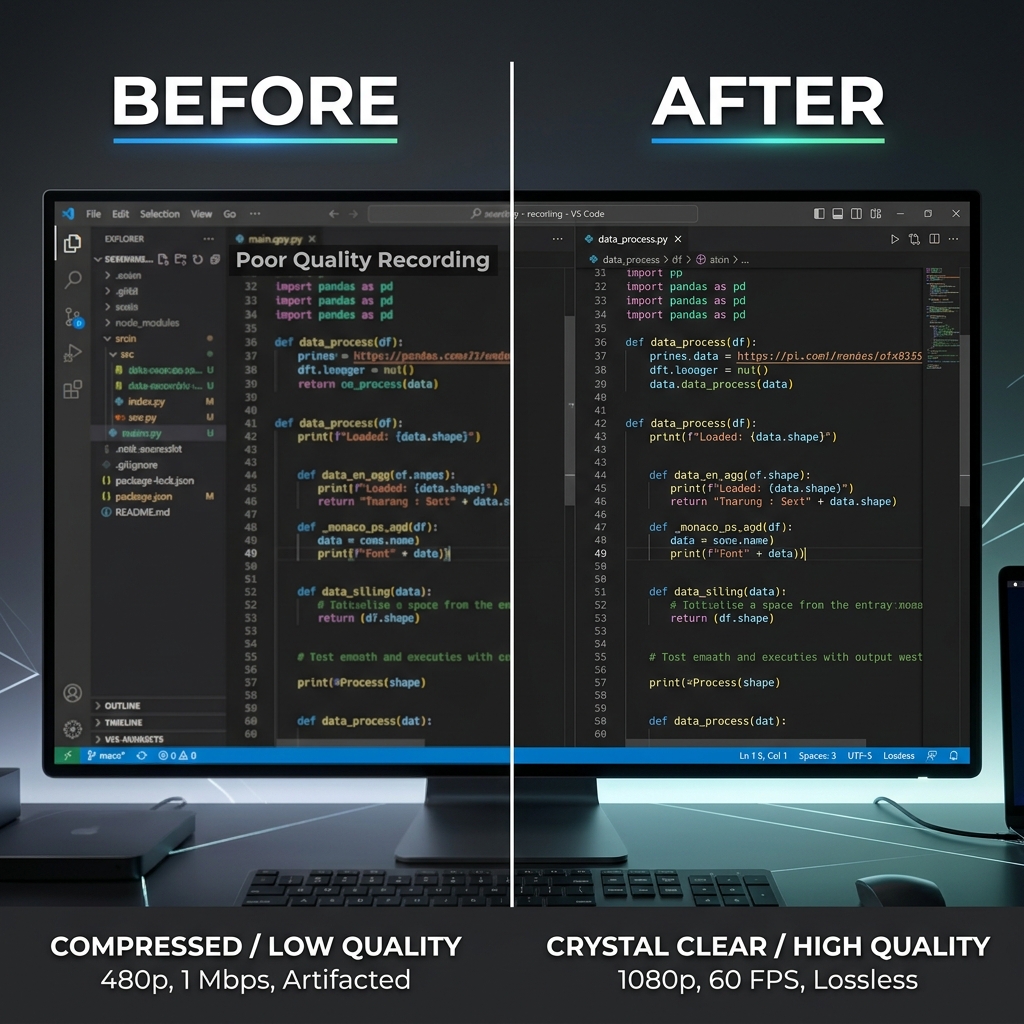
Your take was perfect. The export looks like vaseline on a spreadsheet—soft text, blocky edges, unreadable buttons on a phone.
Blurry screen recordings almost always mean not enough pixels or not enough bits for what you are showing. Fix the pipeline once; stop re-recording the same demo.
Sharp UI without a 4K canvas: Cubix Capture zooms on clicks and typing at capture time—so viewers read real pixels, not a blown-up 1080p crop. Get started free · Windows · Mac
60-second diagnosis (what kind of blur?)
| Symptom | Likely cause | First fix |
|---|---|---|
| Blocky squares when you scroll | Bitrate too low | Raise bitrate / lower CRF |
| Always soft, even on still frames | Canvas ≠ output scale | Match base and output resolution |
| Sharp until you zoom in the editor | Post-production zoom | Re-record with capture-time zoom |
| Sharp on disk, muddy after upload | Platform re-encode | See upload guides below |
| Tiny UI on phone, "blurry" feel | Full-monitor capture | Frame the app, not the desktop |
Write down which row matches before changing ten sliders.
Cause 1: Bitrate starvation (the #1 OBS mistake)
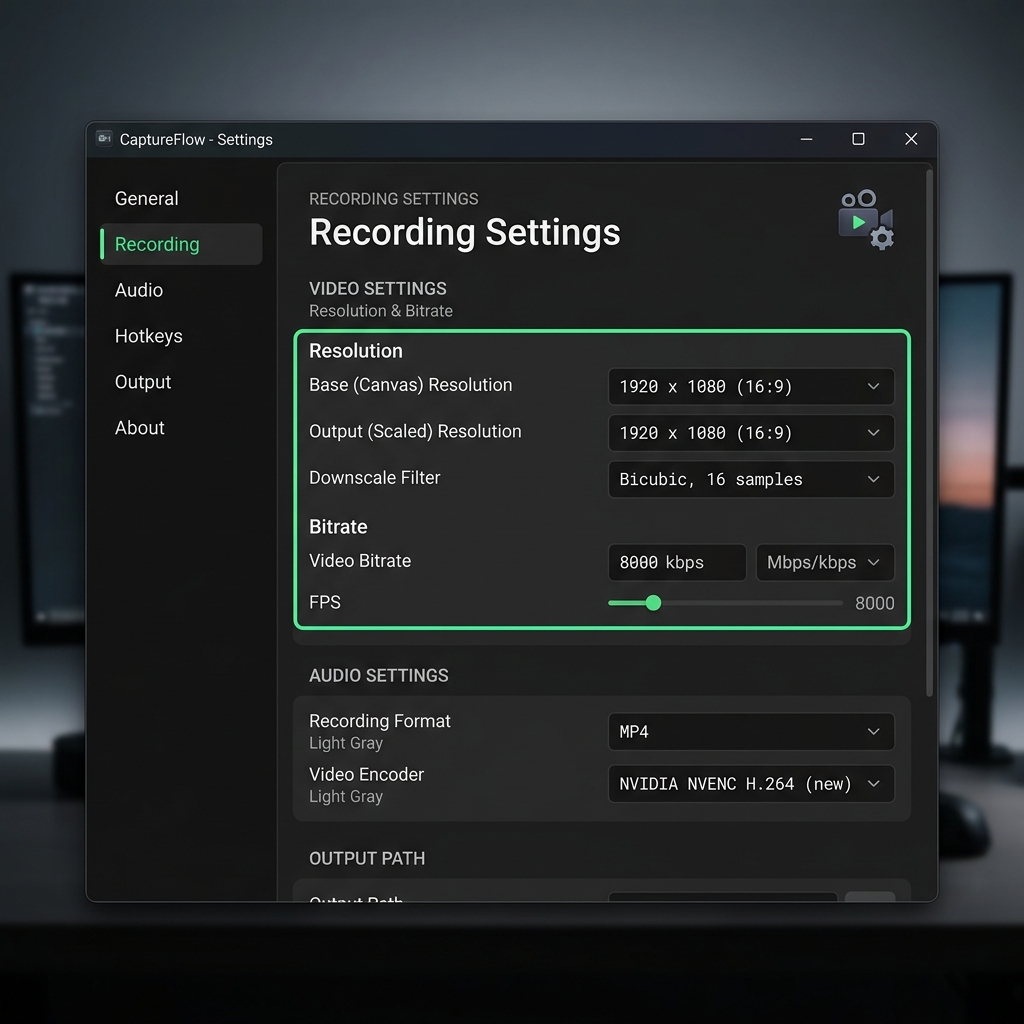
Screen video looks simple, but scrolling and cursor motion eat bitrate. If the encoder is capped at ~2,500 kbps for 1080p30, fast pans turn into macroblocks around text.
OBS → Settings → Output → Recording
| Target | Starting point |
|---|---|
| 1080p30 UI demo | 6,000–10,000 kbps VBR, or CRF ~18–22 (x264/NVENC) |
| 1440p / 4K canvas | 12,000–20,000+ kbps or accept larger files |
| Talking-head only | Can go lower—UI text cannot |
NVENC / Quick Sync: prefer CQP/VBR tuned for quality, not the smallest file. Huge files after you fix quality? File Too Large — 2-Minute Fix.
Cause 2: Canvas vs output mismatch (permanent softness)
Recording a 1440p or 4K monitor but exporting 720p forces a downscale every frame. Small UI type survives poorly—especially after another downscale on YouTube or Slack.
Fix:
- OBS → Settings → Video: set Base (Canvas) to your monitor's logical resolution.
- Set Output (Scaled) to what you will publish—usually 1920×1080 or 1280×720, not a random fraction.
- Avoid "record 4K, deliver 720p" unless you truly need headroom for crop.
Mac Retina: if text looks soft at 1080p output, confirm you are not double-scaling (Retina capture → aggressive export → platform crunch). Match 60fps vs 30fps—30fps often looks sharper per megabyte for UI.
Cause 3: The post-production zoom trap
Record 1080p full screen → scale to 200% in Premiere or CapCut to show one button → invented pixels → mush.
| Workflow | Result |
|---|---|
| Wide capture + post zoom | Blurry on mobile |
| 4K capture + post zoom | Sharp but laggy + huge |
| Capture-time zoom on the action | Sharp without 4K canvas |
Deep dive: What Is Auto-Zoom? · Why Auto-Zoom Changes Everything.
Enjoying this read?
Get weekly insights on video editing, AI workflows, and creator growth straight to your inbox.
Cause 4: Upload and platform crunch (file was fine locally)
Local file crisp; hosted version soup? Platforms re-encode. You cannot bypass it entirely—you can feed them a clean master:
- YouTube: How to Compress Video for YouTube
- Email / Slack: Compress for email without destroying text edges
- Instagram / TikTok: platform-specific guides in Resources
Rule: high contrast UI + readable type at capture survives re-encode better than gray-on-gray themes.
Cause 5: Recording the whole monitor for a tiny app
A 27" 4K frame shrunk to a phone makes every control look blurry even at high bitrate—you are not missing data, you are missing subject.
Tomorrow's fix: record the workflow window with presentation capture—not wallpaper, docks, and twenty tabs.
| Tool class | Sharpness tradeoff |
|---|---|
| Full-screen OBS / Game Bar | Many idle pixels, tiny UI on phones |
| Cubix Capture | Auto-zoom on interaction; calm cursor; staged window |
| Manual keyframes in an NLE | Sharp but hours per video |
Optional polish after capture: captions or trim in Cubix—not another digital zoom pass.
Quick settings checklist (before you re-record)
- Bitrate/CRF appropriate for 1080p UI, not a Twitch stream from 2014
- Base and output resolution intentional, not accidental half-scale
- No 200% scale keyframes planned in post
- Preview on a phone at 50% width—if you squint, viewers bounce
- Theme contrast high enough for second compression
Troubleshooting cluster
- My Screen Recording Has No Audio
- Screen Recording File Too Large
- OBS Black Screen
- Screen Recording Lag
- Xbox Game Bar Not Working
Related reading:
- How to Reduce Video Size Without Losing Quality
- 4K Screen Recording: When It Is a Mistake
- Death of Manual Screen Editing: Auto-Zoom
Sharp video is enough bits on the pixels that matter. Fix encoding, stop zooming in post, frame the UI at capture—or fight blur every upload.
Don’t miss the next one.
Join our newsletter for exclusive tips, product updates, and the latest from the Cubix team.