
You need a quick capture on your HP — a receipt, an error for IT, a reference from a website — so you glance down for the Print Screen key. It's tiny, tucked into a corner, maybe sharing a button with the volume icons. You press it. Nothing.
You're not doing anything wrong. HP builds an enormous range of laptops — the premium Spectre and Envy, the everyday Pavilion, the big OMEN gaming rigs, the business EliteBook — and the keyboard layout shifts between them. The good news: they all run Windows, so once you know where HP put the key and how its Fn row behaves, capturing is effortless on every one.
Let's decode your specific HP keyboard first, then walk through each method. (For a full tour of the Windows capture tools themselves, pair this with our how to capture a screenshot on Windows guide.)
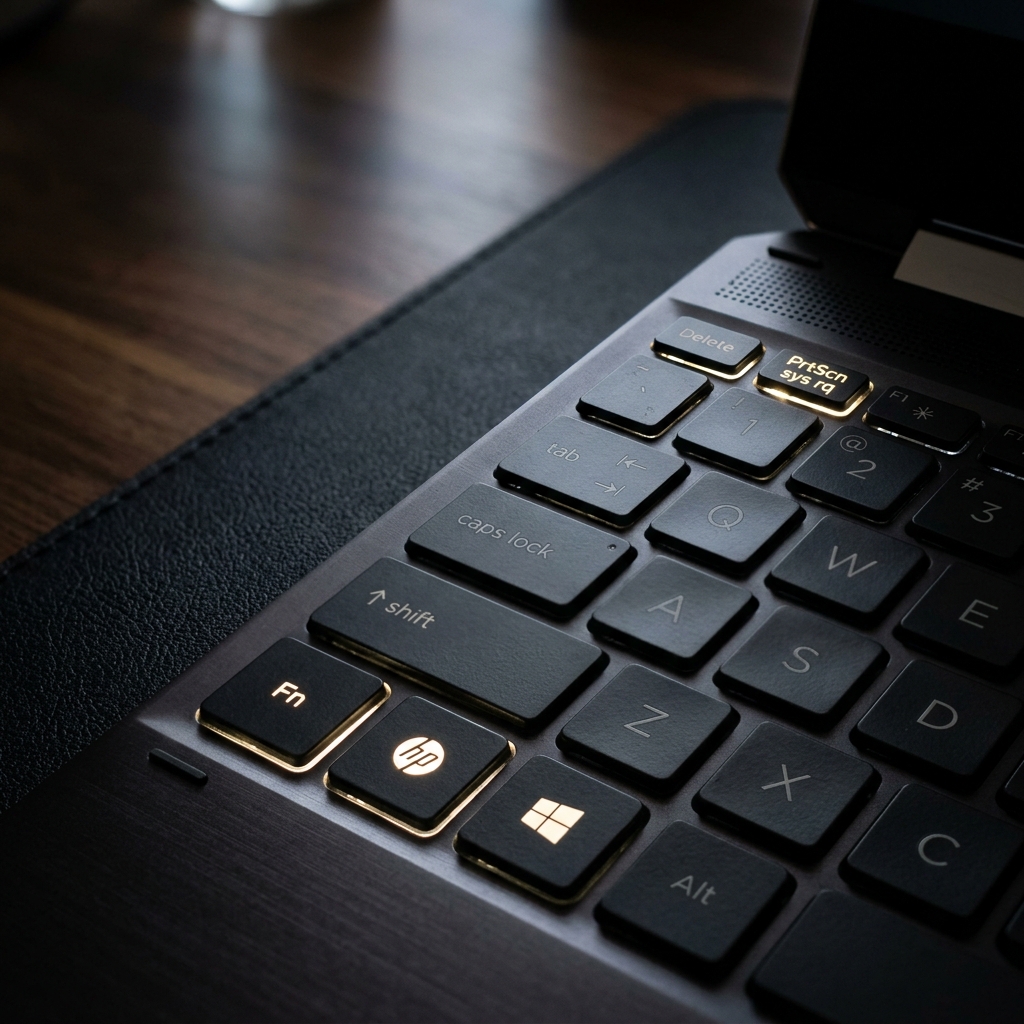
Step 1: Find the "prt sc" Key on Your HP
HP usually labels it prt sc (lowercase) and parks it in the top-right area — frequently doubled up with the Insert key, or sitting at the right end of the function row. On some compact Envy and Pavilion boards it shares space with other icons, which leads straight to the next point.
Step 2: The HP Fn Lock Fix
On many HP laptops the top row defaults to "action keys" (brightness, volume, media), so a plain tap on prt sc triggers the printed icon instead of Print Screen.
- On most HP models, press Fn + Shift to toggle Fn Lock, flipping the top row back to standard function-key behavior. Some keyboards instead have a dedicated Fn Lock key with a small padlock LED.
- The universal workaround: just hold Fn while pressing any shortcut below. If a combo feels dead, Fn is almost always the missing ingredient.
Start Here: Windows + Shift + S (the Snipping Tool)
This is the cleanest capture on any modern HP running Windows 11 — and it sidesteps Print Screen's Fn drama entirely, since it doesn't use the prt sc key at all.
- Press Windows + Shift + S. The screen dims and a compact toolbar appears at the top.
- Choose your shape — rectangle, freeform, window, or full screen — and drag.
- The capture copies to your clipboard; paste it anywhere with Ctrl + V.
Click the notification that pops up to open the editor for arrows, highlights, or Text Actions, which lifts any text straight out of the image. (That OCR trick is a Windows 11 feature — see our Windows 11 screen capture guide.)
Save the Whole Screen Instantly: Windows + PrtScn
Press Windows + PrtScn (add Fn if your HP needs it) to flash the screen and drop a full-screen PNG into Pictures → Screenshots — no pasting step required. Perfect when you're following along with a fast video or live demo.
Enjoying this read?
Get weekly insights on video editing, AI workflows, and creator growth straight to your inbox.
Capture One Window Only: Alt + PrtScn
Click the window you want so it's active, then press Alt + PrtScn (or Alt + Fn + PrtScn). HP copies a tidy image of just that app to the clipboard, leaving your wallpaper and taskbar out of the shot.
Screenshotting an HP x360 in Tablet Mode
Flipped your Spectre x360 or Envy x360 into tablet mode? The keyboard's disabled, so go physical: press the Power button + Volume Down on the edge of the chassis at the same time, exactly like a phone. The screen flashes and the shot saves to your Screenshots folder.
Where Do HP Screenshots Save?
Snipping Tool and Alt + PrtScn captures sit on the clipboard until you paste them. Windows + PrtScn files land in Pictures → Screenshots — or in OneDrive → Pictures → Screenshots if cloud backup is enabled, which is the usual reason a "missing" screenshot turns up later. Using other brands too? See our companion guides for Dell laptops and Lenovo laptops, plus the any-device cheat sheet.
Going Beyond the Static Image
A clean screenshot is essential for quick notes. But a single still image hits a wall the moment you're explaining something with more than a step or two.
If you're stacking five screenshots, drawing red arrows, and typing paragraphs just to walk a coworker through a bug or a workflow, you're spending real time for a result that still isn't clear. (Not sure whether you need a still or a recording? Here's screen recording vs. screen capture.)
When you're ready to trade static images and raw, laggy recordings for breathtaking, auto-zoomed, cinematic walkthroughs — with no editing timeline — explore Cubix Capture.
Don’t miss the next one.
Join our newsletter for exclusive tips, product updates, and the latest from the Cubix team.