
You're deep in a workflow on your Lenovo and need a quick capture — a receipt, an error for IT, a reference to send a client. Simple enough, except Lenovo has a habit of putting keys exactly where your fingers don't expect them, and the Print Screen key is the prime example.
Every Lenovo runs Windows, so the capture tools are identical to any other PC. The twist is the hardware: a classic ThinkPad hides its Print Screen key somewhere completely different from a consumer IdeaPad, a Legion gaming machine, or a Yoga convertible. Win the short game of "find the key" and the rest is easy.
So let's locate it on your model, clear up Lenovo's FnLock behavior, then run every method. (For the underlying Windows tools in depth, this pairs with our how to capture a screenshot on Windows guide.)
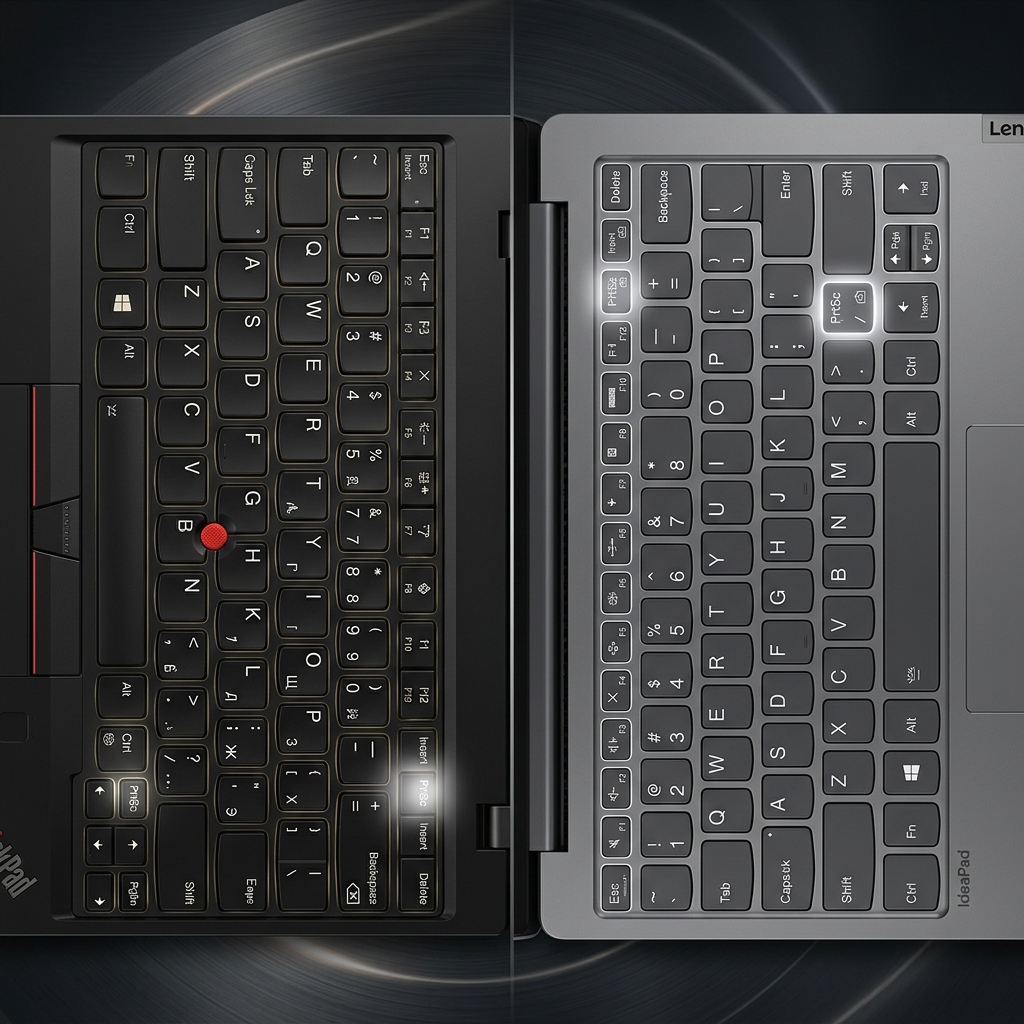
Step 1: The Lenovo Key Hunt
Lenovo labels it PrtSc (occasionally with a tiny scissors-style icon), but where it lives depends on your line:
- IdeaPad & Legion: top-right of the keyboard, usually near the function row or doubled up with the Insert key.
- ThinkPad: look down, not up. Lenovo traditionally wedges PrtSc into the bottom row, between the right Alt and Ctrl keys — a spot that catches every new ThinkPad owner off guard. (Some newer ThinkPads also include a dedicated Snip key that opens the capture tool directly.)
Step 2: Sort Out Lenovo FnLock
If pressing a top-row key fires the printed icon (volume, brightness) instead of the function it should, FnLock is the culprit.
- Press Fn + Esc to toggle FnLock on or off — Lenovo lights a small lock LED on the Esc key when it's active, flipping the top row to standard F-key behavior.
- Or simply hold Fn together with any shortcut below. When a combo seems unresponsive, Fn is usually all that's missing.
The Shortcut Worth Memorizing: Windows + Shift + S
Because it never touches the PrtSc key, this is the most reliable capture on any Lenovo — ThinkPad bottom-row quirk and all.
- Press Windows + Shift + S; the screen dims and a small toolbar appears at the top.
- Pick rectangle, freeform, window, or full screen, then drag to select.
- The snip copies to your clipboard — paste it into Outlook, Teams, a Google Doc, or anywhere with Ctrl + V.
A notification follows; click it to annotate or run Text Actions to pull text out of the image (a Windows 11 capability covered in our Windows 11 screen capture guide).
Save the Full Screen as a File: Windows + PrtSc
Press Windows + PrtSc (add Fn if needed). The screen dims briefly and a PNG of the whole display saves straight to Pictures → Screenshots — ideal mid-video when you can't stop to drag a box.
Enjoying this read?
Get weekly insights on video editing, AI workflows, and creator growth straight to your inbox.
Capture a Single Window: Alt + PrtSc
Click the app you want so it's in front, then press Alt + PrtSc (or Alt + Fn + PrtSc). Lenovo copies a clean shot of only that window to the clipboard, ignoring your desktop clutter entirely.
Screenshotting a Yoga or Flex in Tablet Mode
Folded your Yoga or Flex back into a tablet? The keyboard goes inactive, so press the physical Power button + Volume Down together on the edge of the chassis, just like a phone. The screen flashes and the shot lands in your Screenshots folder.
Where Do Lenovo Screenshots Save?
Snipping Tool and Alt + PrtSc shots stay on the clipboard until pasted. Windows + PrtSc files save to Pictures → Screenshots — or to OneDrive → Pictures → Screenshots if backup is on, the usual explanation for a "lost" capture. On a different brand elsewhere? See our companion guides for Dell laptops and HP laptops, plus the master any-device cheat sheet.
Going Beyond the Static Image
A clean screenshot is a daily essential. But one still image stops being enough the moment what you're explaining has several moving parts.
If you catch yourself stacking five screenshots, scribbling red arrows, and typing paragraphs just to walk someone through a bug or a workflow, you're spending real time on something that still isn't clear. (Here's how to tell when you need motion instead: screen recording vs. screen capture.)
When you're ready to swap static images and raw, laggy recordings for breathtaking, auto-zoomed, cinematic walkthroughs — with no video editor at all — explore Cubix Capture.
Don’t miss the next one.
Join our newsletter for exclusive tips, product updates, and the latest from the Cubix team.