
This guide is specifically for the case where OBS was working, an update happened, and now it records black. That is a regression, and regressions are easier to fix than mysteries, because you know something changed. The key is identifying which thing updated: OBS itself, your GPU driver, or your operating system. Each has a different fix.
If your OBS never worked, this is the wrong guide, start at the hub or the platform guides for Windows 11 and MacBook.
Want capture that does not break on the next patch? Cubix Capture updates without a scene-graph or GPU-hook to regress, your recordings keep working. Try free
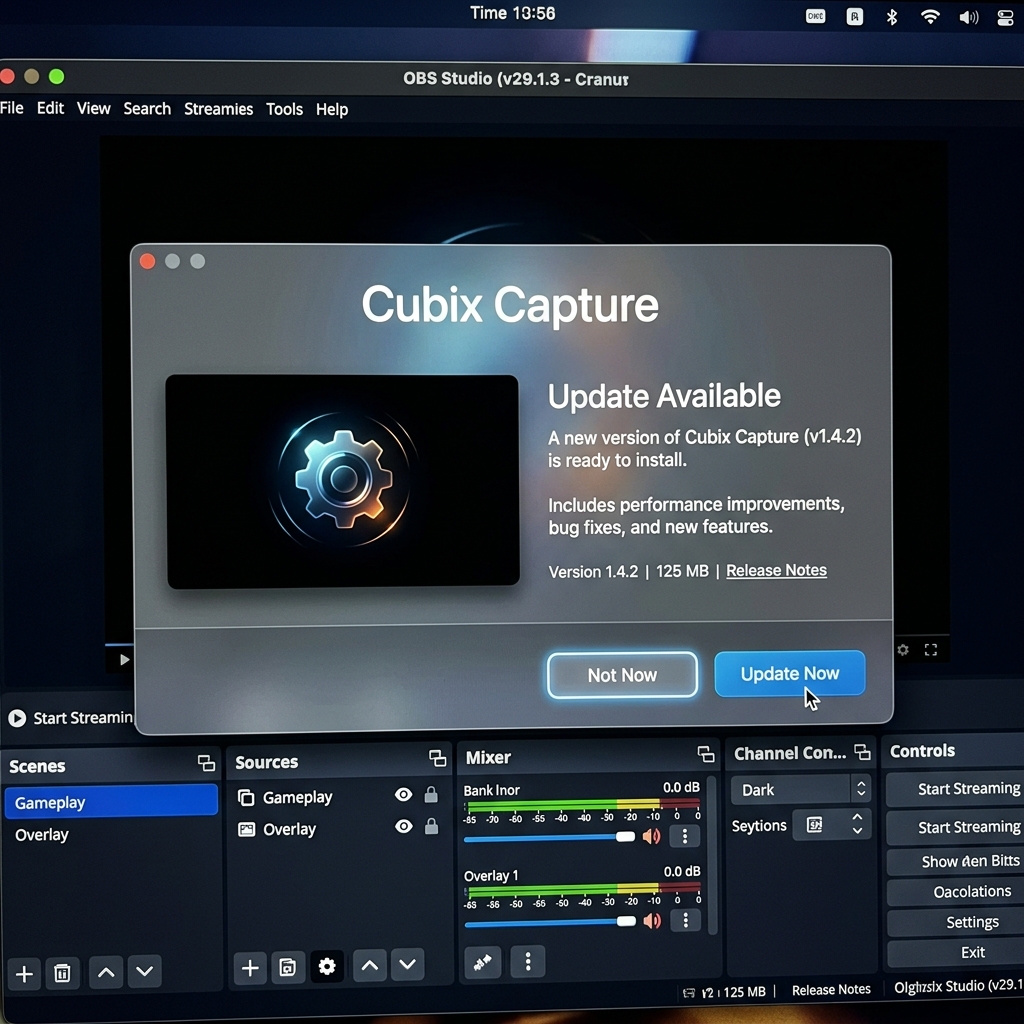
Step 1: Figure out what actually updated
Think back to the last time capture worked, then check what changed:
- OBS updated (you saw a new-version prompt) → go to Step 2.
- GPU driver updated (NVIDIA/AMD/Intel app, or via Windows Update) → go to Step 3. This is the most common cause.
- Windows or macOS updated (a feature update or macOS point release) → go to Step 4.
If two of these happened together, address the GPU driver first, it accounts for the majority of post-update black screens.
Step 2: If OBS updated
A new OBS build can reset defaults or ship a source change (on macOS especially, capture backends have changed between versions).
- Launch OBS in Safe Mode: Help → Restart in Safe Mode. Safe Mode disables third-party plugins and resets to default GPU behavior. If capture works in Safe Mode, a plugin broke, remove or update it.
- Re-add the source: Delete your Display or Game Capture source and add it fresh. Upgraded configs sometimes keep a stale source pointing at the wrong adapter.
- Roll back OBS as a last resort: uninstall and reinstall the previous version from OBS's release archive, then hold updates until a fix ships.
Step 3: If your GPU driver updated (most common)
A driver install frequently resets the per-app GPU preference, which throws a dual-GPU laptop back into the mismatch that causes black Display Capture.
- Re-apply OBS's GPU preference: Settings → System → Display → Graphics → obs64.exe → Options, and set it back (Power saving/integrated for Display Capture; High performance/discrete for Game Capture). Full procedure in the Windows 11 guide.
- Roll back the driver if that fails: Device Manager → Display adapters → your GPU → Properties → Driver → Roll Back Driver, then reboot.
- Clean-install the latest driver: Use the vendor's "clean installation" option (NVIDIA custom install → Perform a clean installation) to clear a corrupted upgrade, then reboot and re-check the GPU preference.
Enjoying this read?
Get weekly insights on video editing, AI workflows, and creator growth straight to your inbox.
Step 4: If the OS updated
- Windows feature update: These can reset privacy and graphics defaults. Re-check the GPU preference (Step 3) and, on protected apps, re-confirm Run as administrator.
- macOS update: A macOS point release can revoke or reset Screen Recording permission, and newer macOS versions changed the capture backend. System Settings → Privacy & Security → Screen Recording, toggle OBS off and on, then Cmd+Q and reopen. If you are on macOS Sonoma or later, make sure OBS is updated to a build that supports the current ScreenCaptureKit path, detailed in the MacBook guide.
Step 5: Clear the OBS cache and reset the scene
If it is still black after addressing the update itself:
- Back up your scene collection (Scene Collection → Export).
- Try Restart in Safe Mode once more to rule out a corrupted config.
- As a clean test, create a new scene collection with a single fresh Display Capture source.
Break the update-breaks-capture cycle
Every OBS session depends on a fragile alignment of OBS version, driver version, and OS build, which is why a routine update can black out your recordings without warning. Cubix Capture does not rely on GPU hooks or a scene graph that can regress, so a patch does not cost you an afternoon of driver rollbacks. For weekly demos and tutorials, that stability is the whole point.
Continue in the series: Every Cause and Solution (hub) · Windows 11 Step by Step · Display Capture Fix · MacBook Guide
Related: OBS Is Overkill for Screen Recording · OBS vs Cubix Capture (2026)
Identify which update caused the regression, re-apply the GPU preference or permission it reset, and your capture comes back.
Don’t miss the next one.
Join our newsletter for exclusive tips, product updates, and the latest from the Cubix team.