
This guide is specifically for Windows 11. Windows 11 moved the per-application GPU control into a redesigned Graphics panel and changed a few privacy defaults, and those two changes are behind the majority of OBS black screens on modern laptops. If you are on a Mac, use the MacBook guide instead; if your issue is specifically Game Capture or Display Capture, the Game Capture and Display Capture guides go deeper on those modes.
Work through the steps in order and test after each one. Most people are fixed by Step 3.
Prefer to skip the whole matrix? Cubix Capture is built for Windows 11 tutorials and demos: pick a window, hit record, get a clean MP4, no GPU picker, no black rectangle. Download for Windows · Try free
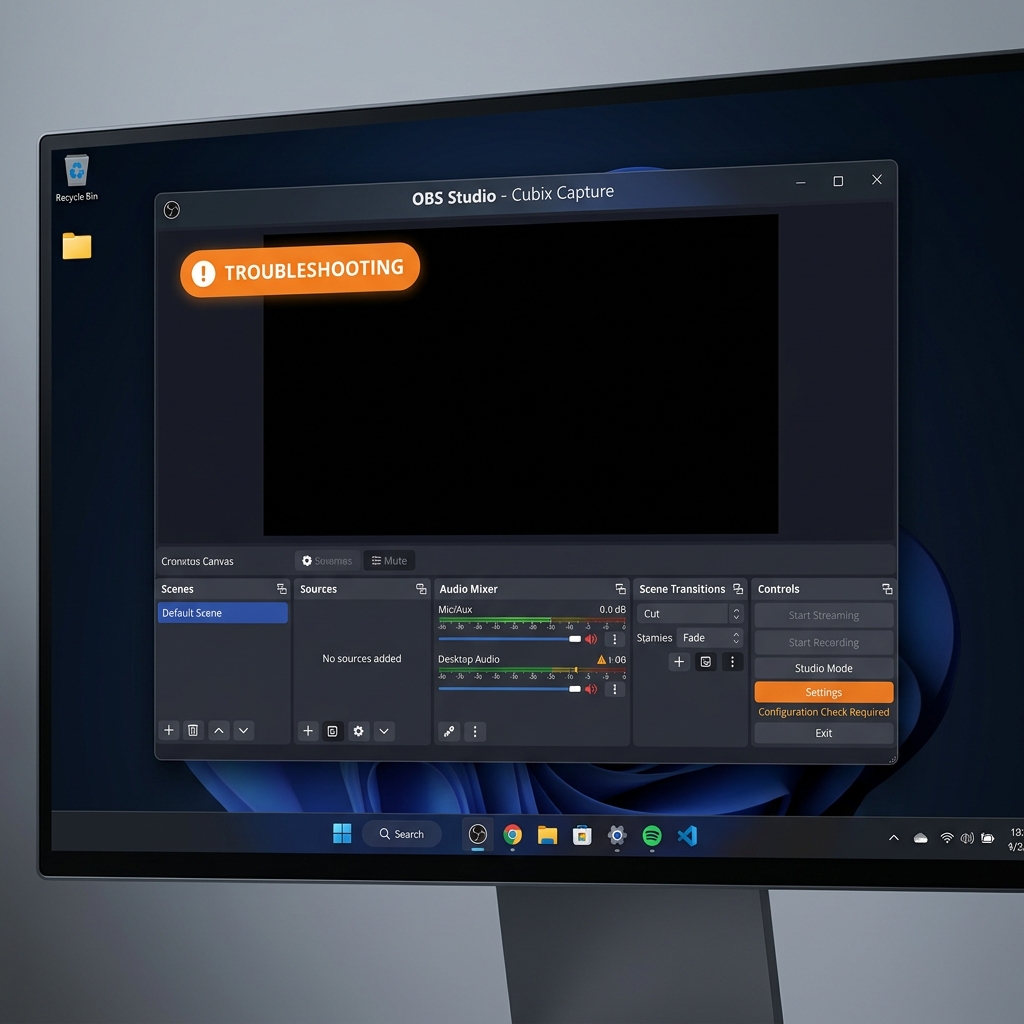
Step 1: Identify which capture is black
Before changing anything, note your exact situation, because the later steps branch on it:
- Display Capture (whole monitor) black → a GPU-preference problem (Steps 2–3).
- Window Capture on one app black, desktop fine → that app's acceleration (Step 5).
- Game Capture black → see the Game Capture guide.
Step 2: Confirm you have a dual-GPU laptop
Open Task Manager → Performance. If you see two GPUs (for example an Intel or AMD integrated GPU plus an NVIDIA or AMD discrete GPU), you have a hybrid laptop, and the GPU mismatch is almost certainly your cause. Desktop PCs with a single GPU can skip to Step 4.
Step 3: Set OBS to the correct GPU in Windows 11 Graphics settings
This is the core Windows 11 fix.
- Quit OBS completely (check the system tray, then close it).
- Open Settings → System → Display → Graphics (search "Graphics settings" from Start).
- Under Custom options for apps, click Add desktop app and browse to obs64.exe at
C:\Program Files\obs-studio\bin\64bit\. - Select OBS in the list, click Options, and choose:
- Power saving (integrated GPU) for desktop and browser tutorials with Display Capture. This is the fix for most black Display Captures.
- High performance (discrete GPU) only if you are using Game Capture on games that run on the discrete GPU.
- Click Save, relaunch OBS, and retest.
If Windows keeps overriding your choice, open your GPU vendor's control panel (NVIDIA Control Panel → Manage 3D settings → Program Settings, or the AMD equivalent), select obs64.exe, and set the preferred graphics processor to match, then reboot.
Step 4: Run OBS as administrator
Windows 11 will not let a non-elevated OBS capture an app that is running elevated, which shows up as a black window.
- Close OBS.
- Right-click the OBS shortcut → Run as administrator → accept the UAC prompt.
- If that fixes it, make it permanent: right-click the shortcut → Properties → Compatibility → Run this program as an administrator (only do this with OBS installed from the official site).
Enjoying this read?
Get weekly insights on video editing, AI workflows, and creator growth straight to your inbox.
Step 5: Turn off hardware acceleration in the app you are capturing
If a specific window is black, for example Chrome, Edge, Discord, or Slack:
- Chrome / Edge: Settings → System → Use graphics acceleration when available → Off → relaunch the browser.
- Discord: Settings → Advanced → Hardware Acceleration → Off.
- Re-test Window Capture on that app.
Step 6: Update or roll back your GPU driver
A black screen that appeared right after a Windows Update is often a GPU driver that changed underneath OBS. Update to the latest driver from Intel, NVIDIA, or AMD (not just Windows Update), reboot, and re-check Step 3, because a driver install can reset your per-app GPU preference. If the black screen instead started after a driver update, see OBS black screen after an update for the rollback procedure.
Step 7: If you only need Windows 11's built-in path
Windows 11 also ships a lightweight recorder in the Snipping Tool and video editing in Clipchamp, and the Xbox Game Bar (Win+G) can capture games without OBS's hooking complexity. These sidestep the compositor entirely and are worth a try for a one-off clip, though they lack OBS's scenes. See how to record on Windows 11 without Xbox Game Bar for the trade-offs.
Still black? Match the tool to the task
If you are recurring-recording tutorials and product demos on Windows 11, the honest answer is that OBS is a broadcast console you are using as a screencast tool. Cubix Capture records a chosen window directly, adds automatic zoom on your cursor, and never produces a black screen from GPU mismatch because it does not rely on whole-desktop compositing.
Continue in the series: Every Cause and Solution (hub) · Display Capture Fix · Game Capture · After Update
Related: OBS Is Overkill for Screen Recording · OBS vs Cubix Capture (2026)
Follow the steps top to bottom, and a Windows 11 black screen is almost always solved by Step 3 or Step 4.
Don’t miss the next one.
Join our newsletter for exclusive tips, product updates, and the latest from the Cubix team.