
This guide is specifically for OBS on a MacBook or Mac. The Mac story is genuinely different from Windows: there is no dual-GPU picker to wrestle with, and instead nearly every black screen traces back to macOS's privacy system (TCC), which blocks screen capture until you explicitly allow it, and only applies that permission after OBS is fully restarted. If you are on Windows, use the Windows 11 guide instead.
Want Mac screen recording without the permission dance and DRM surprises? Cubix Capture for Mac is built for Apple Silicon and Intel, records a chosen app cleanly, and exports a share-ready file. Download for Mac · Try free
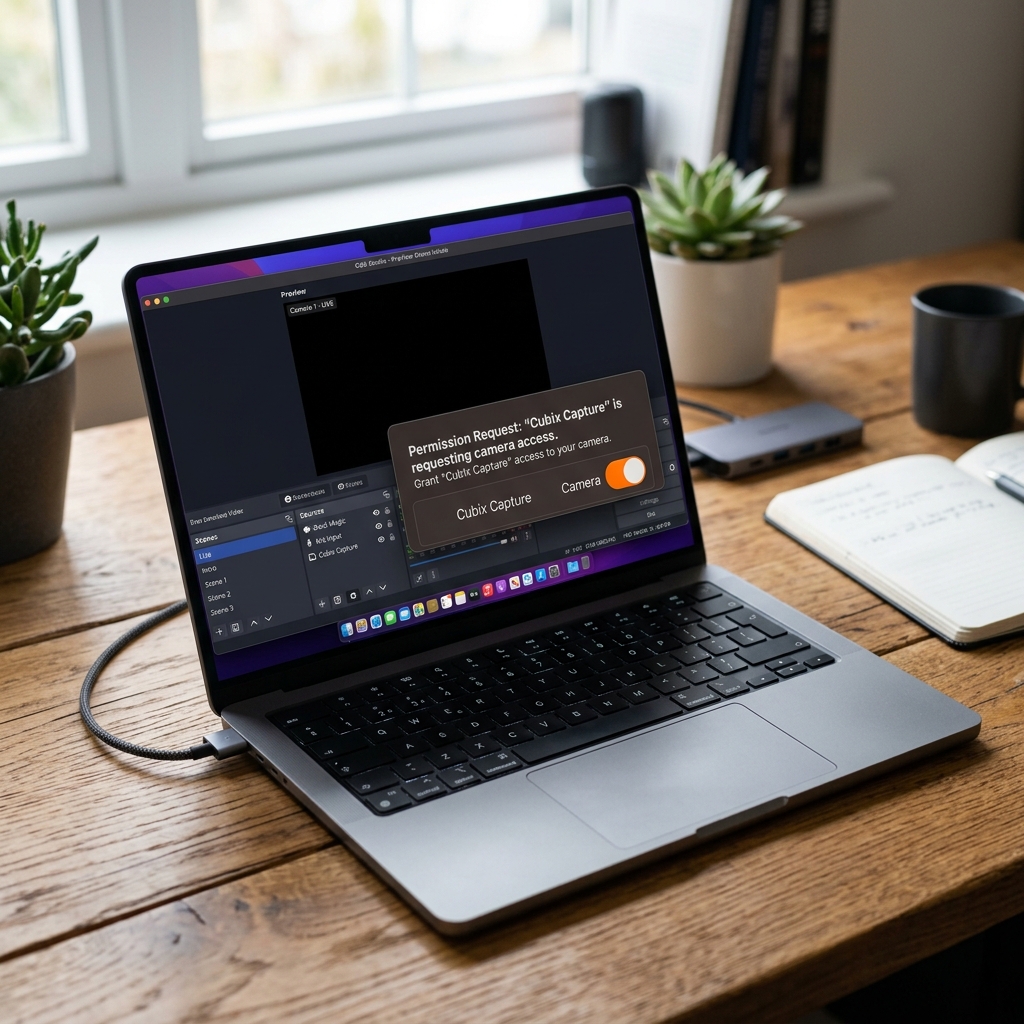
Fix 1: Grant Screen Recording permission (the #1 cause)
macOS will not let any app capture the screen until you allow it, and OBS shows black when it is not allowed.
- System Settings → Privacy & Security → Screen Recording.
- Toggle OBS on. If OBS is not listed, click +, and add it from Applications.
- Quit OBS completely with Cmd+Q, then reopen it. This step is not optional, macOS does not apply the permission to an already-running process, which is why so many people toggle it on and still see black.
Fix 2: If it was working and suddenly went black
macOS occasionally revokes the permission after an OBS update or a macOS point-release update. Toggle OBS off and back on in Screen Recording, then quit and reopen. If it broke right after an OS or app update, the after-update guide covers the full regression checklist.
If the toggle looks correct but capture is still black, reset the permission cleanly in Terminal and re-grant it:
- Run
tccutil reset ScreenCapture(this clears the screen-capture grant for all apps), then reopen OBS and approve the prompt fresh.
Fix 3: Use the right capture source on modern macOS
Recent macOS versions (Sonoma and later) moved screen capture to Apple's ScreenCaptureKit. On these systems:
- Prefer the macOS Screen Capture source (newer builds) over the legacy Display Capture, it is the supported path on current macOS.
- Make sure OBS itself is up to date, older OBS builds predate ScreenCaptureKit and can black out on new macOS releases.
Fix 4: Apple Silicon specifics
On M-series MacBooks, run the Apple Silicon (arm64) build of OBS, not the Intel build under Rosetta. A mismatched build can capture unreliably. Download the native version from the official OBS site and reinstall if you are unsure which you have.
Enjoying this read?
Get weekly insights on video editing, AI workflows, and creator growth straight to your inbox.
Fix 5: Window Capture vs Display Capture
If Display Capture is black but you only need one app, try Window Capture, and vice versa. Stage Manager and multiple Spaces can make one mode behave better than the other on the same Mac. Re-grant Screen Recording after switching if prompted.
Fix 6: DRM and protected content
If the black area is a video, a streaming site (Netflix, Disney+, Prime), or a protected app, macOS is blacking it out on purpose and no OBS setting overrides it. This is the classic "video is black but audio records fine" pattern, explained fully in the audio-works guide.
The Mac quick checklist
- Screen Recording permission on, then Cmd+Q and reopen.
- Still black? tccutil reset ScreenCapture, re-grant.
- On Sonoma+, use the macOS Screen Capture source and update OBS.
- On M-series, run the native arm64 build.
- Streaming/DRM content stays black by design.
A Mac-native alternative
OBS is a Windows-first broadcast tool ported to macOS, which is part of why its Mac permission behavior feels finicky. Cubix Capture for Mac is designed around macOS's capture APIs, requests permission cleanly, runs native on Apple Silicon, and records a chosen app without the Display-vs-Window guesswork, then exports a polished MP4 the moment you stop.
Continue in the series: Every Cause and Solution (hub) · Display Capture Fix · After Update · Black Screen but Audio Works
Related: Why Screen Studio Only Works on Mac · OBS vs Cubix Capture (2026)
On a MacBook, grant Screen Recording, quit and reopen OBS, and the vast majority of black screens disappear.
Don’t miss the next one.
Join our newsletter for exclusive tips, product updates, and the latest from the Cubix team.