
This guide is specifically about OBS Display Capture, the source that records an entire monitor. Display Capture is the simplest capture mode conceptually, but on laptops it is the most fragile, because it depends on OBS and your desktop living on the same GPU. If your black screen is a full-screen game, use the Game Capture guide; if only one app window is black, that is app acceleration, covered in the hub guide.
If you are recording a demo, not a whole monitor, you may not want Display Capture at all. Cubix Capture records the app or window that matters and frames it tightly, no black-desktop capture to debug. Try free
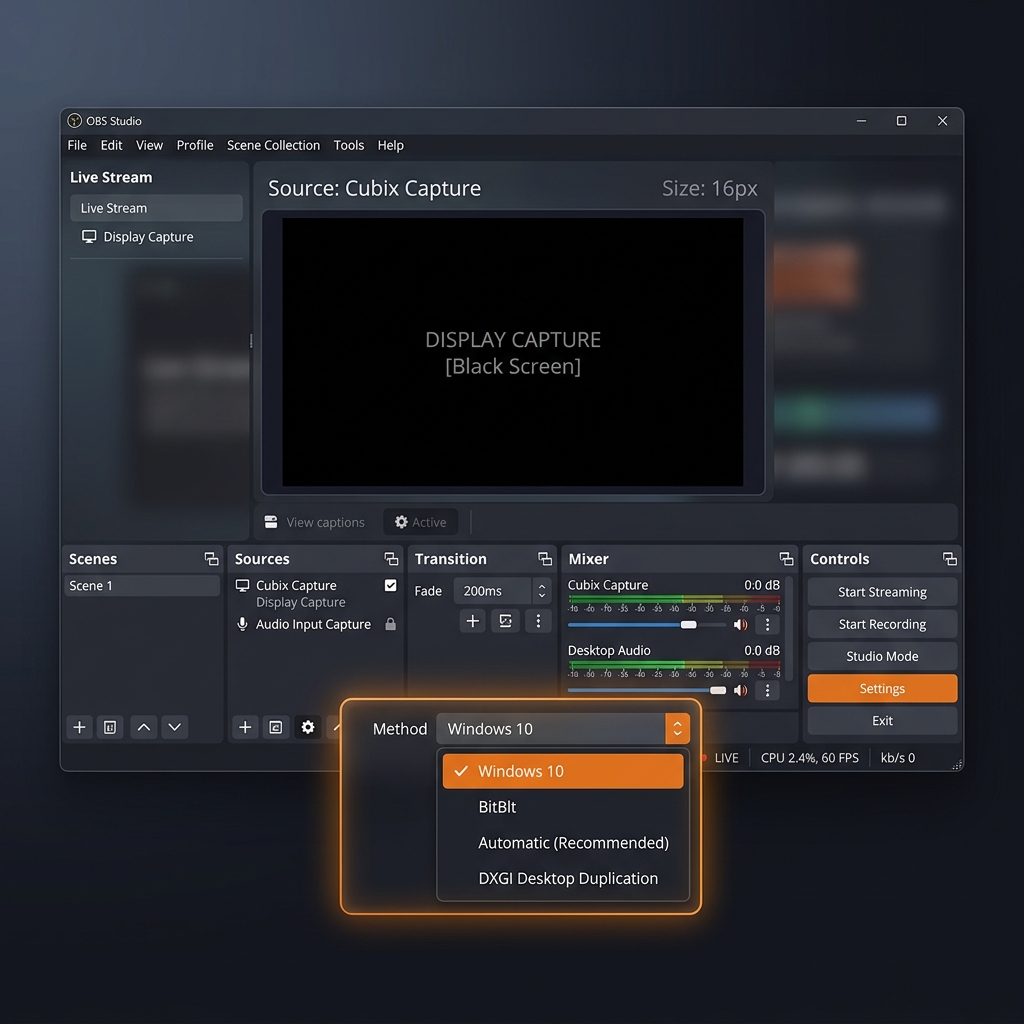
The two causes that account for almost every case
Cause A: dual-GPU laptop (Windows)
Windows runs your desktop on the integrated GPU to save battery, but OBS may open on the discrete GPU. Display Capture reads the framebuffer of the GPU OBS is running on, and if that is not the GPU drawing your desktop, it reads black.
Fix:
- Quit OBS entirely.
- Settings → System → Display → Graphics, add obs64.exe from
C:\Program Files\obs-studio\bin\64bit\. - Set OBS to Power saving (integrated GPU) — for Display Capture you want OBS on the same GPU as the desktop, which is the integrated one on most laptops.
- Save, relaunch, retest.
Counterintuitively, "Power saving / integrated" is the correct choice here even on a machine with a powerful discrete card, because your desktop is drawn by the integrated GPU. Full step-by-step in the Windows 11 guide.
Cause B: missing Screen Recording permission (macOS)
On macOS, Display Capture is black until OBS is granted Screen Recording permission, and the grant only takes effect after a full restart of OBS.
Fix: System Settings → Privacy & Security → Screen Recording, enable OBS, then Cmd+Q OBS and reopen it. The complete Mac walkthrough, including the newer macOS "Screen Capture" source, is in the MacBook guide.
Enjoying this read?
Get weekly insights on video editing, AI workflows, and creator growth straight to your inbox.
Multi-monitor gotchas
Even with the GPU right, Display Capture can appear black if you picked the wrong output:
- Wrong Display selected: In the source's Properties → Display, cycle through each listed monitor. On some systems the numbering does not match Windows' arrangement.
- A disconnected or sleeping monitor: If you captured a display that is now off or unplugged, the source is black. Re-select an active monitor.
- Mixed refresh rates or HDR: An HDR monitor captured into an SDR OBS canvas can look washed out or, in edge cases, black. Toggling HDR off on that display for the recording is a quick test.
Try Window Capture as a fallback
If Display Capture stubbornly stays black but you only need one app, switch to Window Capture, which reads a single application's surface and does not depend on capturing the whole monitor. If Window Capture on a browser is also black, disable that browser's hardware acceleration (Settings → System → graphics acceleration off).
Run as administrator
If Display Capture is black only when a particular elevated app is in the foreground, launch OBS with Run as administrator so it has the privileges to read that surface.
The simpler path for demos
Display Capture exists to grab an entire screen, which is rarely what a tutorial actually needs, viewers want the app, not your taskbar and wallpaper. Cubix Capture records the specific app or window, frames it cleanly, and auto-zooms on the detail you are pointing at, which also means there is no whole-desktop GPU dependency to go black.
Continue in the series: Every Cause and Solution (hub) · Windows 11 Step by Step · MacBook Guide · After Update
Related: OBS Is Overkill for Screen Recording · OBS vs Cubix Capture (2026)
Match OBS to the GPU drawing your desktop (or grant the Mac permission), pick the right monitor, and Display Capture lights back up.
Don’t miss the next one.
Join our newsletter for exclusive tips, product updates, and the latest from the Cubix team.