
This guide is specifically about the symptom where OBS records audio fine, but the video is black, either in the preview or in the exported file. It is worth treating this as its own case, because the combination of "sound works, picture does not" is a strong diagnostic clue that most black-screen guides skip past.
Here is why it matters: in OBS, audio and video travel through completely separate capture paths. Your microphone and desktop audio are grabbed independently of your Display, Window, or Game Capture. So when audio records cleanly, it proves your encoder, output settings, and recording pipeline are all healthy. The problem is isolated to the video source, which eliminates half the usual suspects immediately.
Recording a demo where the video is what matters most? Cubix Capture captures the app directly and never silently drops the picture while keeping audio. Try free
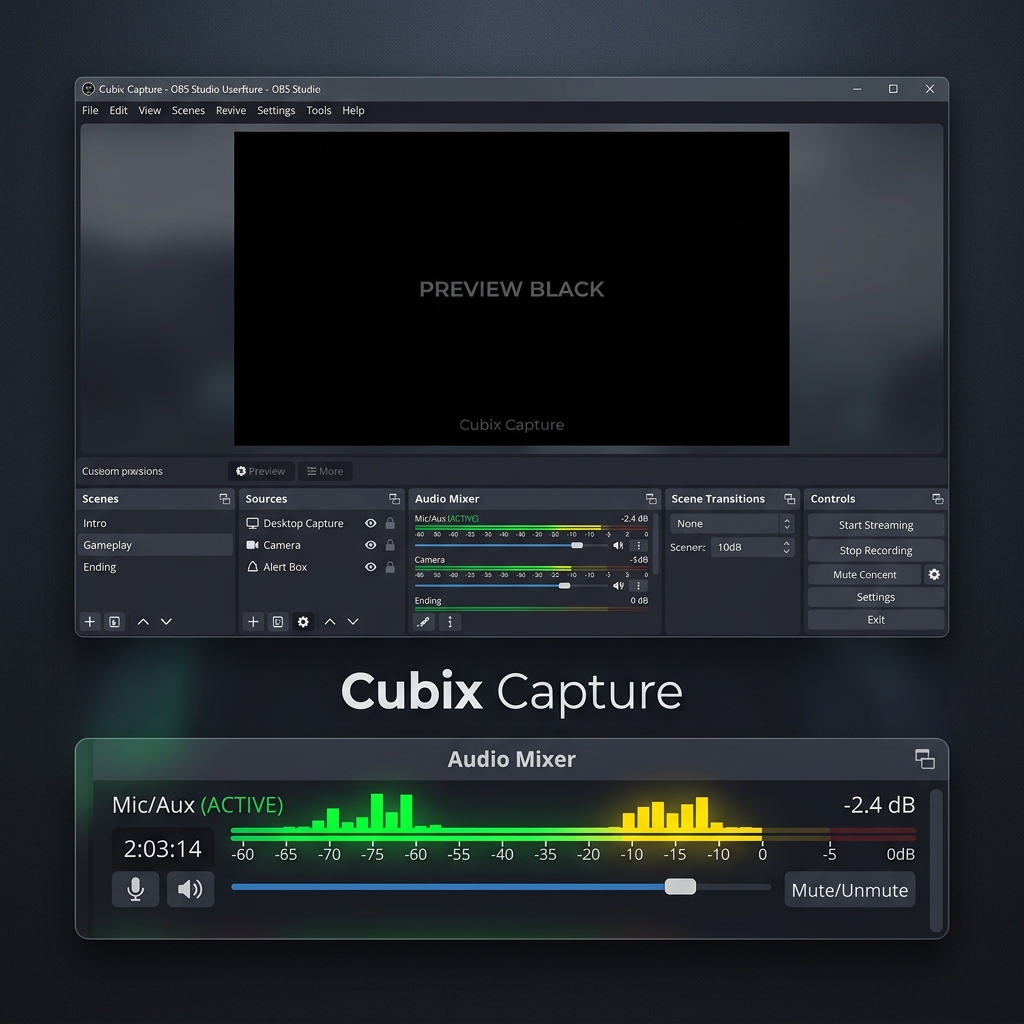
What "audio works, video black" rules in and out
Ruled out (because audio proves these work): your output path, encoder, file writing, and recording settings are fine, do not waste time changing bitrate, format, or output folder.
Ruled in (the video source is failing): one of the following.
Cause 1: DRM / protected content (the top cause of this exact symptom)
This symptom is the classic fingerprint of protected content. If you are capturing Netflix, Disney+, Prime Video, Spotify, HBO/Max, or a protected app, they render black to recorders on purpose while the audio, which is not protected the same way, passes through. That is why you get sound with a black picture.
Reality: no OBS setting defeats this, it is copy protection enforced by the OS and GPU. If you have the right to record the material, capture from a source that is not DRM-locked. If you are recording your own app or a normal website, move to the next cause.
Cause 2: GPU mismatch (laptops)
If OBS runs on a different GPU than the desktop it is capturing, the video source reads black while audio (which does not depend on the GPU) records normally.
Fix: Settings → System → Display → Graphics → obs64.exe → Options → Power saving (integrated) for Display Capture. Full steps in the Windows 11 guide.
Cause 3: Missing Screen Recording permission (macOS)
On a Mac, the video source is blocked by privacy while audio is captured through a separate device, giving you exactly this symptom.
Fix: System Settings → Privacy & Security → Screen Recording → enable OBS, then Cmd+Q and reopen. See the MacBook guide.
Enjoying this read?
Get weekly insights on video editing, AI workflows, and creator growth straight to your inbox.
Cause 4: The video source itself is wrong or empty
- Wrong monitor or window selected: open the source Properties and re-pick the correct display or window.
- Window is minimized: a minimized app has no surface to capture. Restore it.
- App hardware acceleration: for a black browser/Discord window, turn hardware acceleration off in that app and retry Window Capture.
- Capture mode mismatch: a game needs Game Capture, not Display Capture, see the Game Capture guide.
Cause 5: Encoder lost the GPU (black file, fine preview)
If the preview looks fine but the recorded file is black with working audio, your hardware encoder may have lost its device. Test with Settings → Output → Encoder → Software (x264); if the file records correctly, the GPU encoder path is the issue, update your GPU driver or keep the software encoder.
A fast triage order
- Are you recording a video/streaming site? If yes, it is DRM, stop here.
- On a laptop? Fix the GPU preference.
- On a Mac? Grant Screen Recording, quit and reopen.
- Re-select the correct window/monitor; restore it if minimized.
- Preview fine but file black? Switch the encoder to test.
Skip the split-pipeline surprises
The reason this symptom is confusing is that OBS captures audio and video as independent streams that can succeed or fail separately. Cubix Capture captures the target app as one coherent recording, so you do not end up with perfect sound over a black rectangle, and it exports a clean, shareable file the moment you stop.
Continue in the series: Every Cause and Solution (hub) · MacBook Guide · Windows 11 Step by Step · Game Capture
Related: My Screen Recording Has No Audio · OBS vs Cubix Capture (2026)
Working audio tells you the pipeline is fine, fix the video source (DRM, GPU, permission, or selection) and the picture returns.
Don’t miss the next one.
Join our newsletter for exclusive tips, product updates, and the latest from the Cubix team.