
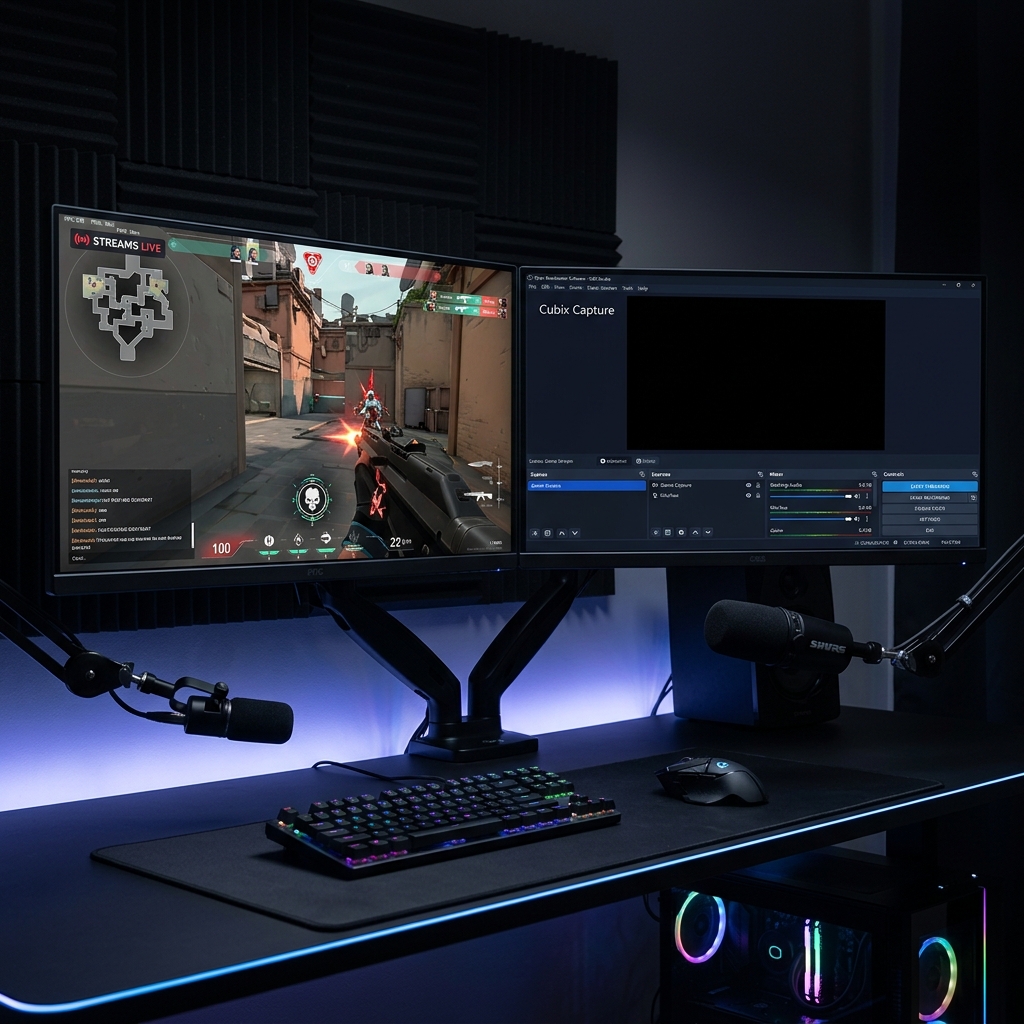
This guide is specifically about OBS Game Capture turning black, the mode you use for full-screen DirectX, Vulkan, or OpenGL games. Game Capture is fundamentally different from Display and Window Capture: instead of reading pixels off your desktop, it injects a hook into the game's process and pulls frames straight from the render pipeline. That extra step is powerful, and it is exactly why Game Capture has failure modes the other sources do not.
If your black screen is on the desktop or a browser rather than a game, use the Display Capture guide or the hub guide instead.
Recording gameplay to teach or showcase, not to livestream? Cubix Capture captures cleanly without process injection, so anti-cheat and full-screen quirks stop being your problem. Try free
Why Game Capture goes black: the four real causes
1. GPU mismatch between OBS and the game
If your game runs on the discrete GPU but OBS is pinned to the integrated GPU (or vice versa), the hook cannot read the game's framebuffer across devices, and you get black. This is the single most common cause on laptops.
Fix: For Game Capture, both OBS and the game should sit on the discrete GPU. In Windows Settings → System → Display → Graphics, add obs64.exe, choose Options → High performance, and confirm the game is also set to High performance. Relaunch both. The full GPU procedure is in the Windows 11 guide.
2. The hook never attached
Game Capture only works once OBS successfully injects its hook. If the game launched before OBS, or OBS lacks the privileges to inject, the source stays black.
Fix:
- Set the Game Capture source Mode to Capture specific window and pick the game explicitly, rather than "Capture any fullscreen application."
- Launch OBS first, then the game.
- Enable Anti-cheat compatibility hook in the source properties if your game uses anti-cheat (see cause 3).
3. Anti-cheat is blocking the injection
Competitive titles run kernel-level anti-cheat (Vanguard, EAC, BattlEye) that treats process injection as suspicious and can silently block OBS's hook, leaving you black, or in rare cases flag the session.
Fix: In the Game Capture source properties, turn on Use anti-cheat compatible hook. If a specific title still refuses, switch that game to borderless windowed and use Display Capture or Window Capture instead, which do not inject anything. Never use injection workarounds that your game's anti-cheat policy forbids.
Enjoying this read?
Get weekly insights on video editing, AI workflows, and creator growth straight to your inbox.
4. Full-screen exclusive vs borderless
Exclusive full-screen hands the GPU entirely to the game, which is ideal for Game Capture but fragile if anything else needs the surface. Borderless windowed is more forgiving and lets you fall back to Window Capture.
Fix: If Game Capture is black in exclusive full-screen, set the game to borderless windowed in its video options and try again, either mode can work, but borderless is the safer default when you are troubleshooting.
Run OBS as administrator
Many games run with elevated or protected privileges. A non-elevated OBS cannot hook into them, which reads as black. Right-click OBS → Run as administrator, then retry. Make it permanent via the shortcut's Compatibility tab if it helps.
A quick decision list
- Black in exclusive full-screen → try borderless windowed.
- Black with anti-cheat game → enable the anti-cheat compatible hook, or switch to Window Capture.
- Black on a laptop → put OBS and the game on the same (discrete) GPU.
- Hook never grabs → launch OBS first, capture a specific window, run as admin.
When you are capturing gameplay to teach, not to stream
If your goal is a tutorial, highlight, or walkthrough rather than a live broadcast, process-injection capture is more machinery than you need. Cubix Capture records without injecting into the game, adds automatic zoom to highlight the action, and exports a clean, shareable file, sidestepping the entire class of hook-and-anti-cheat black screens.
Continue in the series: Every Cause and Solution (hub) · Windows 11 Step by Step · Display Capture Fix · Black Screen but Audio Works
Related: OBS Is Overkill for Screen Recording · OBS vs Cubix Capture (2026)
Game Capture is black because a hook failed to attach or the GPUs do not match, fix those two things and the picture returns.
Don’t miss the next one.
Join our newsletter for exclusive tips, product updates, and the latest from the Cubix team.