
Whether you need to save a digital receipt, capture an error message to send to your IT support team, or grab a quick visual reference from a web page, taking a screenshot is a daily necessity.
If you are still pressing the "Print Screen" button and manually pasting a massive, unedited image into Microsoft Paint, you are working way too hard. Over the last few years, Microsoft has completely overhauled the screen capture ecosystem in Windows 10 and Windows 11, introducing incredibly powerful, built-in tools that do the heavy lifting for you.
You do not need to download third-party applications to get the perfect shot. Here is your complete, master cheat sheet for every Windows screenshot keyboard combo in 2026.
This guide is the keyboard-first reference: every combination, ranked by how often you will actually use it. If you want the methods explained around your specific Windows version and where the behavior differs, read how to capture a screenshot on Windows (covers Windows 10 and 11). On the newest build and want the 2026-only tricks like OCR text extraction and built-in video, jump to our Windows 11 screen capture guide. On a Mac instead? Here is the matching Mac screenshot cheat sheet.
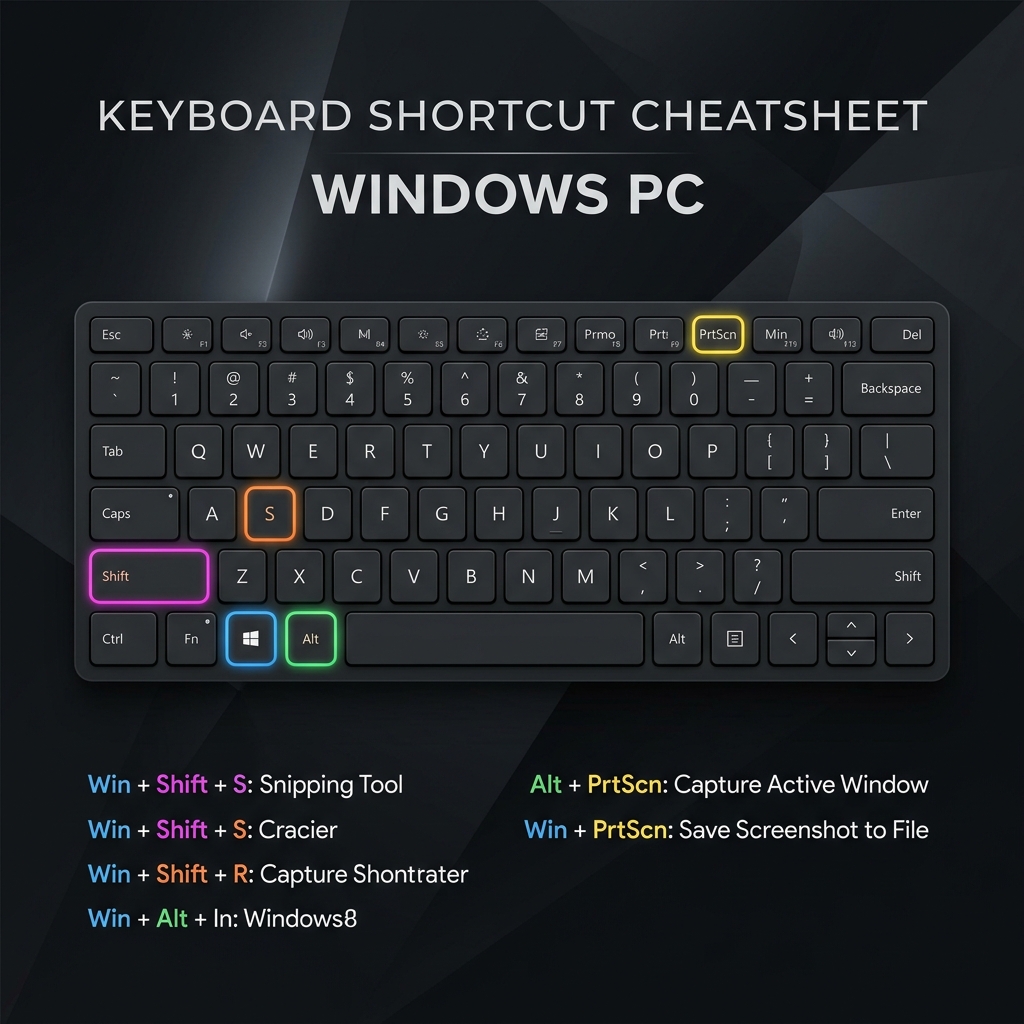
The Essential Cheat Sheet
Here are the core keyboard combinations you need to memorize. Mastering these will instantly speed up your daily digital workflow.
1. The Modern Standard: The Snipping Tool
Windows + Shift + S
If you only remember one shortcut from this entire list, make it this one. This is the absolute fastest and cleanest way to capture a specific part of your screen.
- How it works: Press all three keys simultaneously. Your screen will instantly dim, and a small toolbar will appear at the top center of your monitor.
- The Options: Your mouse will turn into a crosshair. You can drag a rectangular box, draw a freeform shape, select a specific window, or grab the full screen.
- Where it goes: The image is instantly copied to your invisible clipboard. You can immediately press
Ctrl + Vto paste it into an email, Slack channel, or document. (Clicking the popup notification will open the editor to save it as a file).
2. The Auto-Save (Full Screen)
Windows + PrtScn
If you are watching a live presentation or a fast-paced video and do not have the time to carefully drag a selection box or paste an image from your clipboard, use this method.
- How it works: Press the Windows key and the Print Screen key together. Your screen will briefly flash or dim, confirming the shot.
- Where it goes: Windows automatically saves the image of your entire monitor as a PNG file. You can find it by opening your File Explorer and navigating to Pictures > Screenshots.
3. Capture a Specific Active Window
Alt + PrtScn
Your desktop is cluttered with icons, and you have a messy background wallpaper. You just want a clean picture of your web browser or a specific Excel spreadsheet. You do not need to manually crop the image if you use this shortcut.
- How it works: Click on the application window you want to capture to make sure it is active and in the front. Press
Alt + PrtScn. - Where it goes: Windows will snap a perfect, borderless image of only that specific application window and copy it straight to your clipboard.
Enjoying this read?
Get weekly insights on video editing, AI workflows, and creator growth straight to your inbox.
The "Legacy" Key and Gaming Tools
Depending on how your computer is set up, these classic keys might behave a little differently than you remember.
The Classic Print Screen Key
PrtScn
For decades, pressing this single button quietly copied your entire screen to your clipboard. However, in recent Windows 11 updates, Microsoft fundamentally changed its behavior.
- The New Default: On modern PCs, simply pressing
PrtScnautomatically launches the Snipping Tool overlay (acting exactly likeWindows + Shift + S). - How to change it back: If you hate this new feature, go to Settings > Accessibility > Keyboard and toggle off the setting that says "Use the Print screen key to open screen capture."
(Note: On many laptops, especially Dell, HP, and Lenovo, the PrtScn key shares a button with another function. You may need to hold down the Fn key in the bottom left corner of your keyboard for this to work).
The Xbox Game Bar (For Heavy Apps & Games)
Windows + Alt + PrtScn
If you are playing a PC game or running a heavy, full-screen application, standard screenshot tools can sometimes fail or capture a black screen. Windows has a built-in gaming overlay designed to bypass this.
- How it works: Pressing this combination uses the Xbox Game Bar to force a screenshot of the active application.
- Where it goes: The file is automatically saved to your hard drive. You can find it in Videos > Captures. (You can also press
Windows + Gto open the full Game Bar menu to record video).
Which Combo Should You Actually Memorize?
If this list feels like a lot, narrow it to two. For everyday capturing, Windows + Shift + S covers ninety percent of what most people need — precise, cropped, straight to the clipboard. Pair it with Windows + PrtScn for the moments you need a full-screen file saved instantly with zero clicks. Everything else on this page is situational power-user territory.
Still deciding between the modern overlay and the old silent keys? We break down the trade-offs in Snipping Tool vs. screenshot shortcut. And if you would rather avoid the Snipping Tool overlay entirely, here is how to screenshot on Windows without it.
Coming soon: Cubix Snap. Once a shortcut lands you a clean capture, Snap handles the part that comes next — dropping your screenshot onto a polished background, adding quick annotations, or removing the background entirely, with no design tools required.
When a Keystroke Isn't Enough
Memorizing these combos makes you faster at capturing. But a single frame can never show a sequence — a setting being toggled, a flow being clicked through, a bug that only appears mid-action. The moment you need to explain rather than capture, a short screen recording carries far more than any annotated still.
When you reach that point and want to turn a raw recording into a clean, auto-zoomed walkthrough without ever opening a video editor, Cubix Capture is the natural next step.
Don’t miss the next one.
Join our newsletter for exclusive tips, product updates, and the latest from the Cubix team.