
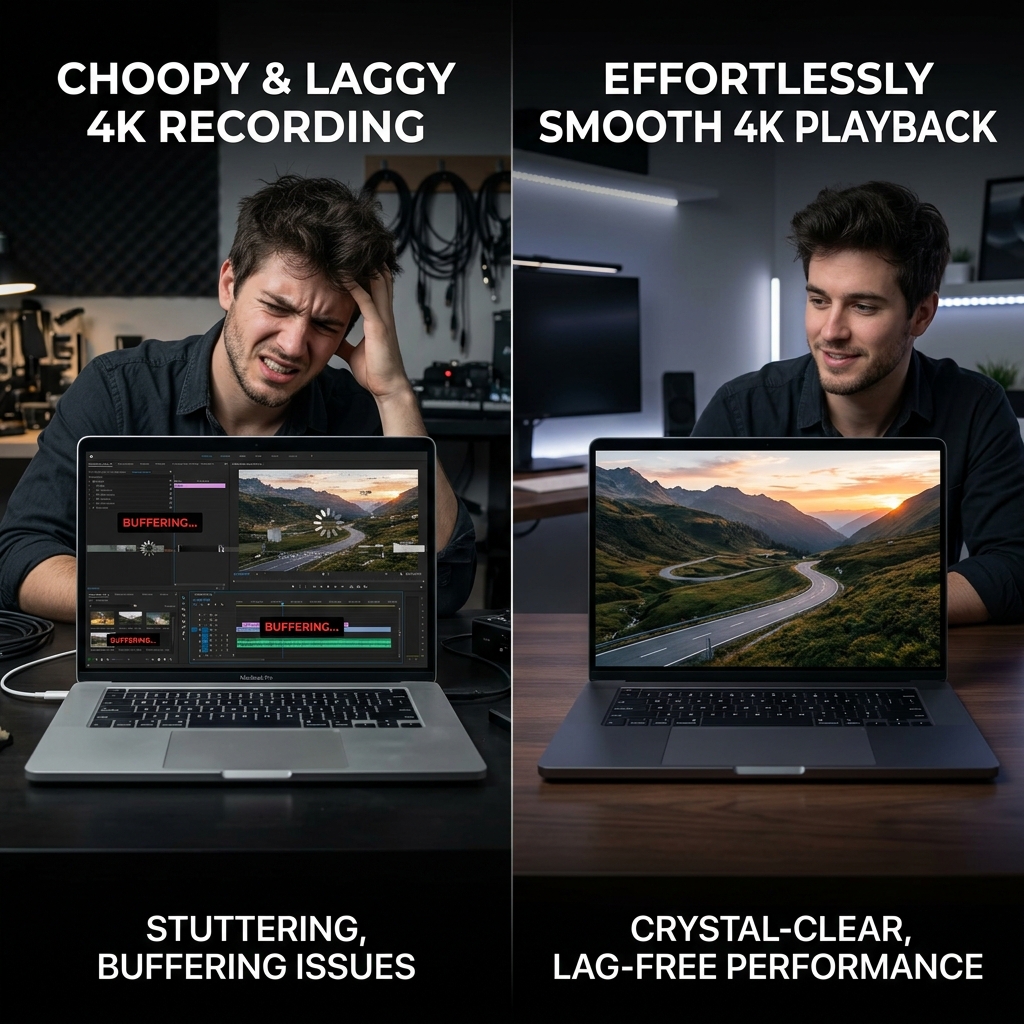
The MacBook Pro is built for exactly this kind of work. Where a lighter Mac just gets the job done, the Pro's high-end chips, ProMotion display, and studio-grade microphones let you record screen content that looks and sounds genuinely professional.
The recording method is the same one Apple uses across macOS, but the Pro lets you push the quality far higher. This guide covers the basics quickly, then focuses on getting the most out of Pro-specific hardware.
The Standard Method
- Press
Command+Shift+5to open the capture toolbar. - Pick Record Entire Screen or Record Selected Portion.
- Open Options to set microphone, save location, timer, and whether to show mouse clicks.
- Click Record, and stop with the menu-bar stop icon or
Command+Control+Escape.
New to this entirely? Start with our beginner walkthrough. Otherwise, here is where the Pro pulls ahead.
Pro Advantage 1: ProMotion and Smooth Motion
Recent 14-inch and 16-inch MacBook Pros have ProMotion displays that refresh up to 120Hz. In practice this means motion on your screen, scrolling, animations, dragging windows, looks far smoother than on a standard 60Hz panel.
macOS captures that smoothness. When you record on a ProMotion Pro, fast on-screen movement comes through noticeably more fluid than the same recording on a 60Hz Mac. For demos where you scroll through pages or show animations, this is a real, visible upgrade, and it is free, you do not toggle anything, the recorder simply follows the display.
The trade-off: smoother, higher-frame-rate video means larger files. Keep that in mind if you are recording long sessions.
Pro Advantage 2: Razor-Sharp Retina and 4K Recordings
The MacBook Pro's Liquid Retina XDR display is extremely high resolution. When you record the entire screen, you capture at that full native resolution, producing crisp footage where even small text stays legible.

Two tips to keep that sharpness intact all the way to your viewer:
- Do not let a player downscale it. Upload the original
.movrather than a re-compressed copy where you can. - If text looks small, that is a framing problem, not a resolution problem. Either record a selected portion zoomed into the content, or zoom in during editing. (More on that in How to Screen Record on Mac and Edit It.)
For a deeper look at why some recordings end up soft, see why screen recordings look blurry and how to fix it.
Enjoying this read?
Get weekly insights on video editing, AI workflows, and creator growth straight to your inbox.
Pro Advantage 3: The Studio Microphones
MacBook Pros ship with a studio-quality three-mic array with directional beamforming. For narrated tutorials, this is a genuine step up, your voice comes through clear and full without an external mic.
Before recording, open Options in the capture toolbar and select MacBook Pro Microphone. Record in a quiet room and speak at a natural distance; the Pro's mics handle the rest. If your narration ever records as silence, work through the no-sound fix guide.
Pro Advantage 4: Recording an External Display
MacBook Pros are commonly docked to a big external monitor. When you press Command + Shift + 5 with an external display connected, the capture toolbar appears on whichever screen your pointer is on, and Record Entire Screen captures that specific display.
A couple of things to know with multiple monitors:
- The recorder films one display at a time, not both at once.
- Move your pointer to the screen you want before choosing "Record Entire Screen," so the toolbar and capture target land on the right monitor.
- Recording a large 4K external display creates the biggest files of all, so compress before sharing with our video compressor.
The One Thing the Pro Still Cannot Do Natively
For all its power, the MacBook Pro's built-in recorder shares the same single limitation as every Mac: it does not capture internal system audio out of the box. To record the sound playing from your Pro, follow How to Record Screen on Mac With Internal Audio.
Turning Pro-Quality Footage Into Pro-Quality Video
High-resolution, smooth, sharp footage is the raw material. But a beautiful 4K recording with a jittery cursor and no zoom still looks unedited. On a machine this capable, it is worth finishing the job.
Cubix Capture takes full advantage of MacBook Pro hardware: it records in high resolution, then automatically smooths the cursor and zooms into the action, giving you cinematic results with zero time on an editing timeline. If you would rather compare tools first, here is our list of the best screen recorders for Mac.
Don’t miss the next one.
Join our newsletter for exclusive tips, product updates, and the latest from the Cubix team.